



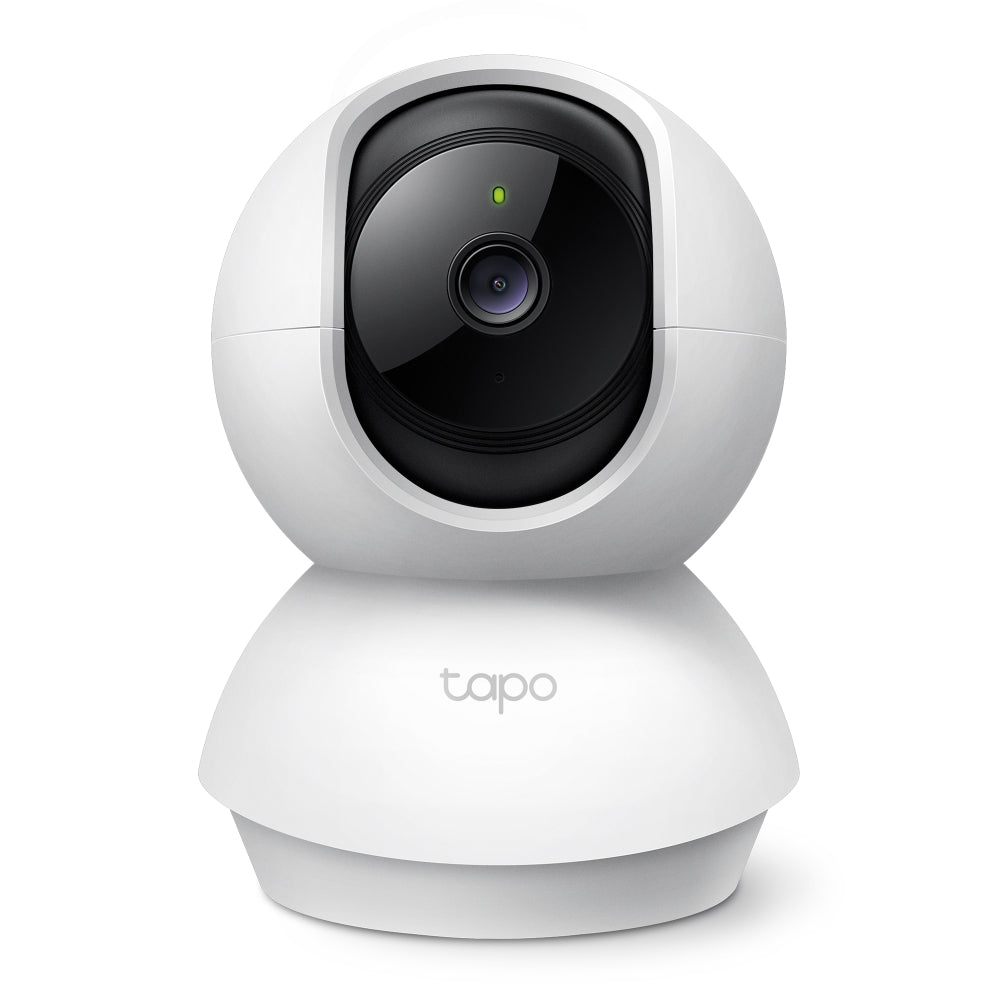


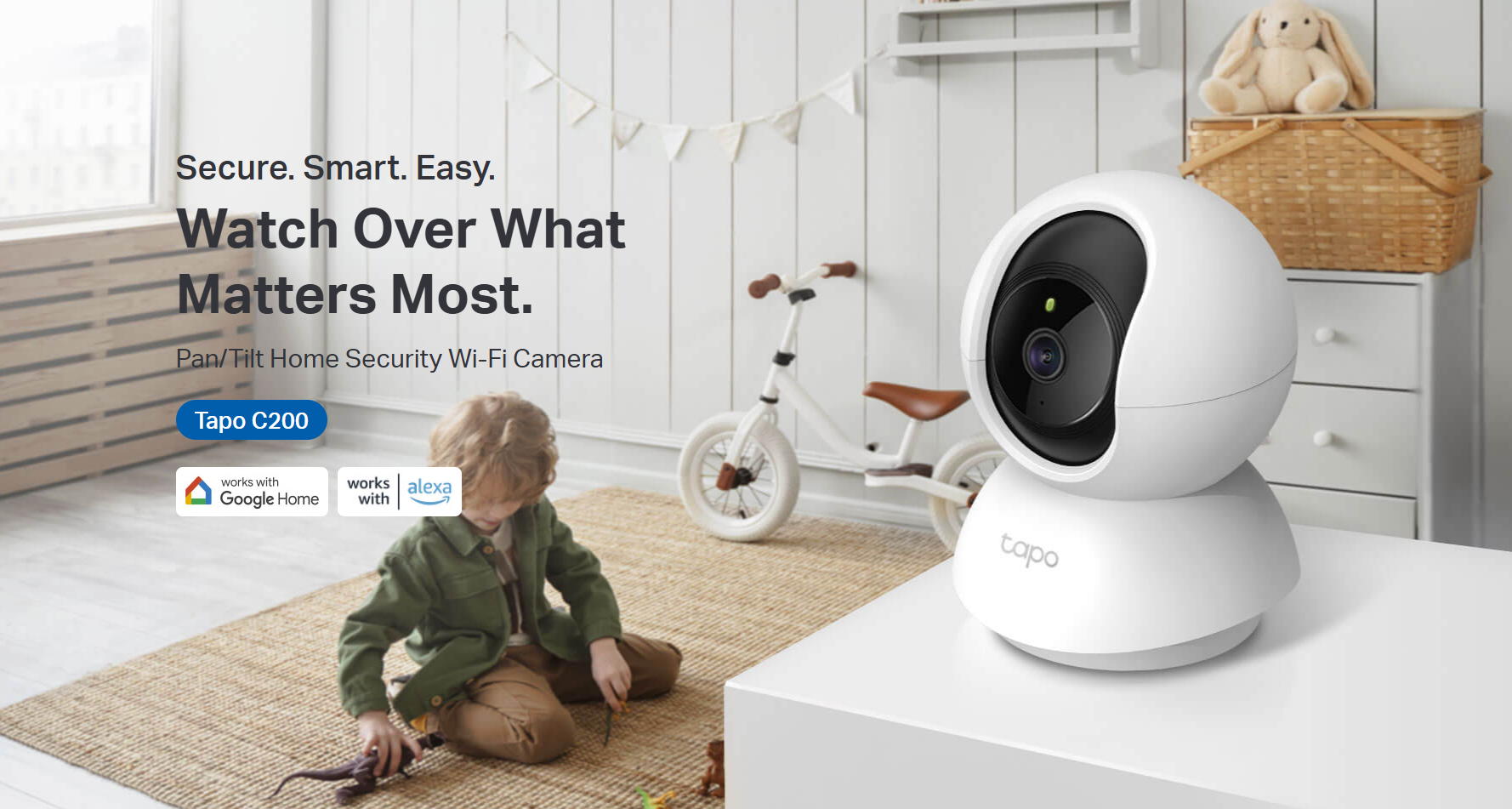
Tapo C200 | Pan/Tilt Home Security Wi-Fi Camera, 1080p

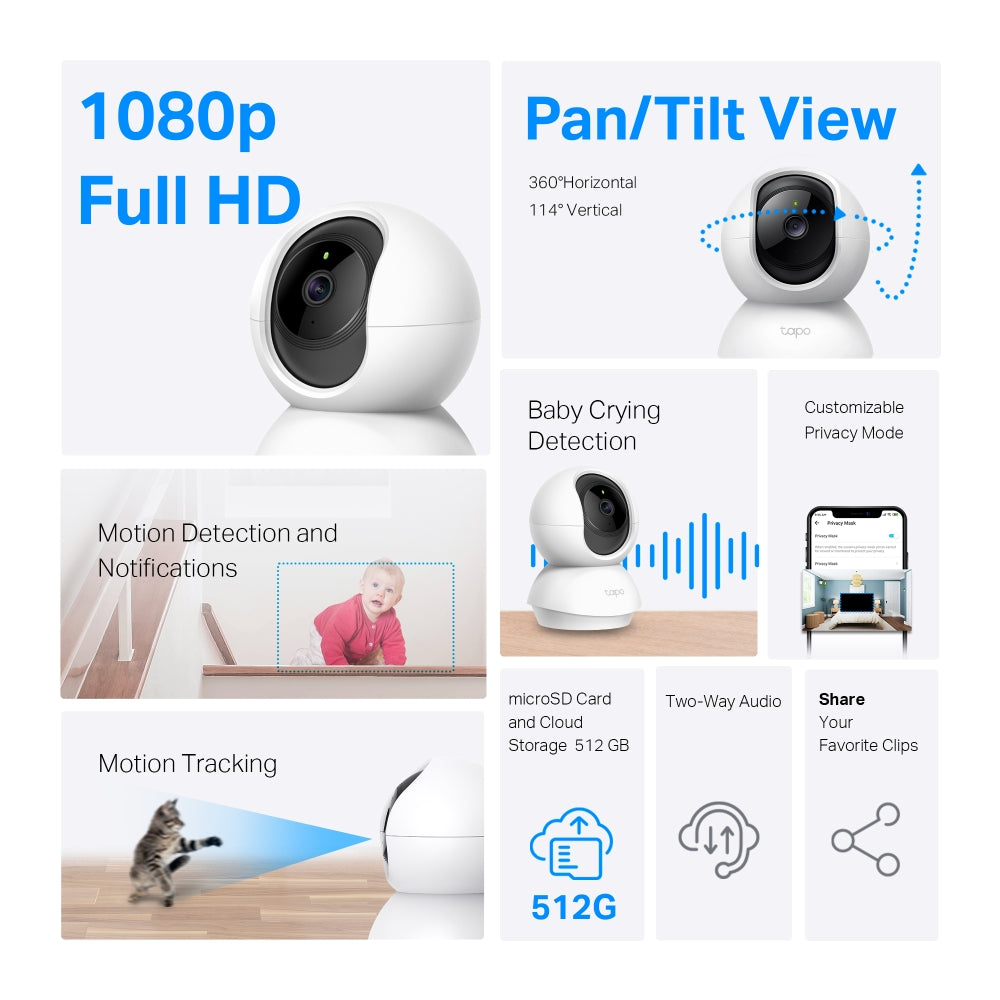
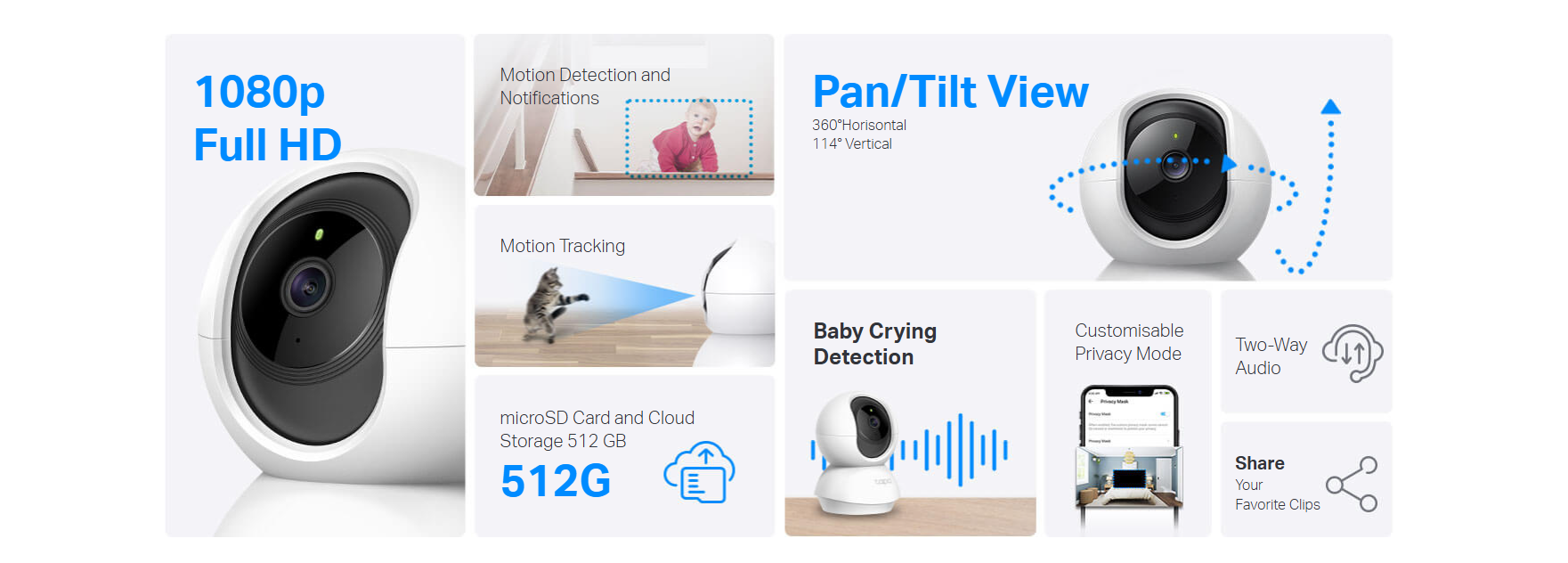
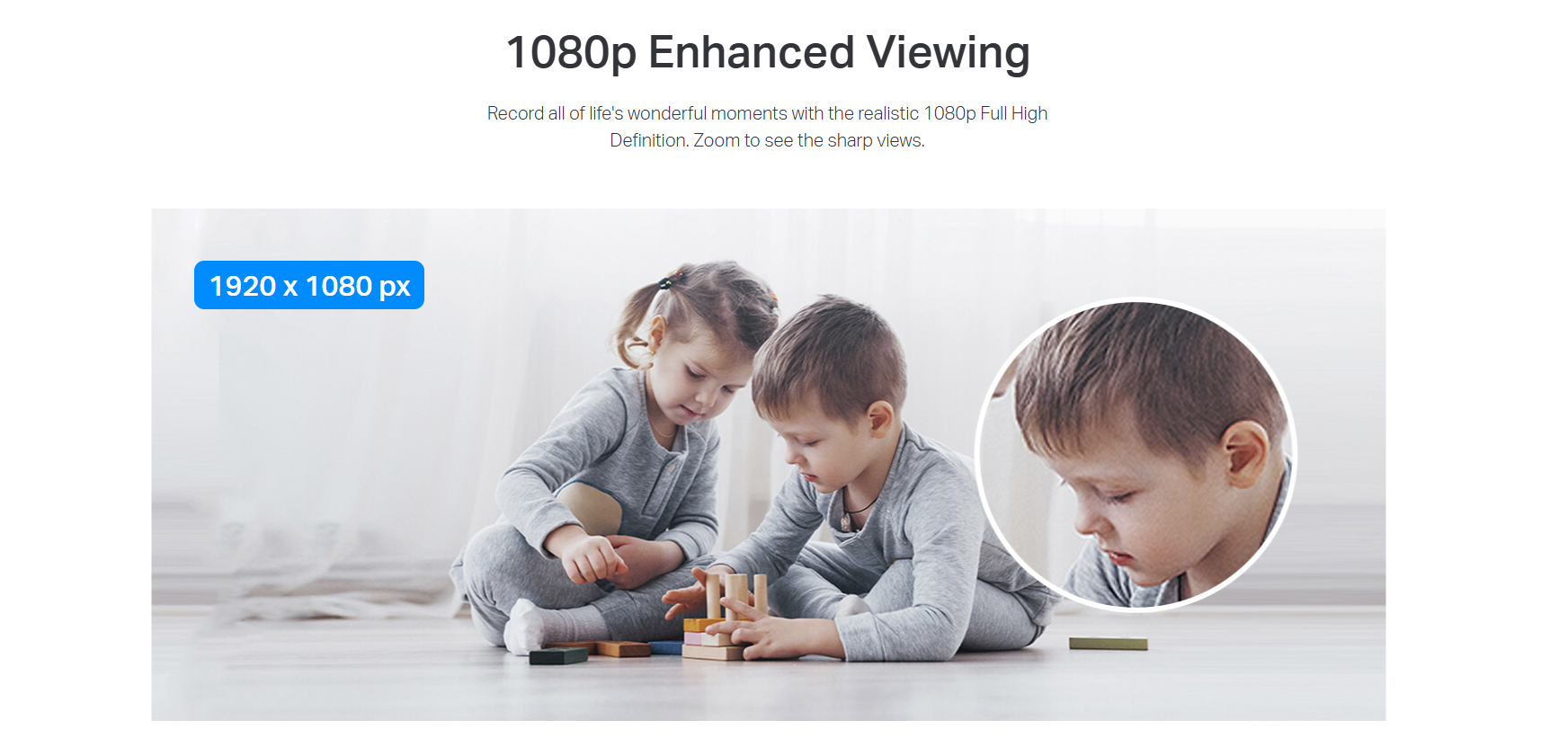
- High-Definition Video: Records every image in crystal-clear 1080p definition
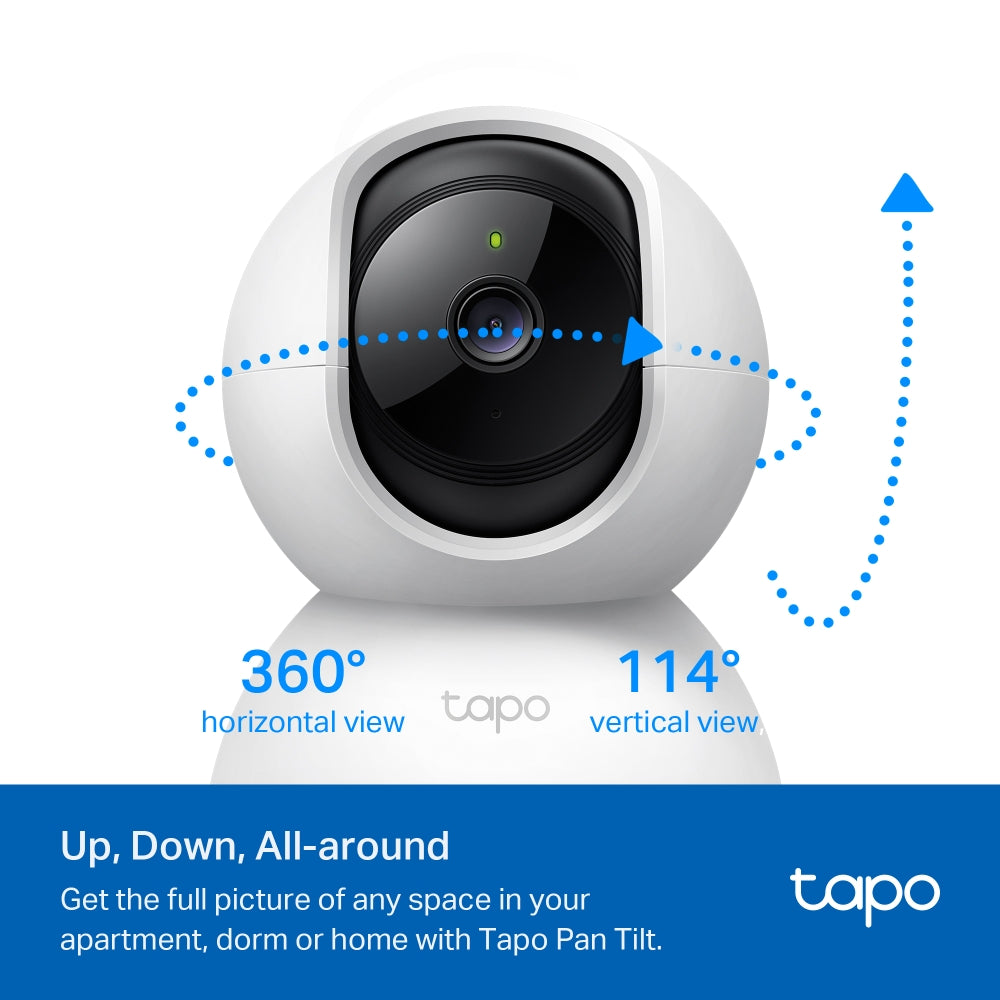
- Pan and Tilt: 360º horizontal and 114º vertical range
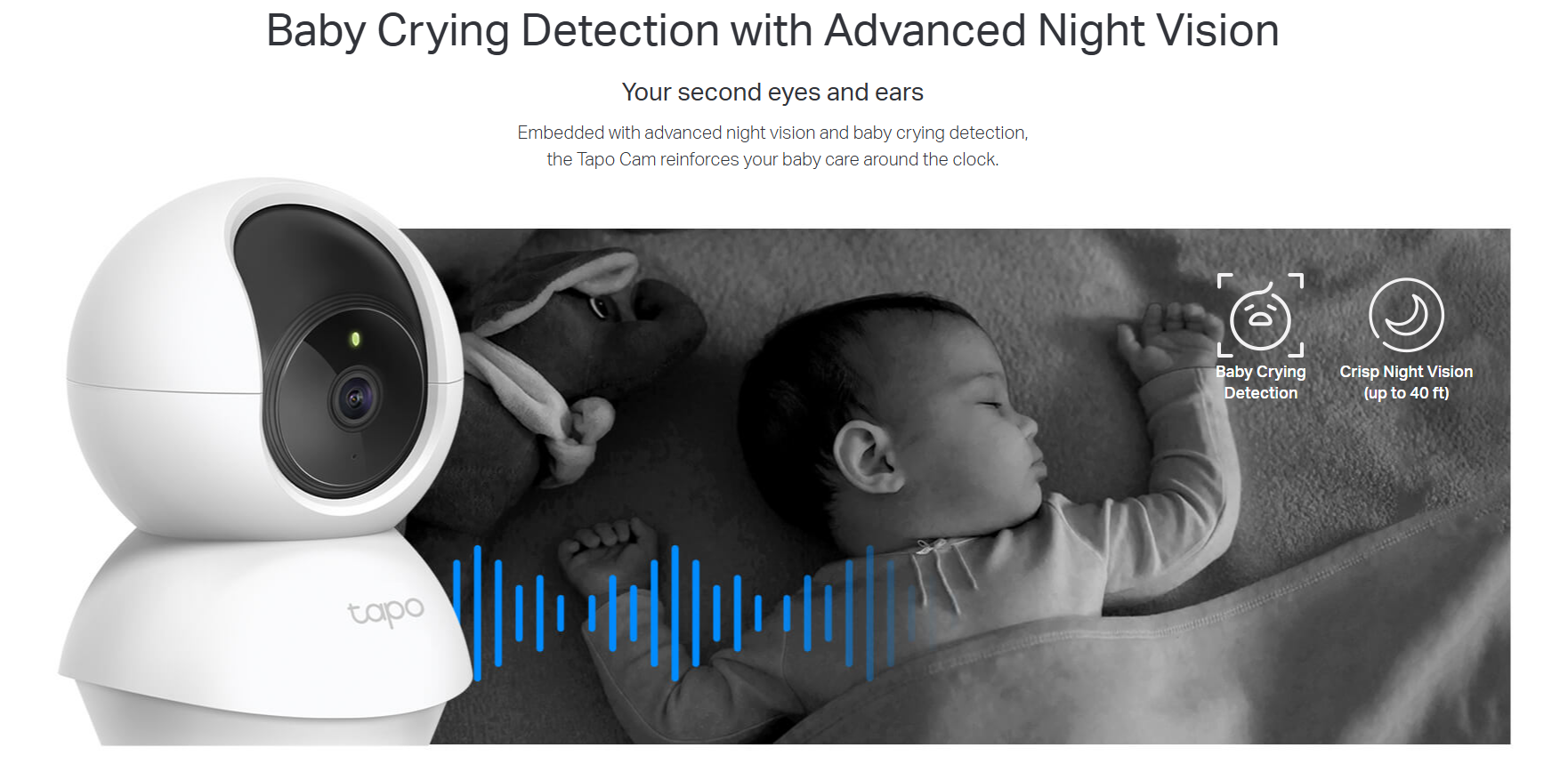
- Advanced Night Vision: Provides a visual distance of up to 30 ft
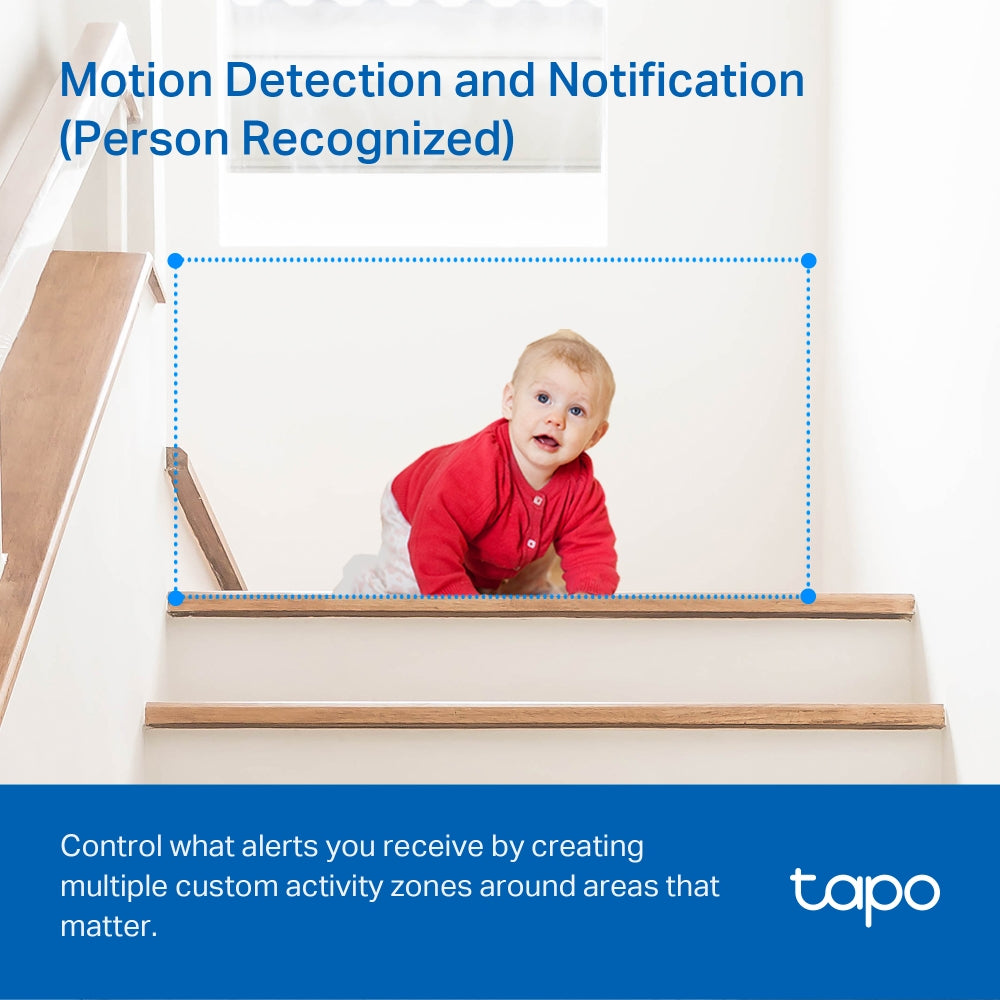
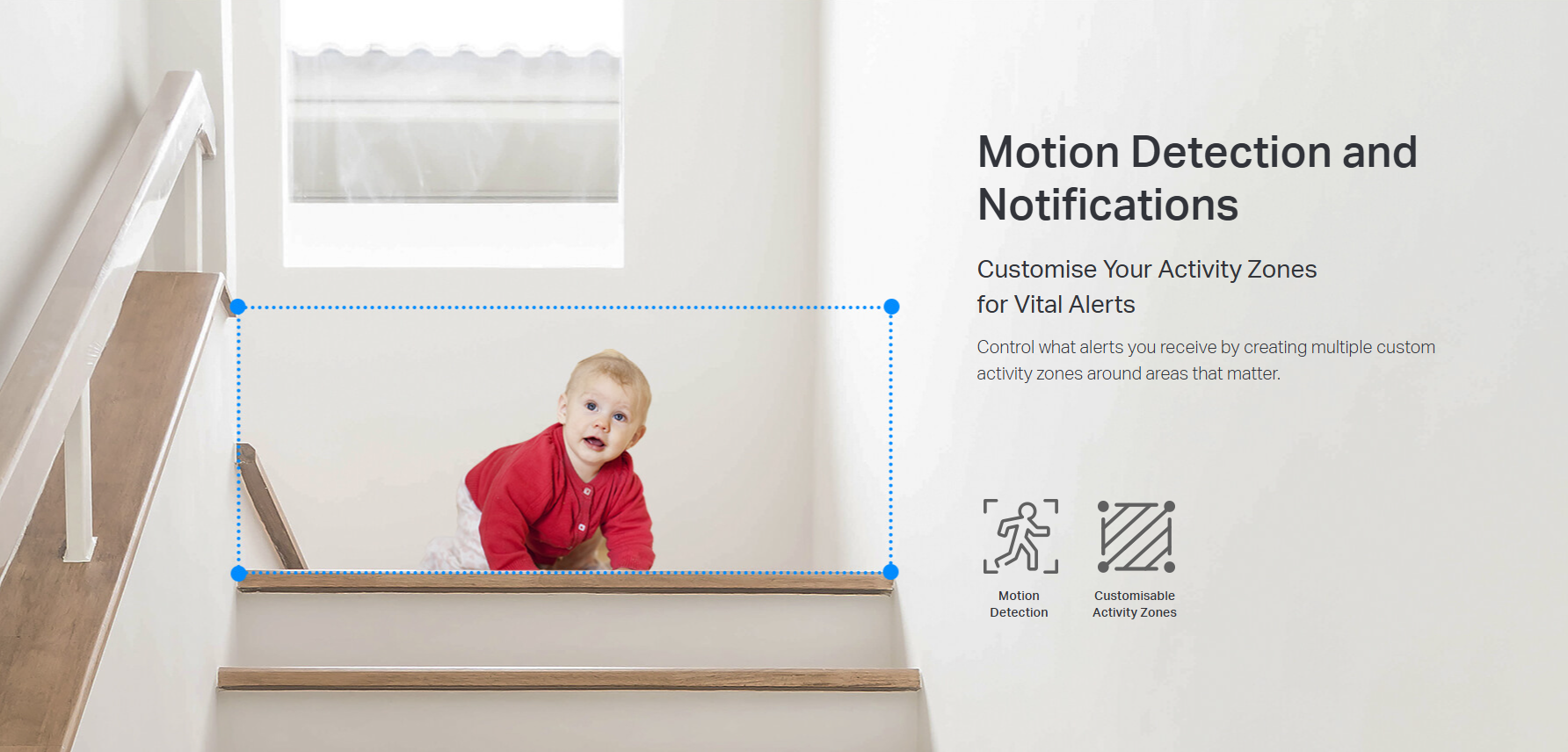
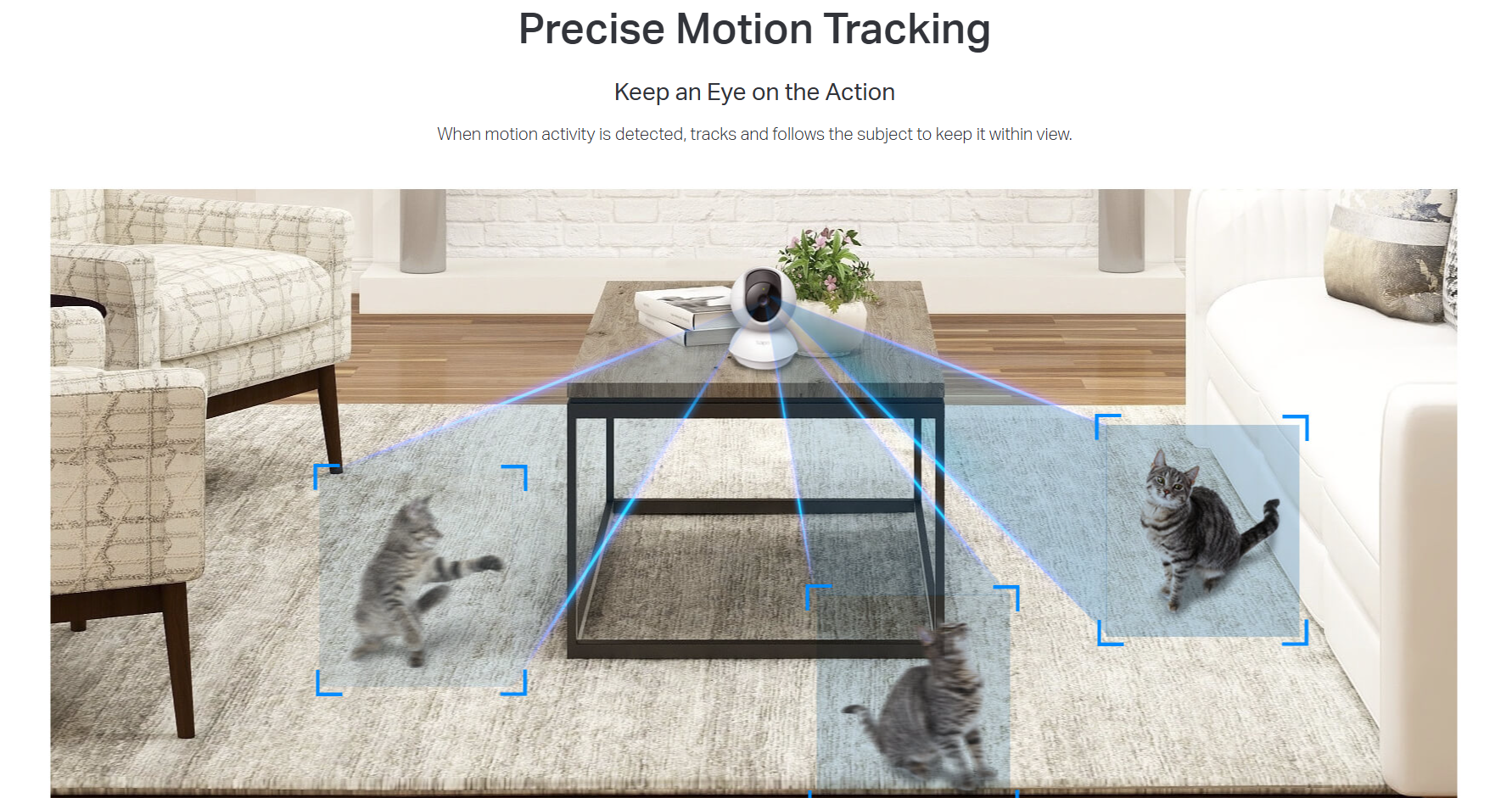
- Motion Detection and Notifications: Notifies you when the camera detects movement
- Sound and Light Alarm: Trigger light and sound effects to frighten away unwanted visitors.
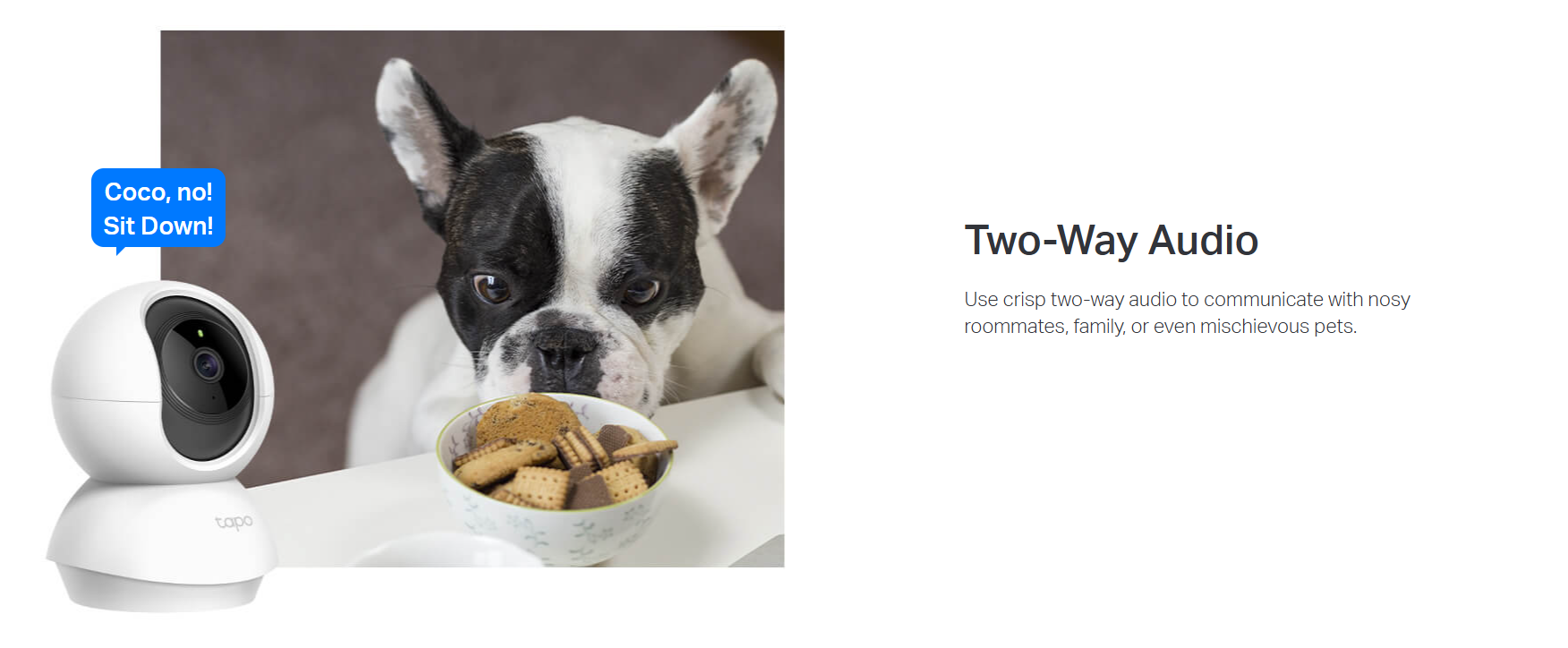
- Two-Way Audio: Enables communication through a built-in microphone and speaker
- Safe Storage: Locally stores up to 128 GB on a microSD card, equal to 384 hours (16 days) of footage. (Based on laboratory conditions)
- Voice Control: Free Up Your Hands with Voice Control: Works with the Google Assistant and Amazon Alexa. (Google Assistant and Amazon Alexa are not available in all languages and countries)

FAQ
Use this text to share information about your product or shipping policies.
How do I use Privacy Mode on my Tapo camera?
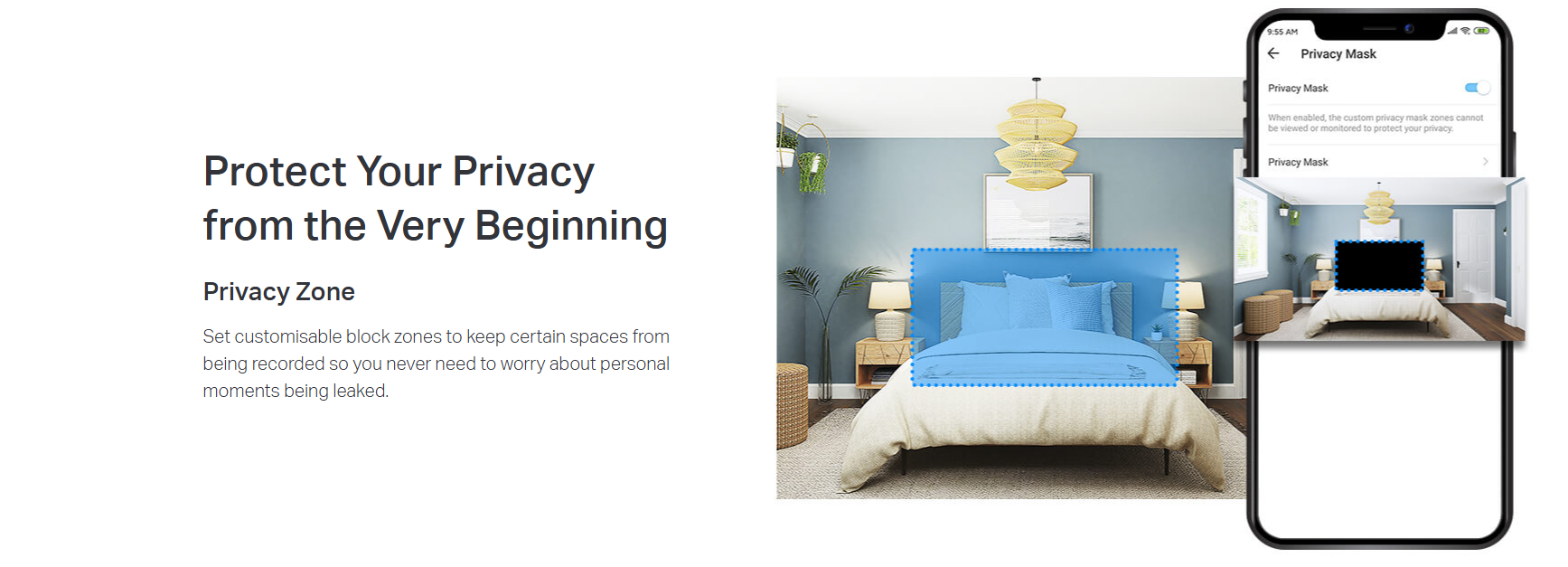
You can enable or disable Privacy Mode in several ways:
Live View: Tap the Privacy Mode icon directly on the camera’s live view page
Device Settings: Go to Device Settings in the Tapo app and toggle Privacy Mode on or off
Physical Privacy Button (selected models): Some models, such as Tapo C125 and Tapo C225, support a physical privacy button that covers or hides the lens automatically
Once enabled, the camera will stop monitoring and recording until Privacy Mode is turned off.
How do I download videos from my Tapo Camera?
There are three ways to download footage from your Tapo Camera, all accessible through the Tapo app.
1. Manual Recording: During live view or playback, tap the record button to capture footage. Clips are automatically saved to Playback & Download in the Tapo app and your phone's gallery. From there, you can share or export them anytime.
2. Cloud Video (Tapo Care): Go to Tapo app > Playback & Download > Cloud Video, select the clip you want, and tap the Download icon. Note that cloud videos expire based on your Tapo Care plan — download important clips before they expire.
3. SD Card Recordings: In the Tapo app, go to Playback & Download > Playback > SD Card Videos. You can either download individual detection events, or use the Clip & Download feature to trim and save a specific segment (1–10 minutes) from continuous or motion-detection footage.
Downloaded videos are saved within the Tapo app for offline viewing. To export to your phone's gallery, go to Playback & Download > Download, select the clip, and save it to your phone's album.
How to add new cameras to my Tapo Care plan?
You can add a new camera to your Tapo Care plan directly in the Tapo app.
Simply go to your Tapo Care subscription, select the plan you want to manage, and choose the camera you wish to add. Follow the in-app instructions to complete the assignment.
Please note that only cameras linked to your account can be added, and the number of devices depends on your subscription plan.