


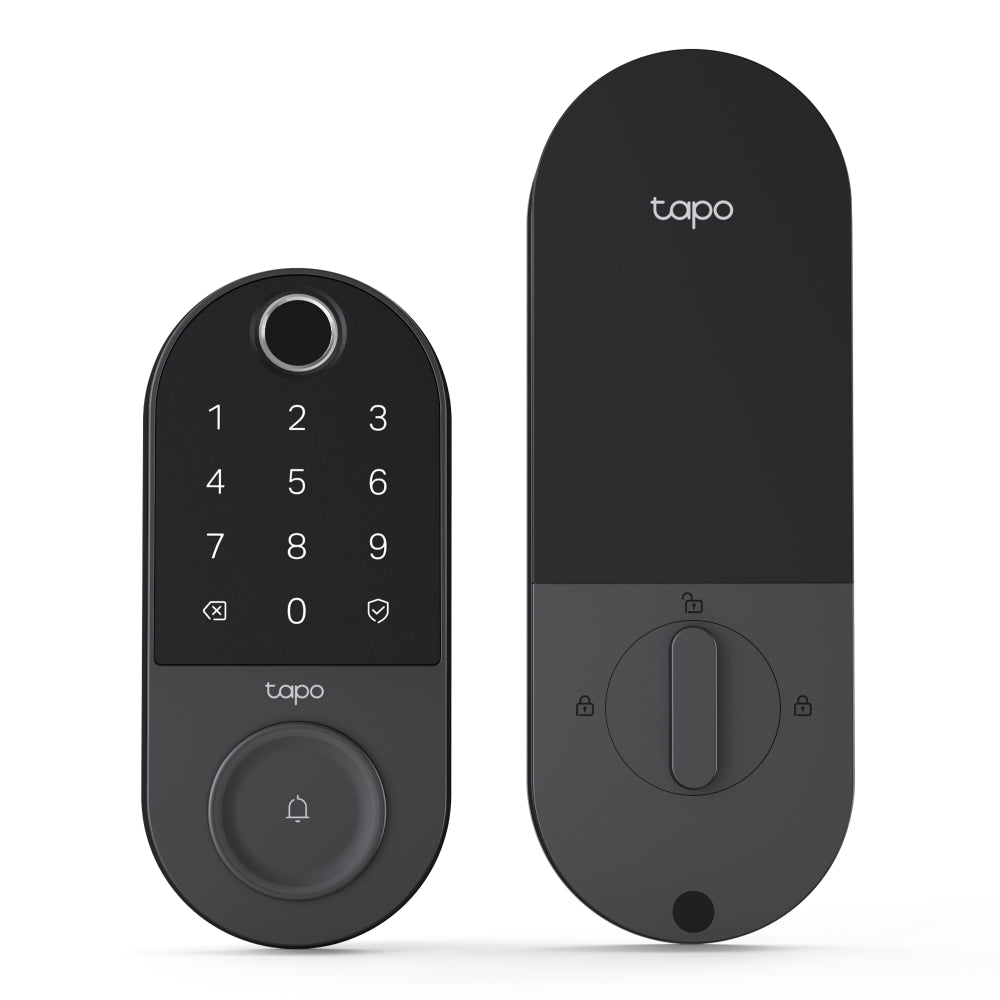
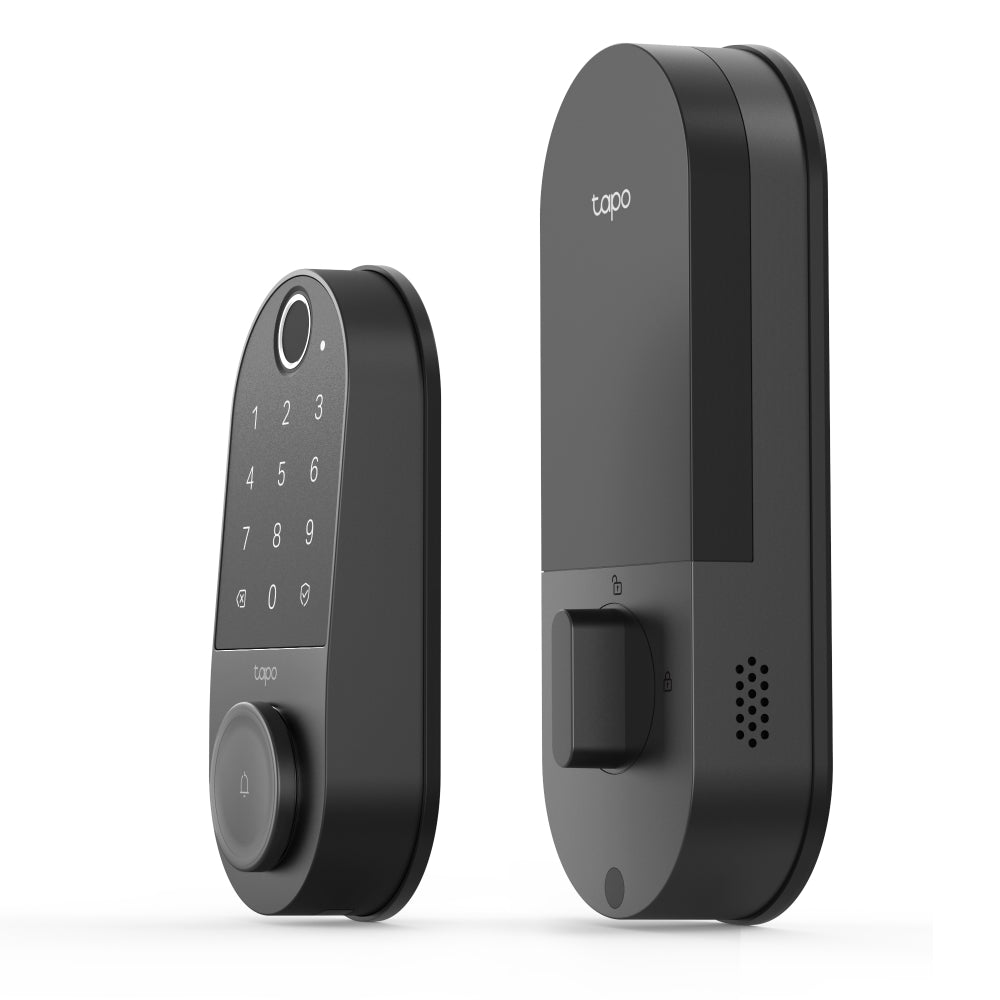

Tapo DL110 | Smart Wi-Fi Door Lock, Fingerprint Recognition, Multiple Unlock Methods
Secure smart lock with rapid fingerprint access, 1-year battery durability, smart home integration, and IP65 weatherproof protection.
HIGHLIGHTS
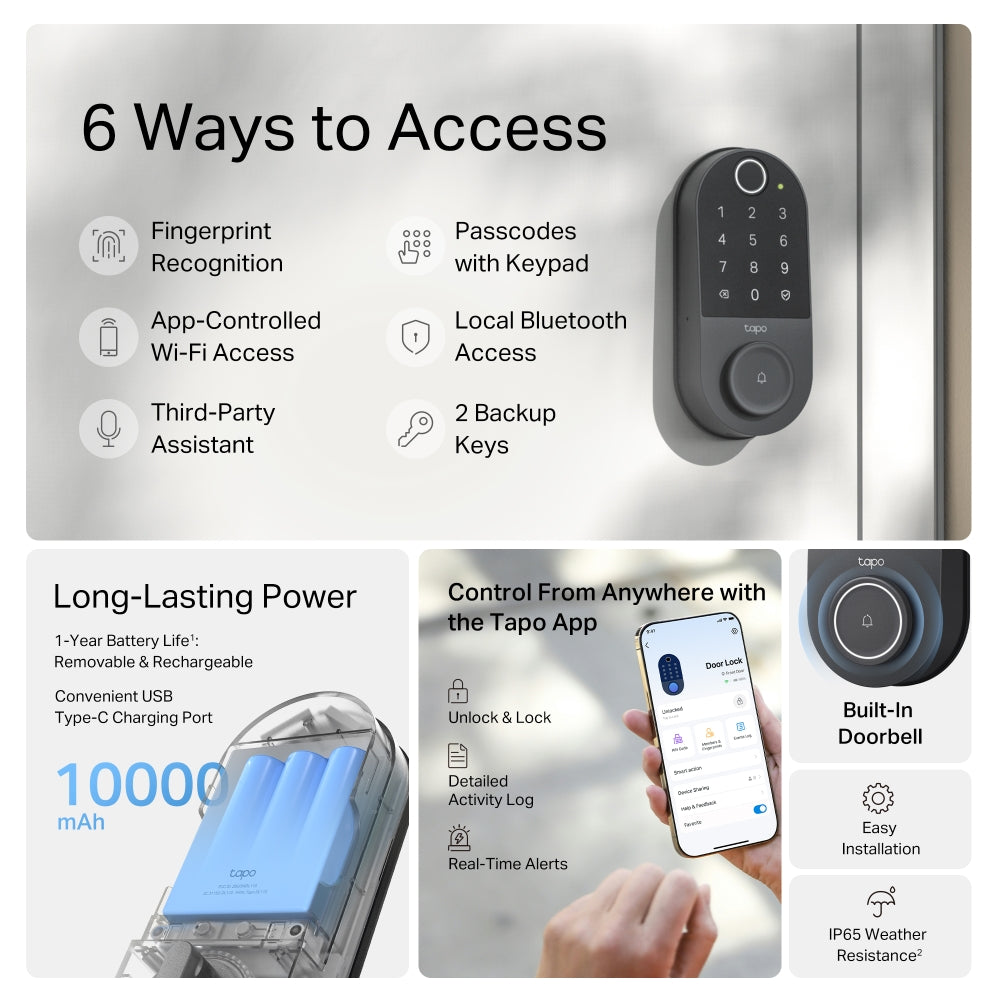
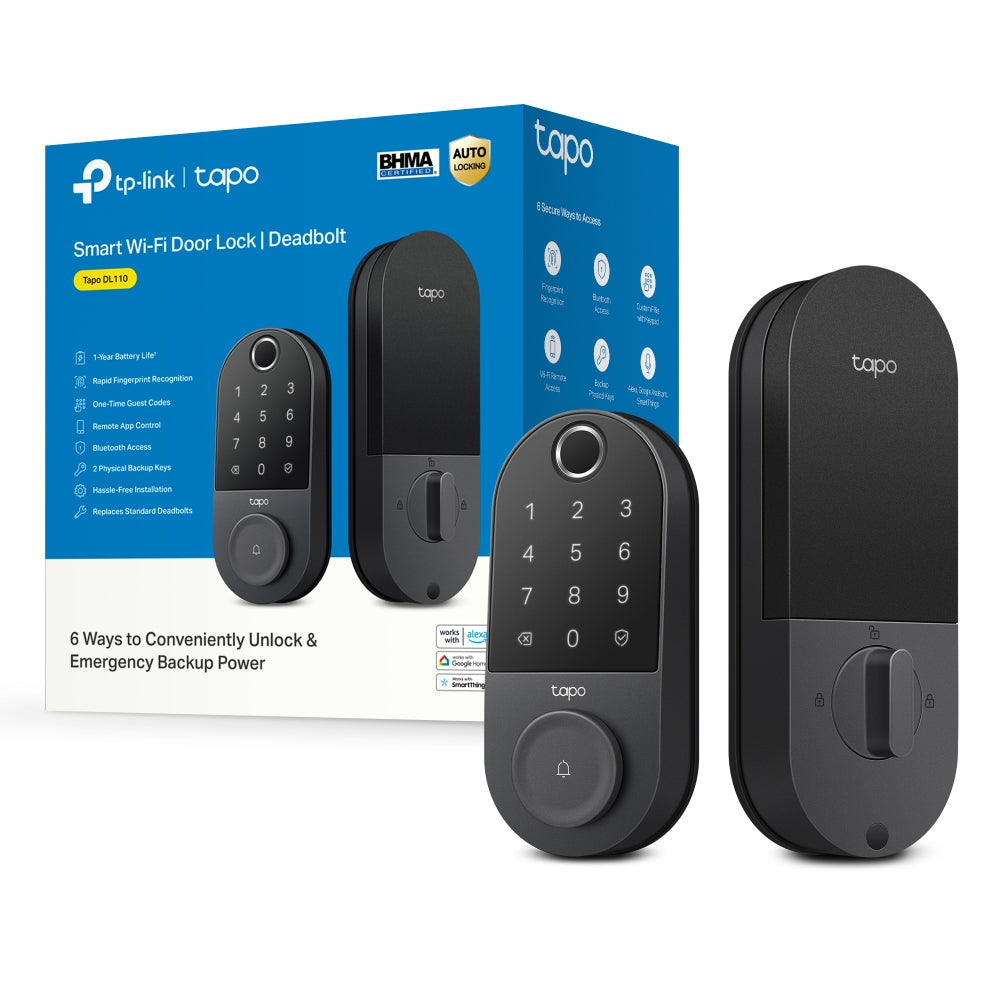
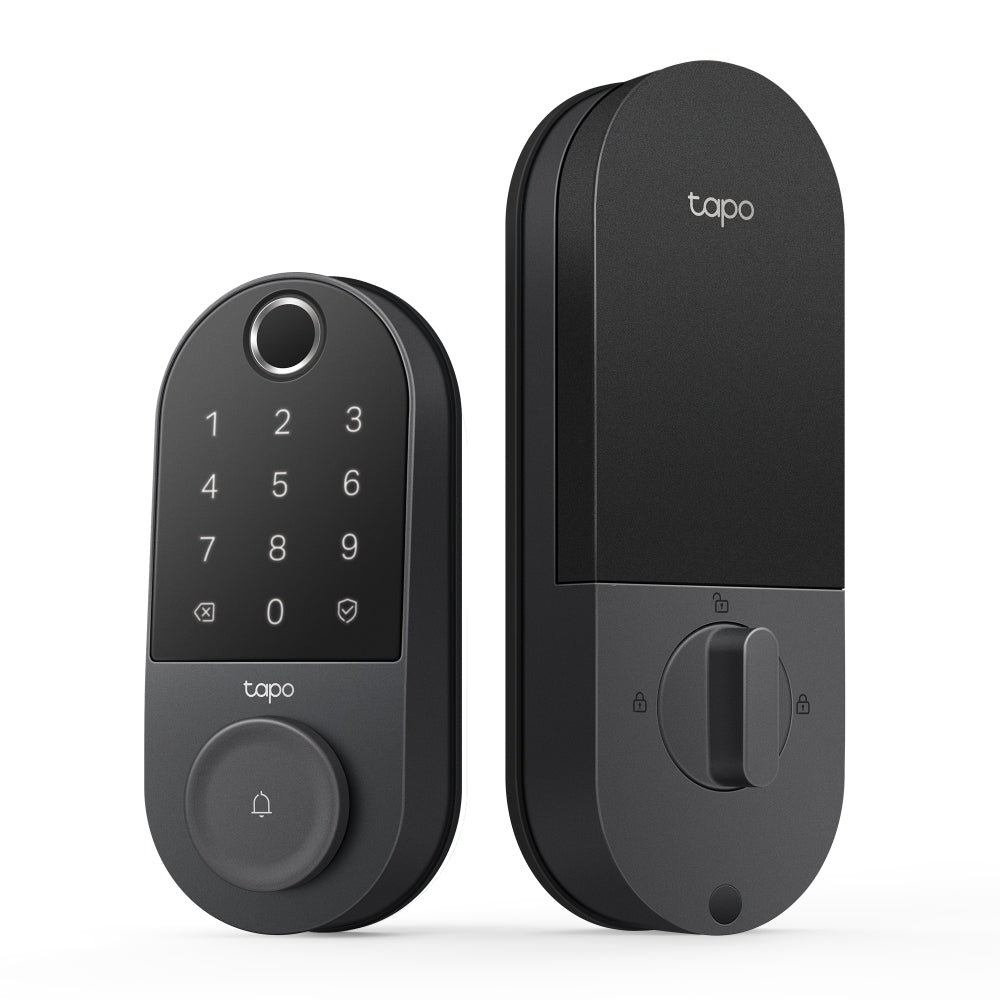
- 6 Ways to Securely Access: Unlock with the Tapo app, by fingerprint, Bluetooth, keypad, Smart Assistant, or with included backup keys.
- Rapid Fingerprint Recognition: Recognises and unlocks in seconds and stores up to 100 fingerprints.
- 1-Year Battery Life: Operates for one year before requiring maintenance or recharging.
- USB-C Charging: Built-in USB-C port for easy, convenient recharging.
- Smart Home Integration: Works with Alexa, Google Home, and Samsung SmartThings for convenient voice control.
- Peek-Proof Passcodes: Enter decoy digits before and after your passcode for added security.
- Manage Resident & Guest Access: Manage resident and guest access with one-time or scheduled codes.
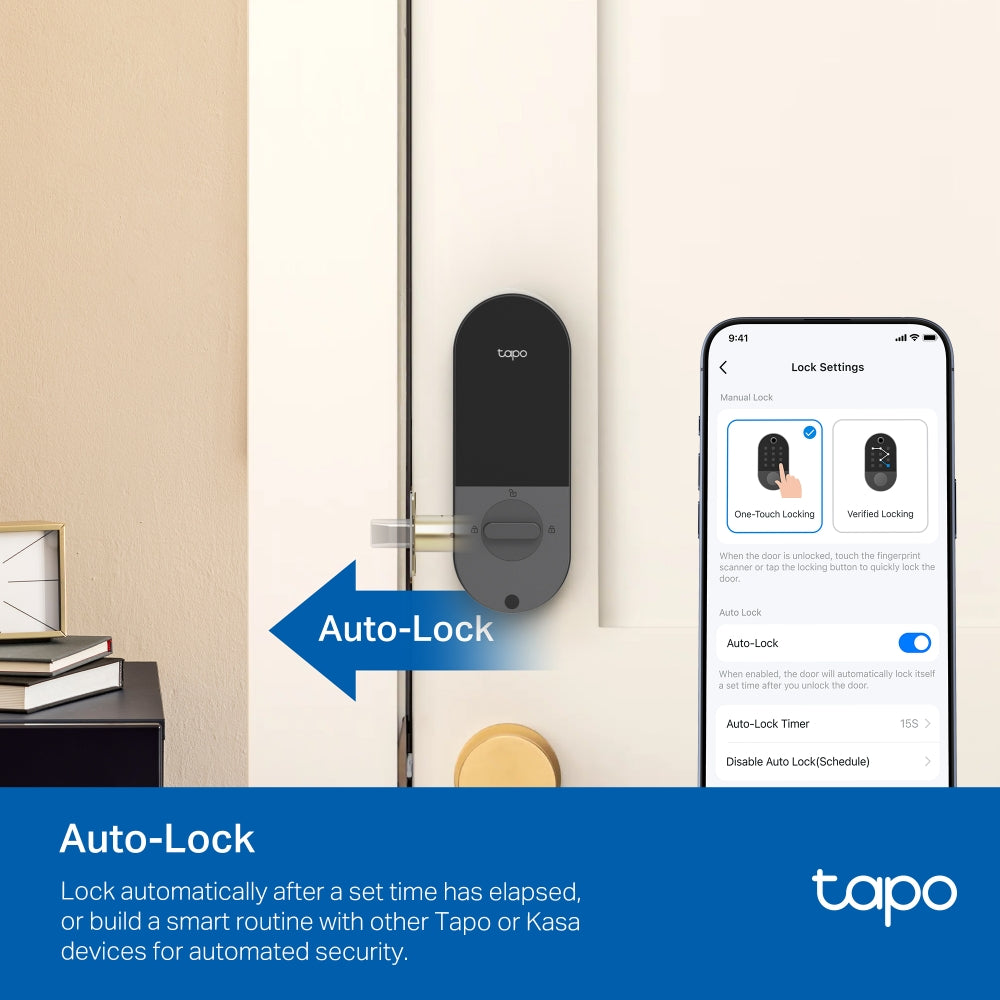
- Auto Lockout & Real-Time Alerts: Automatic lockouts after failed attempts and real-time alerts for suspicious activity keep your home secure.
- Detailed Activity Log: Track every lock and unlock for ultimate security awareness.
- Built-in Doorbell: A built-in doorbell complements the door lock for a more secure entryway.
- Quick & Easy Installation: Tapo DL110 boasts a hassle-free setup with all mounting tools included.
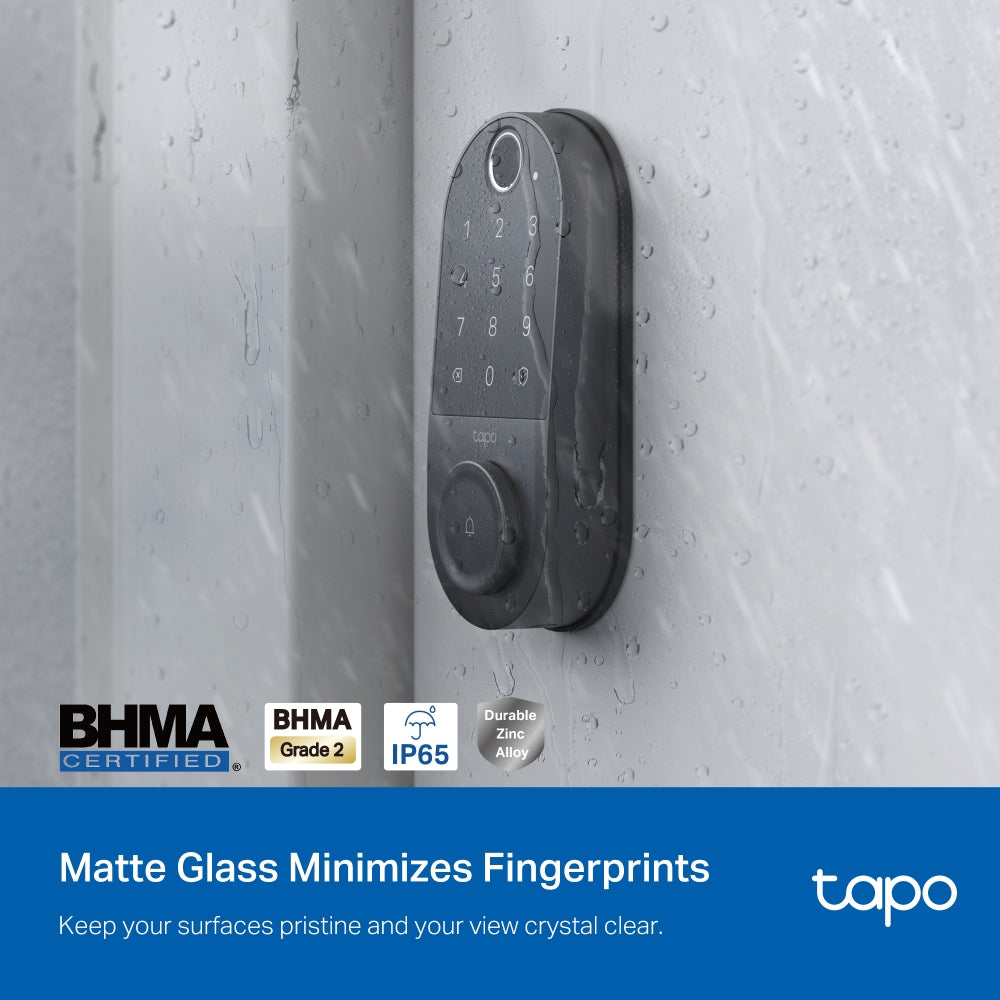
- Built to Brave the Elements: IP65-rated for year-round protection against dust and extreme weather.


1.Battery life is based on Tapo laboratory tests. Actual battery life may vary due to device settings, usage, router specifications, and environmental factors.
2.External only.
3.Speed is based on Tapo laboratory tests. Actual speed may vary due to device settings, usage, router specifications, and environmental factors.
Trusted by Leading Publishers

FAQ
How do I install a Tapo smart door lock?
Before installation, ensure your door is compatible with the Tapo smart lock, including checking the door type, thickness, and existing hole dimensions. Start by removing the original lock and installing the latch, making sure it is oriented correctly and adjusted to the proper backset. Then, attach the exterior assembly, secure the mounting plate, and install the interior unit while properly connecting the cables. Insert the batteries and complete the lock assembly. Finally, install and adjust the strike plate on the door frame to ensure the lock operates smoothly. For best results, follow the steps in order, use the provided screws, and avoid overtightening especially when using power tools to maintain stability and safety.
How do I set up a Tapo smart door lock in the Tapo app?
To set up a Tapo smart door lock, first download and log in to the Tapo app. Then put the lock into setup mode by pressing the reset button until the LED flashes. Add the device in the app and connect to it via Bluetooth, then connect it to your Wi-Fi if using Remote Mode.
After pairing, name the device, calibrate the lock, and set a passcode (and optionally register a fingerprint). You can choose between Local Mode (Bluetooth only) or Remote Mode (Wi-Fi control) depending on your needs.
How do I manage passwords on a Tapo smart door lock?
Tapo smart door locks allow you to create and manage multiple passwords for different users and scenarios. You can assign unique codes for family members or visitors and set specific time periods for when each password is valid.
This flexibility helps control access more securely, allowing you to customise permissions based on usage needs (e.g., temporary access or scheduled entry).
Why can’t I connect my Tapo Smart Door Lock to Wi-Fi?
Connection issues are usually caused by network problems or incorrect settings. Make sure your Wi-Fi network is working properly, and check that Wi-Fi is enabled on the lock (either via a physical button or in the app settings).
Also, ensure you haven’t set a Wi-Fi schedule that turns off the connection, as this will prevent the lock from staying connected during those periods.