



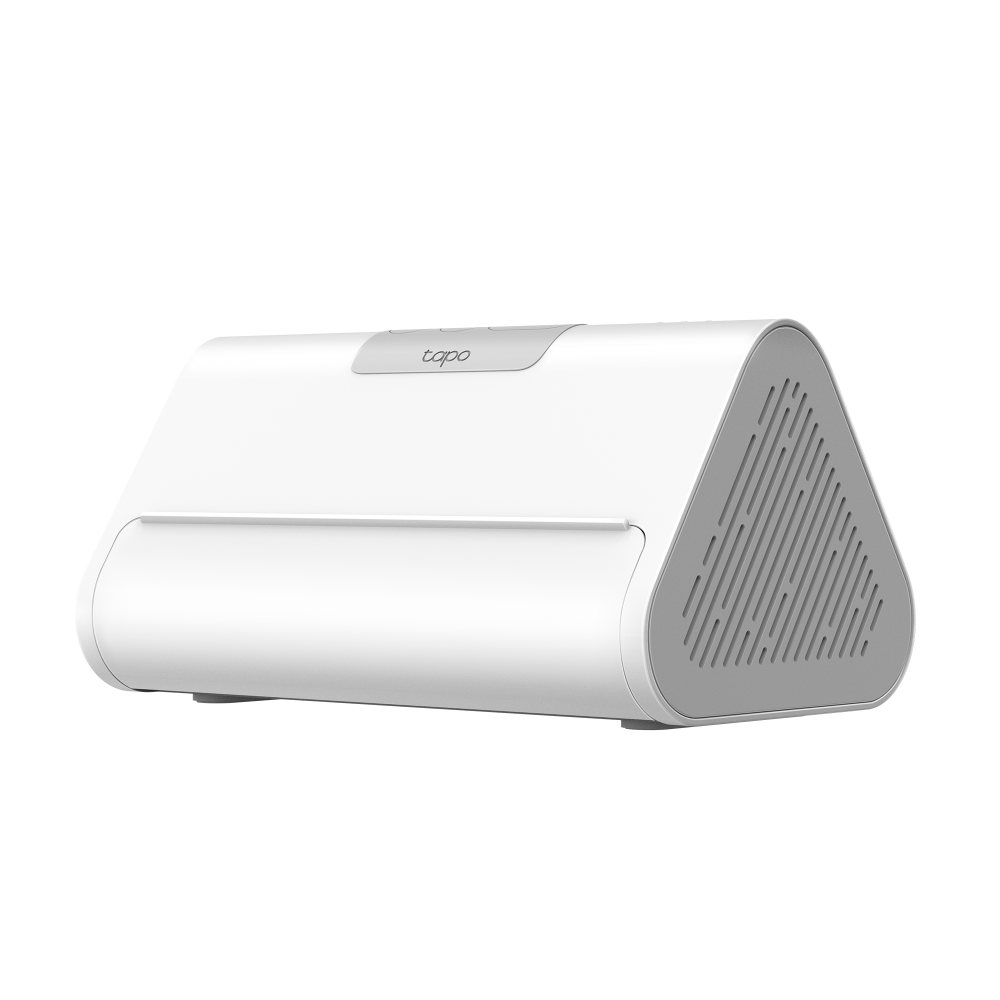


Tapo H500 | Smart Central Hub, Facial Recognition, Local Storage
CentralHub™ with expandable local storage and no monthly fees, featuring enhanced AI detection for face/pet/vehicle recognition and supporting wireless connectivity for multiple cameras/sensors.
HIGHLIGHTS
- Expandable Local Storage, No Monthly Fees: Delivers massive, secure, and free local storage with a built-in 16GB eMMC, with expansion supported via 2.5" SATA HDD/SSD.
- Enhanced Al Detection: Provide advanced face recognition with high precision, along with versatile AI features like person, pet, and vehicle detection.
- Smart Home Ecosystem Center: Capable of connecting up to 16 Tapo cameras and 64 sensors to build your smart home ecosystem.
- Effortless Cross-Camera Overview via APP: Track individual movements across cameras and form a face database, while supporting retrieval of marked events on Tapo App.
- Easy to Use without Wiring: Connect your smart devices to the HomeBase via Wi-Fi, with no complex wiring needed. Networking via Ethernet is also supported for your choice.
Click here to view Tapo H500 Compatibility List and Adaptation Plan


*HDD/SSD drive purchased separately. Actual storage capacity depends on the size of the HDD/SSD drive used.
Trusted by Leading Publishers


FAQ
Use this text to share information about your product or shipping policies.
How can I cast my TP-Link camera or doorbell to a TV using the Tapo CentralHub?
You can stream your camera or doorbell to a TV by connecting the Tapo H500 CentralHub via HDMI or enabling the Screen Mirror feature in the Tapo app.
Step 1: Connect the Hub to your TV using the included HDMI cable.
Step 2: Open the Tapo app and select your CentralHub.
Step 3: Tap Screen Mirror and create a display layout.
Step 4: Choose Camera Live View and select the camera you want to stream. ( Up to 4 cameras in the same screen.)
Why can’t my TP-Link Tapo devices work with Alexa?
If your device isn’t working with Alexa, try the following:
Connection issues: Update both apps, relink your account, or enable the skill again in the Tapo/Kasa app
Device not found: Ask Alexa to “discover devices” or disable and re-enable the skill
Device not responding: Check if it works in the Tapo app and ensure you’re using the primary user account.
Streaming issues (cameras): Confirm remote access works on the Tapo app and that your camera supports Alexa viewing
If the issue persists, try resetting the device or contact support with the time of the issue.
For detailed steps with images, please refer to: https://www.tp-link.com/au/support/faq/2228/
How do I enable AI Empowerment with the CentralHub?
Make sure your camera and CentralHub are on the same Wi-Fi network, then set the camera’s storage to the hub.
Once added via AI Empowerment in the Tapo app, the camera will benefit from the hub’s enhanced AI capabilities.