


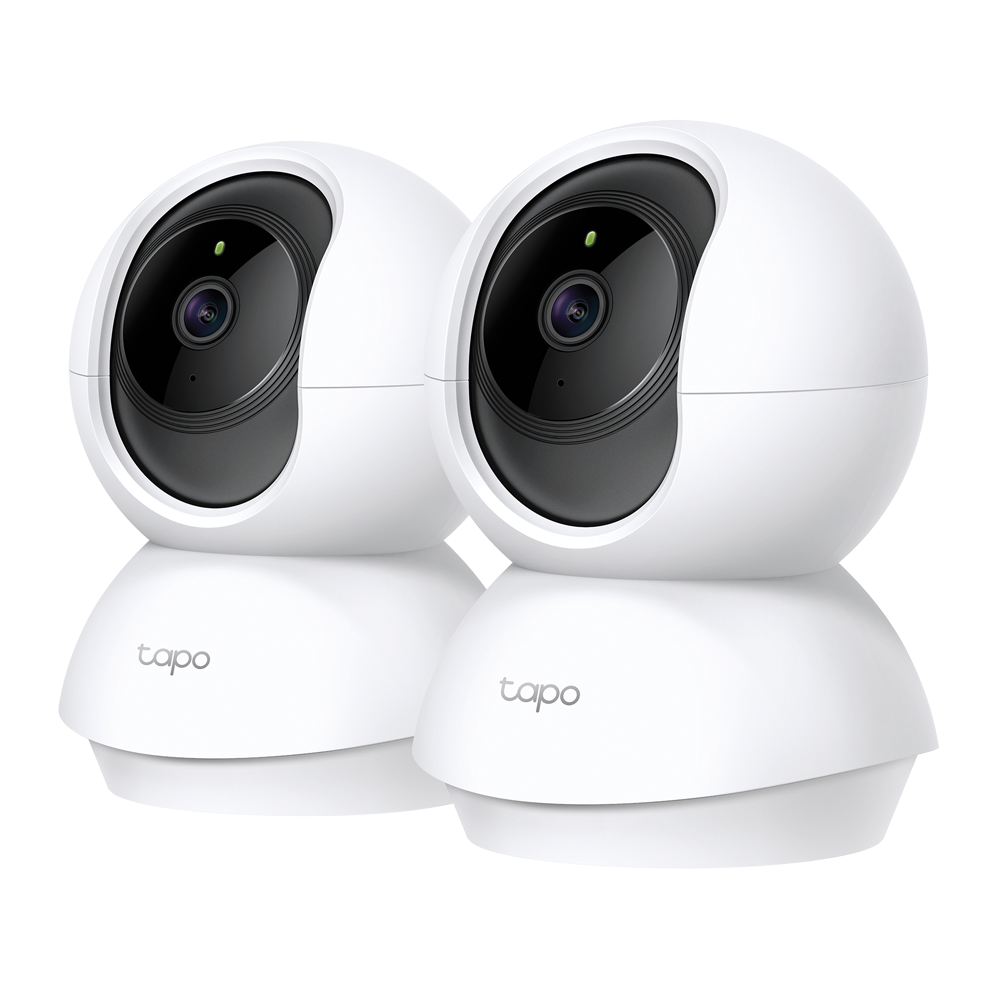

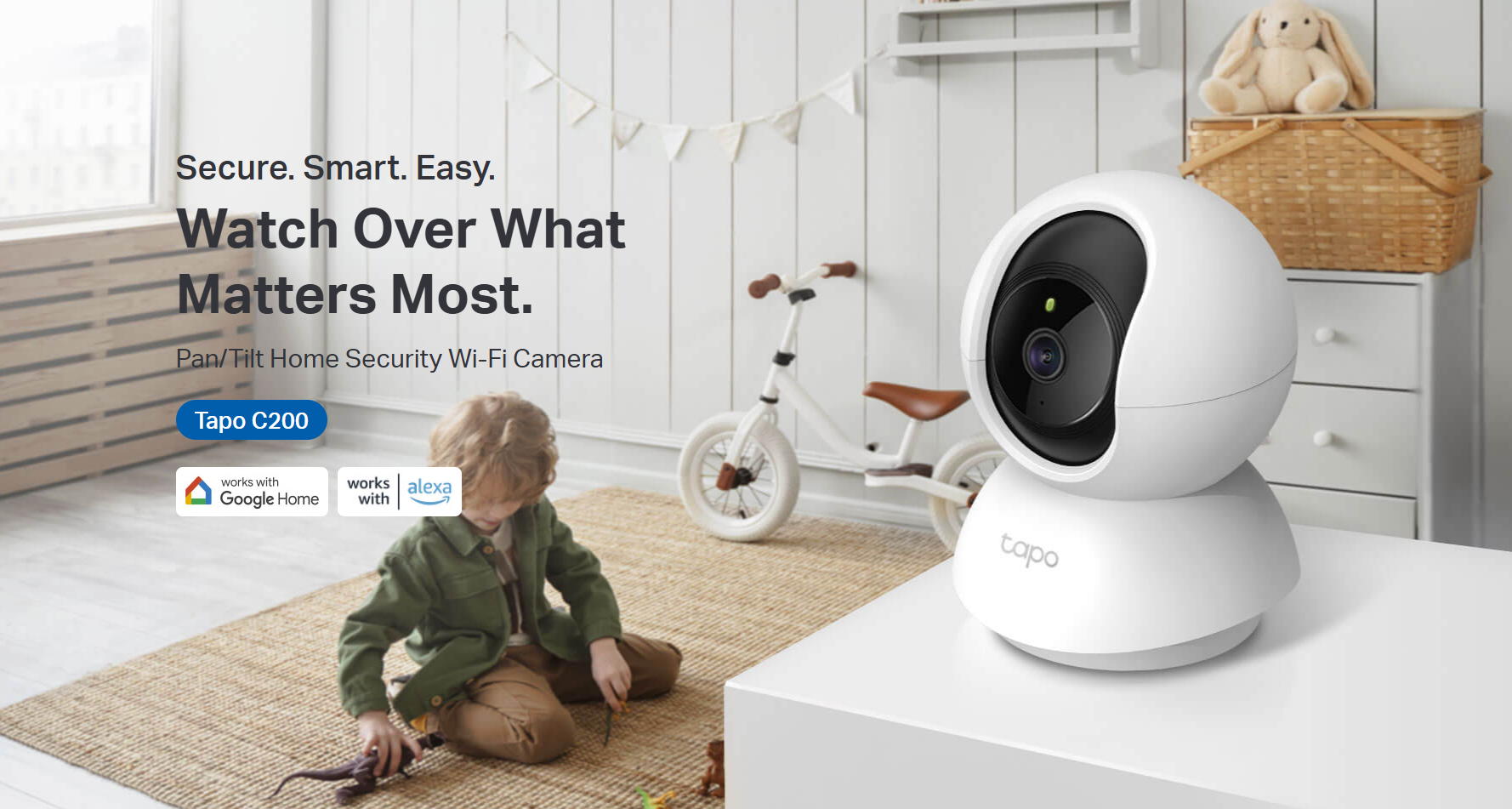
Tapo C200P2 | Pan/Tilt Home Security Wi-Fi Camera
1080P wireless security camera 2-pack with 360° pan tilt, motion detection alerts, night vision, privacy mode, and voice control for comprehensive home monitoring.
HIGHLIGHTS
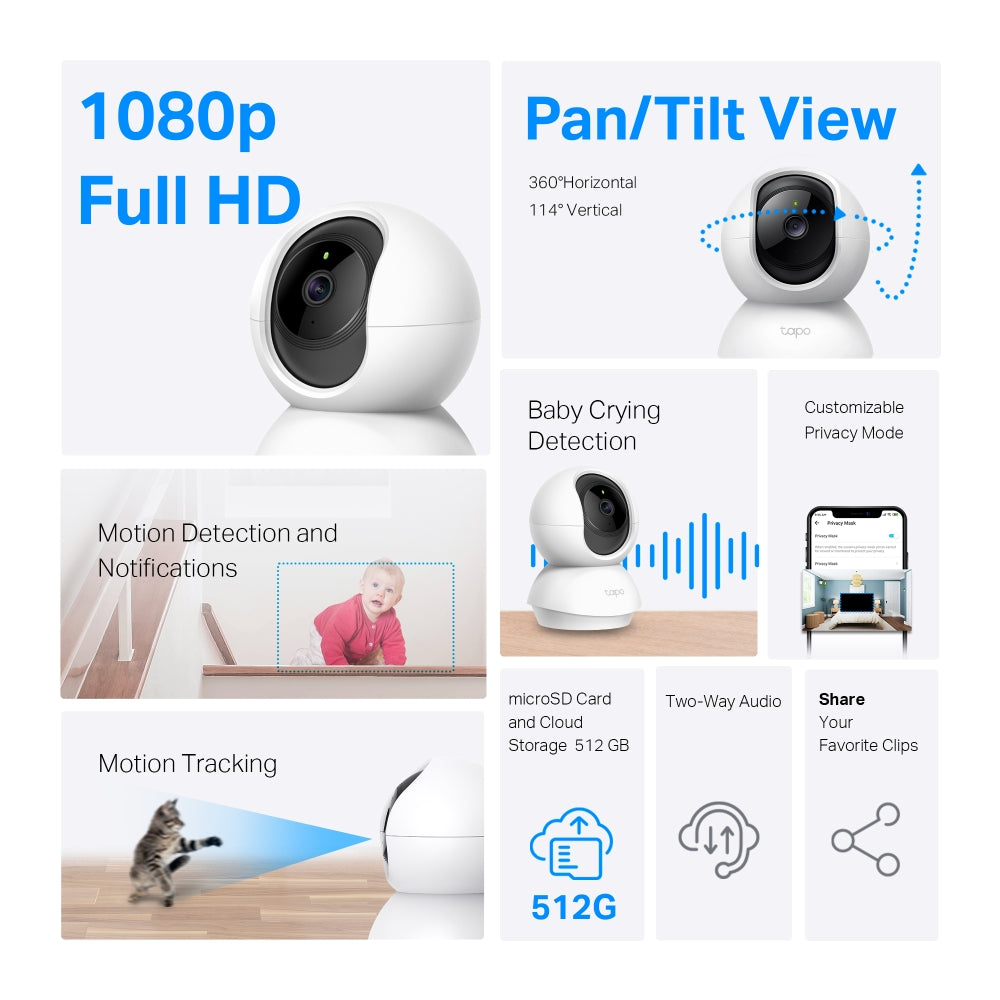
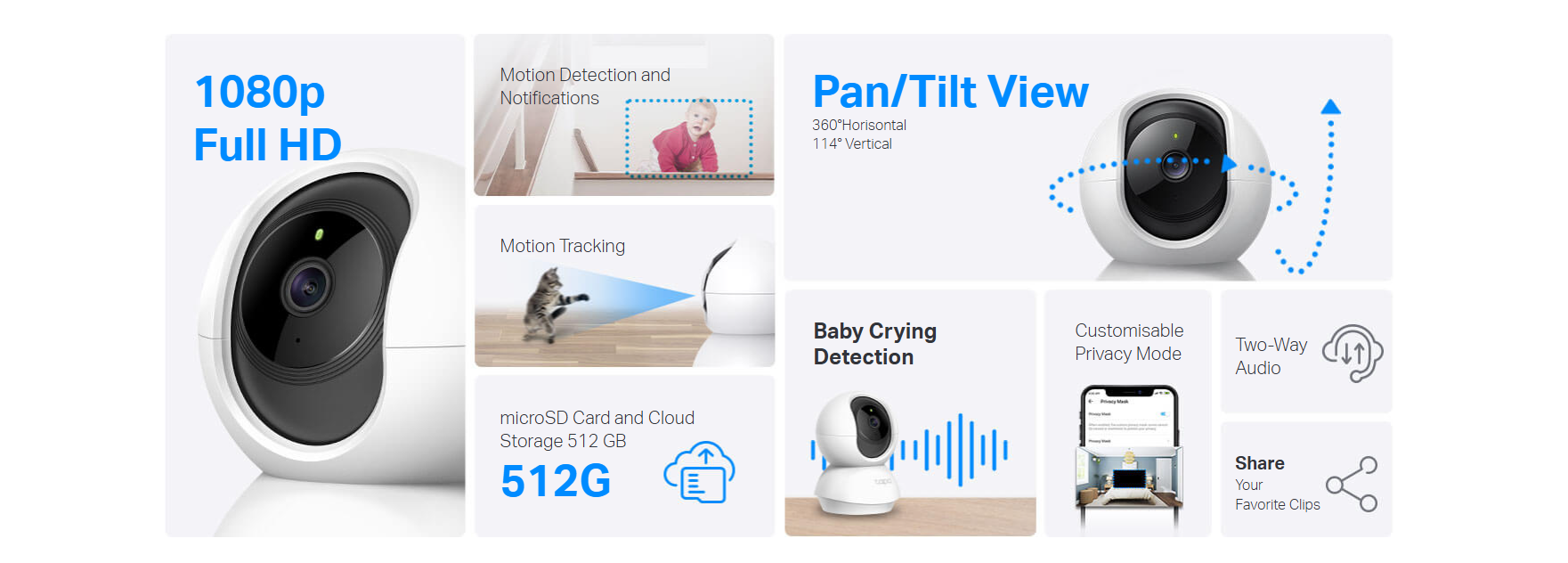
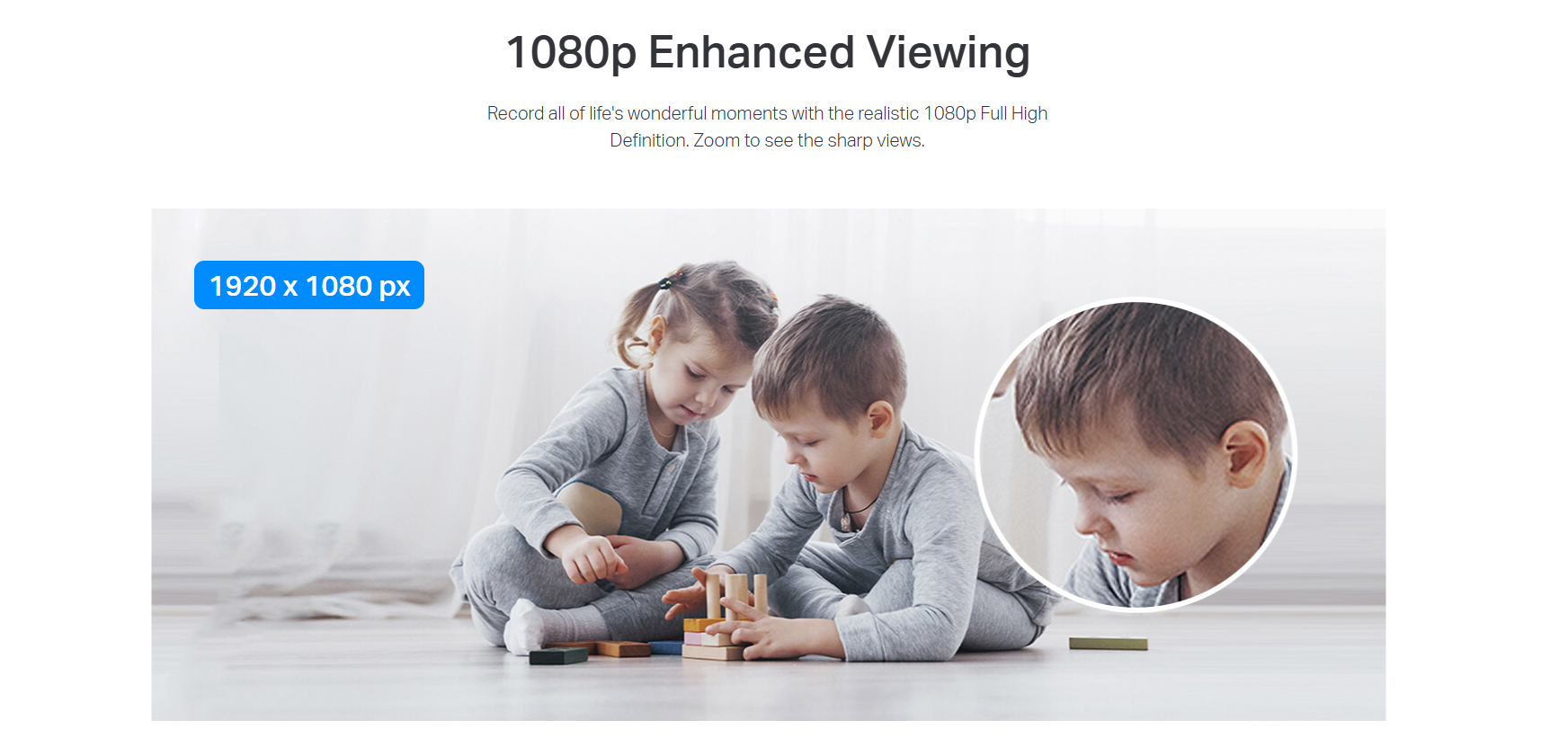
- High-Definition Video: The Tapo C200 features 1080p high-definition video, providing users with clear and detailed footage.
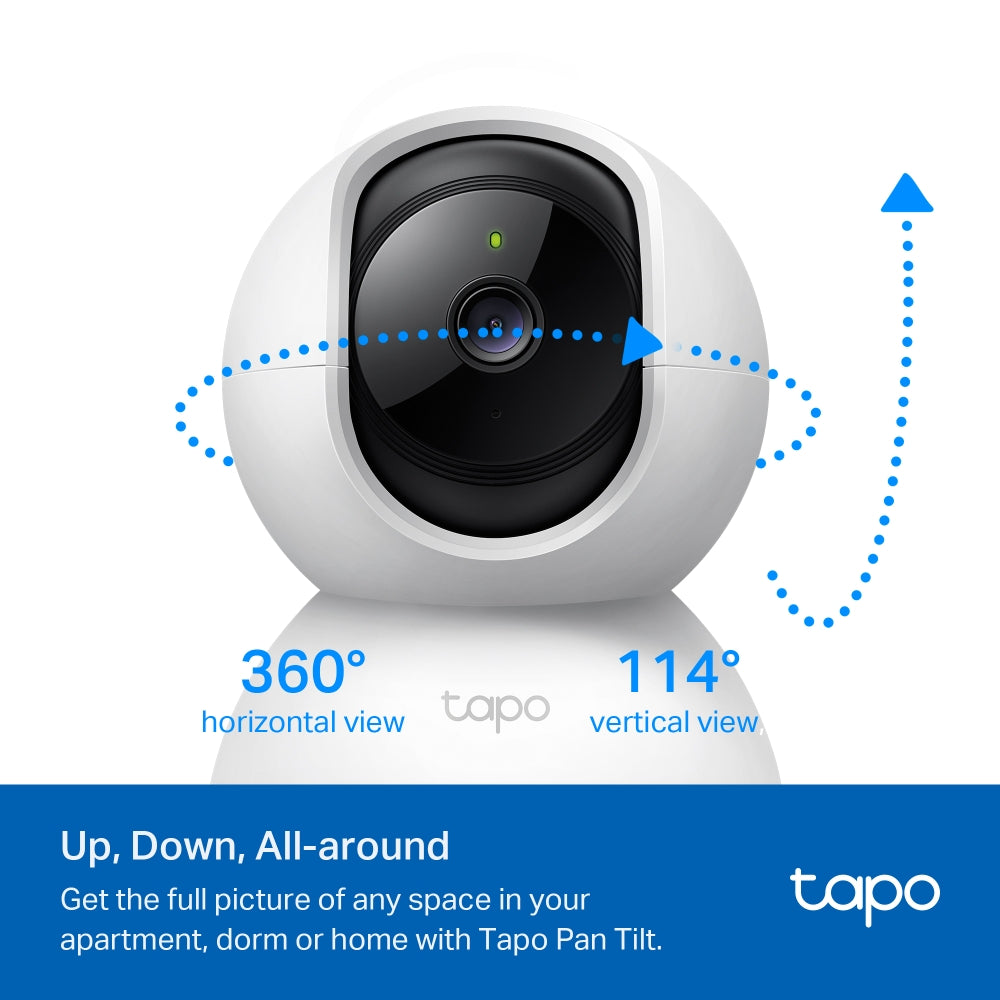
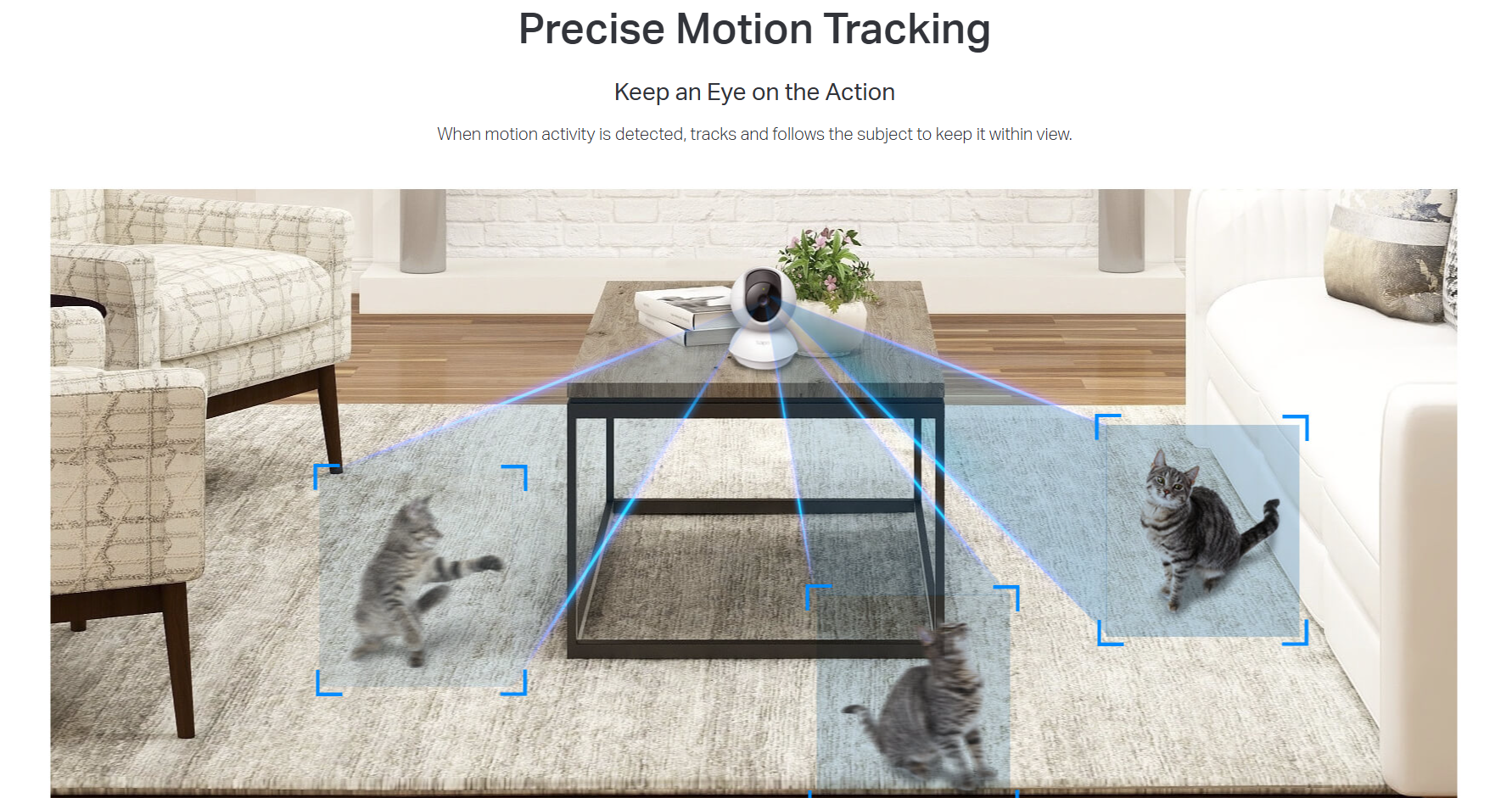
- Pan and Tilt: The device offers 360° horizontal and 114° vertical range, enabling complete coverage of the area.
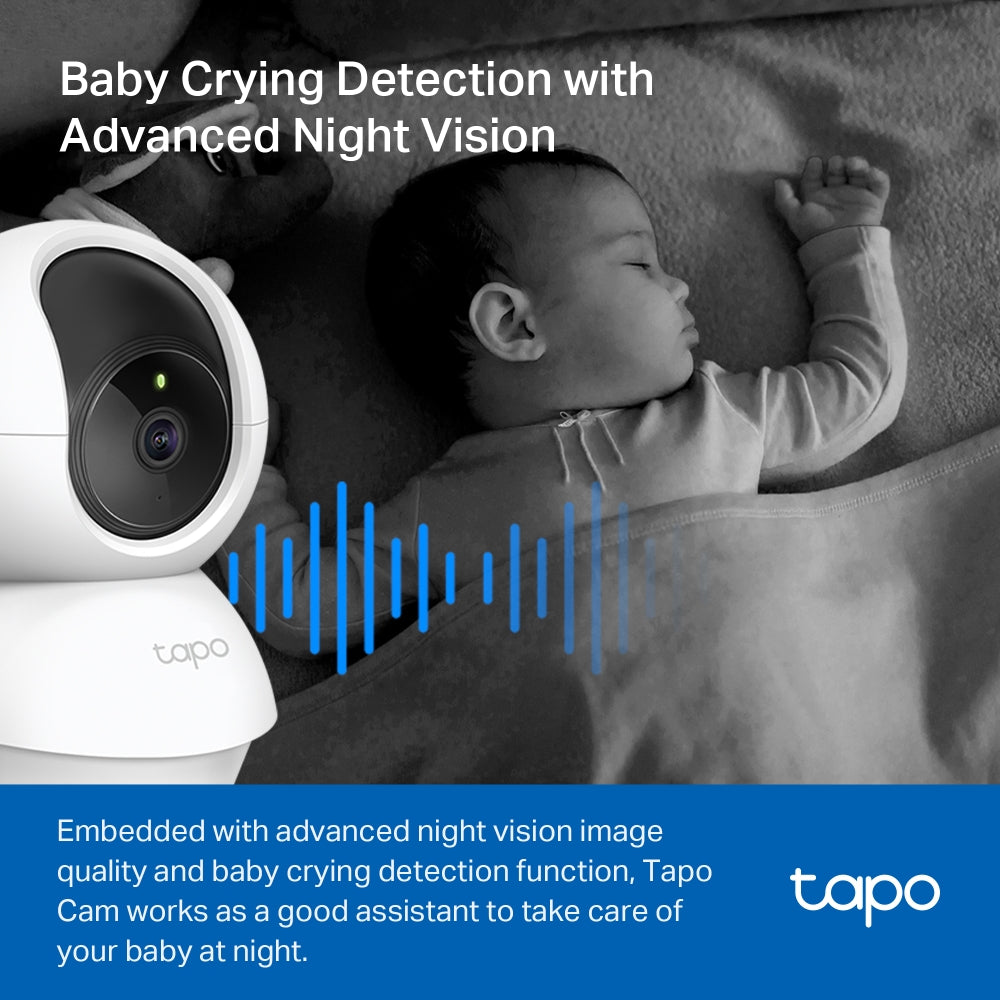
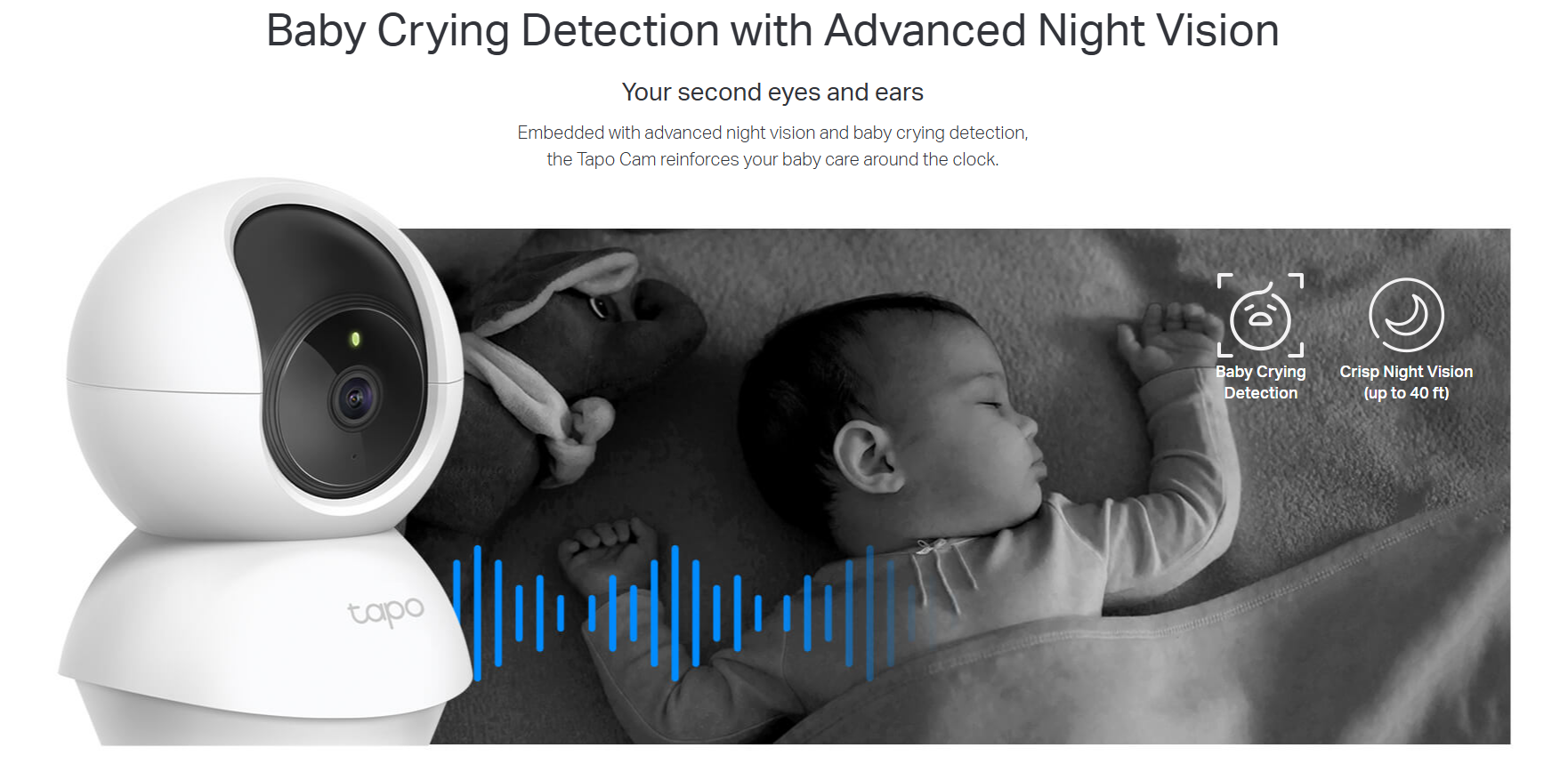
- Night Vision: With advanced night vision up to 40 feet, the Tapo C200 allows users to monitor their homes around the clock.
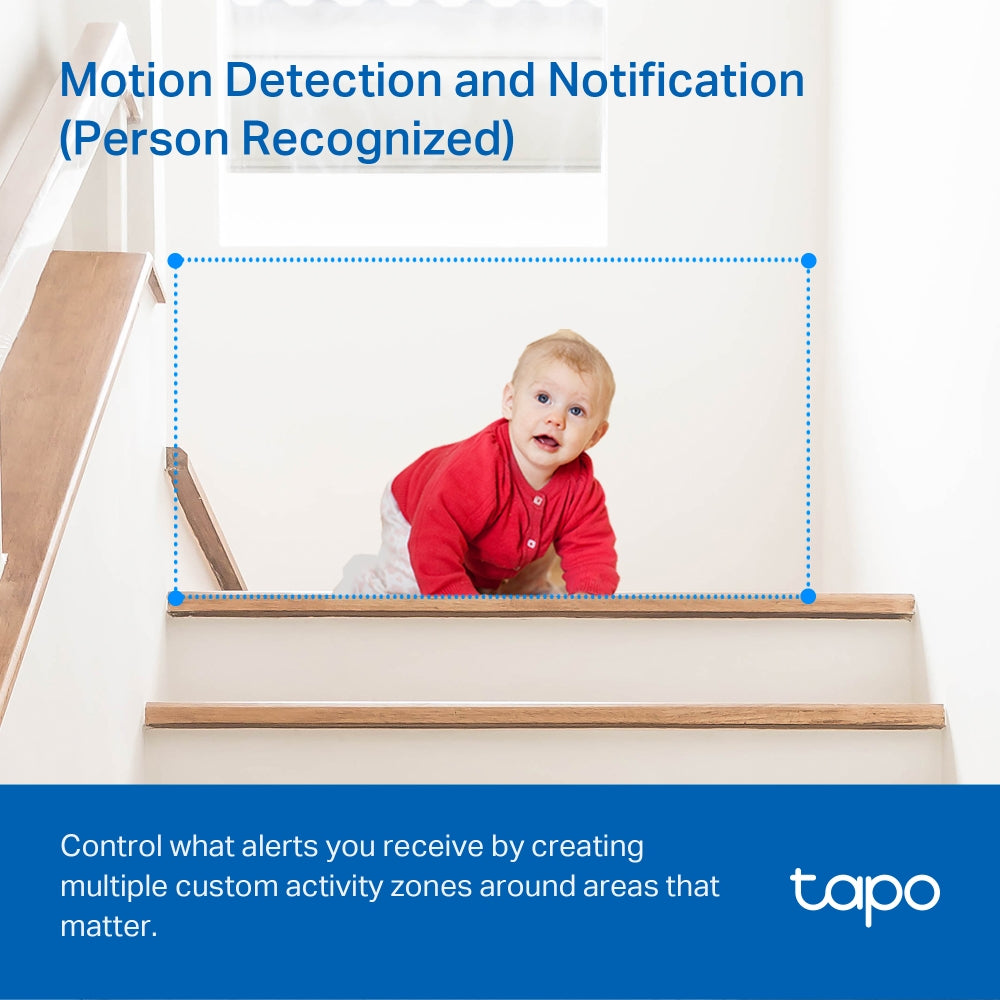
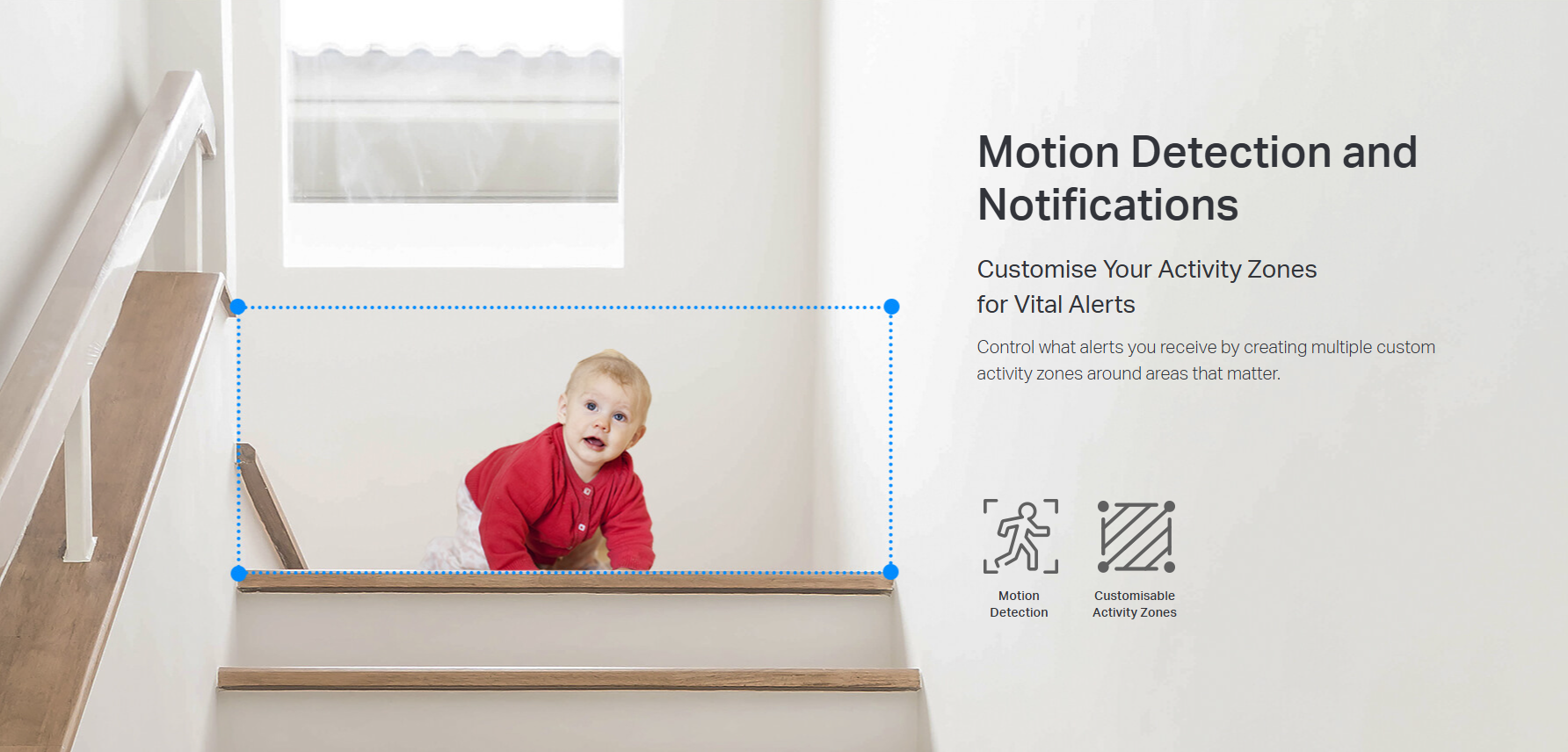
- Motion Detection and Alerts: The device uses smart motion detection technology to send instant notifications to your phone whenever movement is detected.
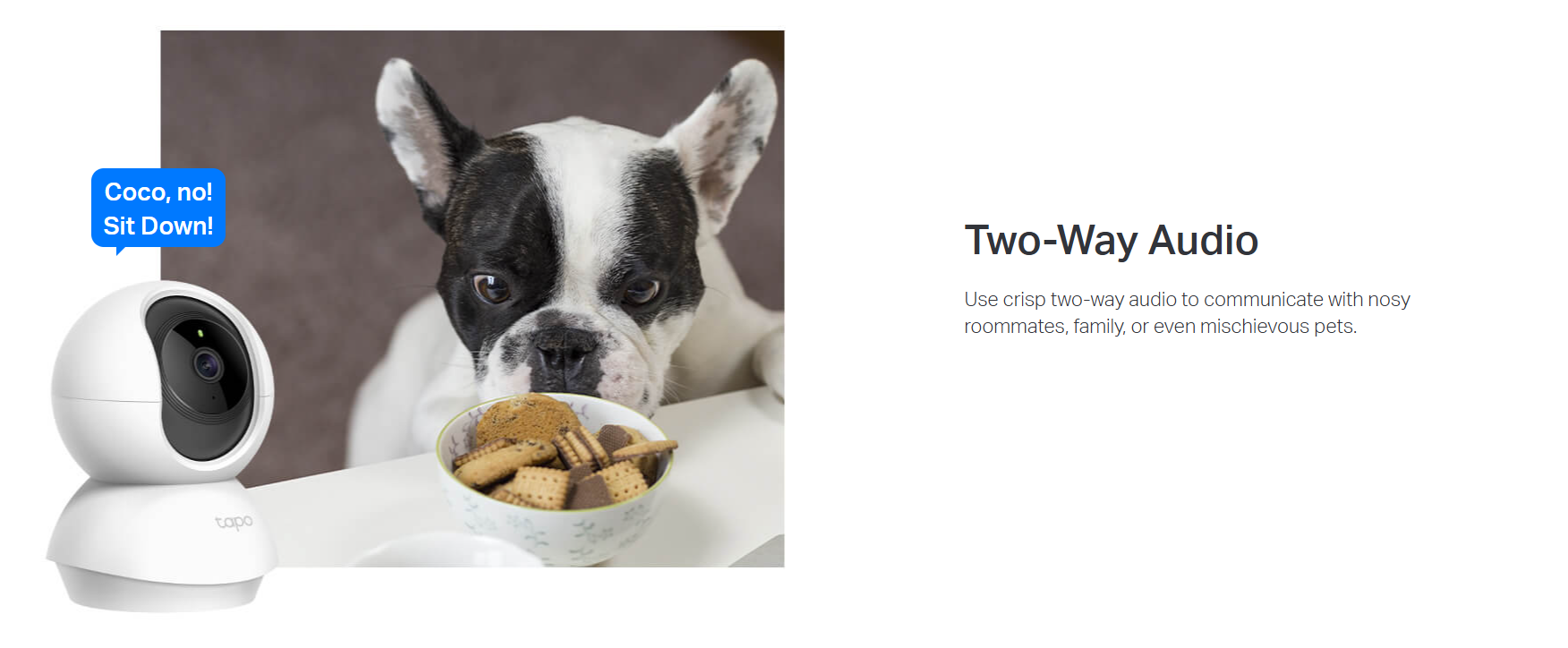
- Two-Way Audio: The Tapo C200 comes equipped with a built-in microphone and speaker, allowing users to communicate with family, pets, or warn off intruders.
- Local Storage: The device supports microSD cards up to 512GB for local storage, providing a secure and cost-effective way to store footage.
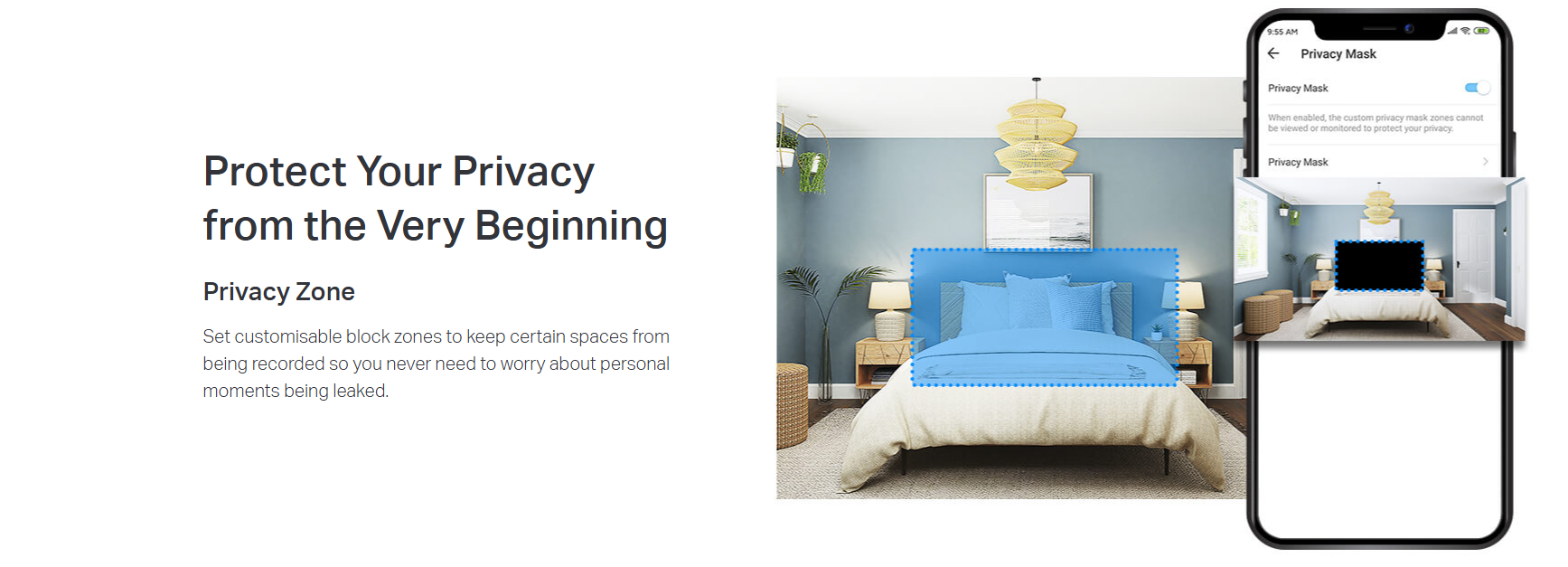
- Privacy Mode: Users can enable Privacy Mode to stop recording and control when the camera is monitoring and when it's not.
- Easy Setup and Management: With the Tapo app, users can easily set up and manage their Tapo C200, and access live streaming and other controls.
- Voice Control: The Tapo C200 is compatible with Google Assistant and Amazon Alexa, offering hands-free control for users.
- Secure Encryption: The device uses advanced encryption and wireless protocols to ensure data privacy and secure communication between your phone and the device.


FAQ
Use this text to share information about your product or shipping policies.
How do I use Privacy Mode on my Tapo camera?
You can enable or disable Privacy Mode in several ways:
Live View: Tap the Privacy Mode icon directly on the camera’s live view page
Device Settings: Go to Device Settings in the Tapo app and toggle Privacy Mode on or off
Physical Privacy Button (selected models): Some models, such as Tapo C125 and Tapo C225, support a physical privacy button that covers or hides the lens automatically
Once enabled, the camera will stop monitoring and recording until Privacy Mode is turned off.
How do I download videos from my Tapo Camera?
There are three ways to download footage from your Tapo Camera, all accessible through the Tapo app.
1. Manual Recording: During live view or playback, tap the record button to capture footage. Clips are automatically saved to Playback & Download in the Tapo app and your phone's gallery. From there, you can share or export them anytime.
2. Cloud Video (Tapo Care): Go to Tapo app > Playback & Download > Cloud Video, select the clip you want, and tap the Download icon. Note that cloud videos expire based on your Tapo Care plan — download important clips before they expire.
3. SD Card Recordings: In the Tapo app, go to Playback & Download > Playback > SD Card Videos. You can either download individual detection events, or use the Clip & Download feature to trim and save a specific segment (1–10 minutes) from continuous or motion-detection footage.
Downloaded videos are saved within the Tapo app for offline viewing. To export to your phone's gallery, go to Playback & Download > Download, select the clip, and save it to your phone's album.
How to add new cameras to my Tapo Care plan?
You can add a new camera to your Tapo Care plan directly in the Tapo app.
Simply go to your Tapo Care subscription, select the plan you want to manage, and choose the camera you wish to add. Follow the in-app instructions to complete the assignment.
Please note that only cameras linked to your account can be added, and the number of devices depends on your subscription plan.


