





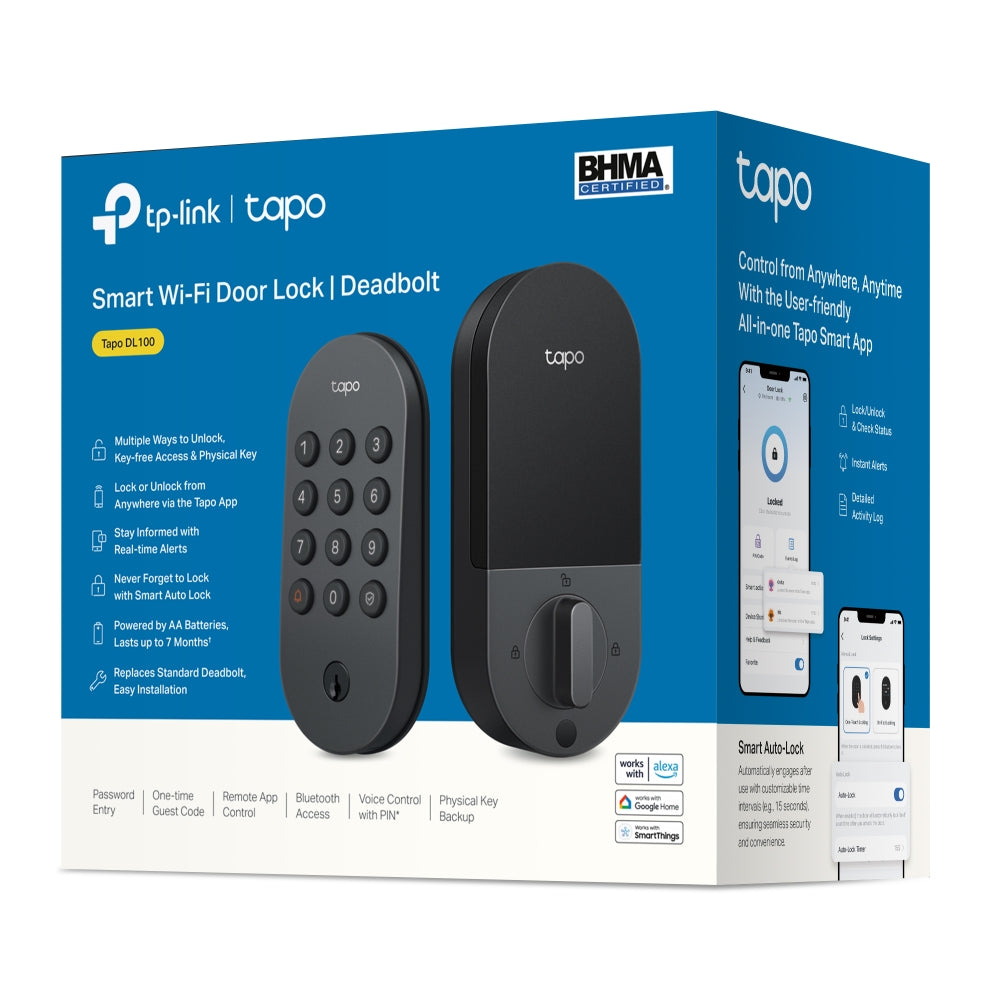
Tapo DL100 | Smart Door Lock, Multiple Unlock Methods
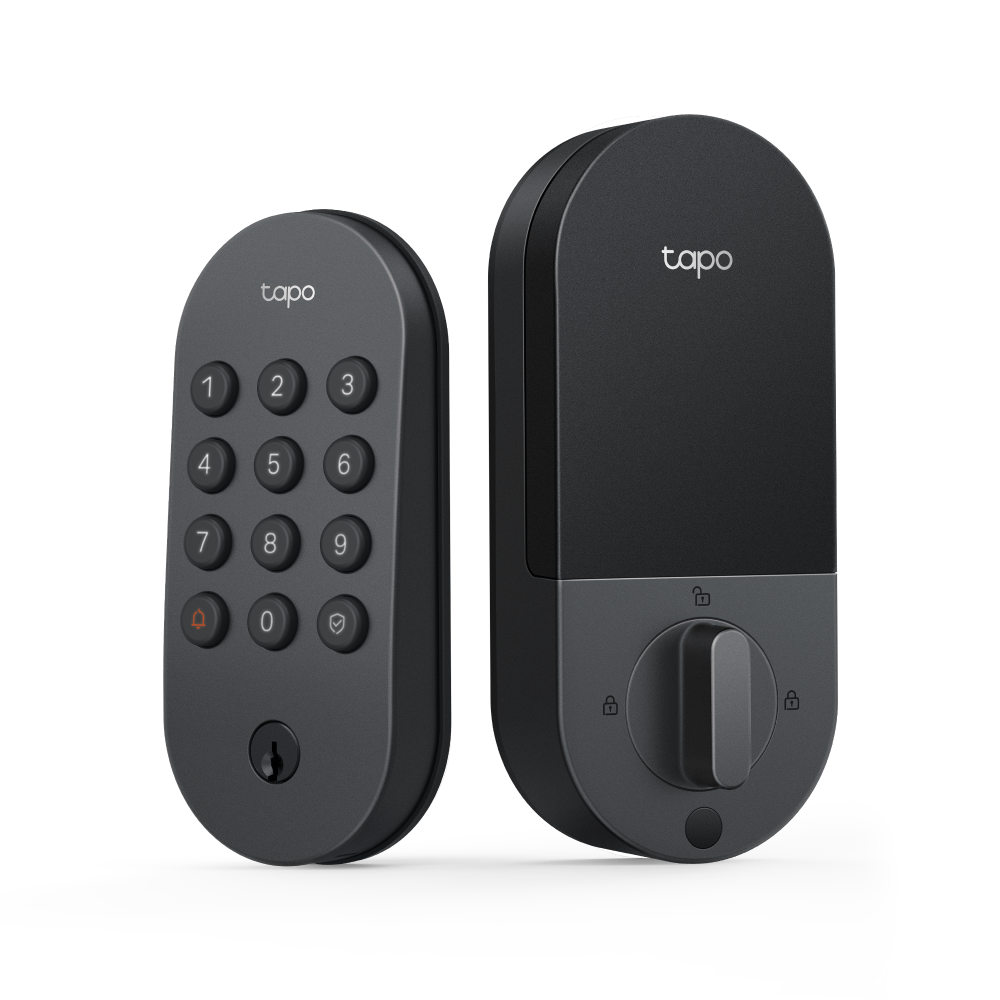
Upgrade your home security with the Tapo Smart Lock – a versatile, keyless solution designed for convenience, control, and peace of mind. With multiple ways to unlock, customizable access for family and guests, real-time monitoring, and seamless smart home integration, it combines cutting-edge technology with effortless everyday use. Easy to install, energy-efficient, and packed with safety features, it’s the smart way to secure your home.
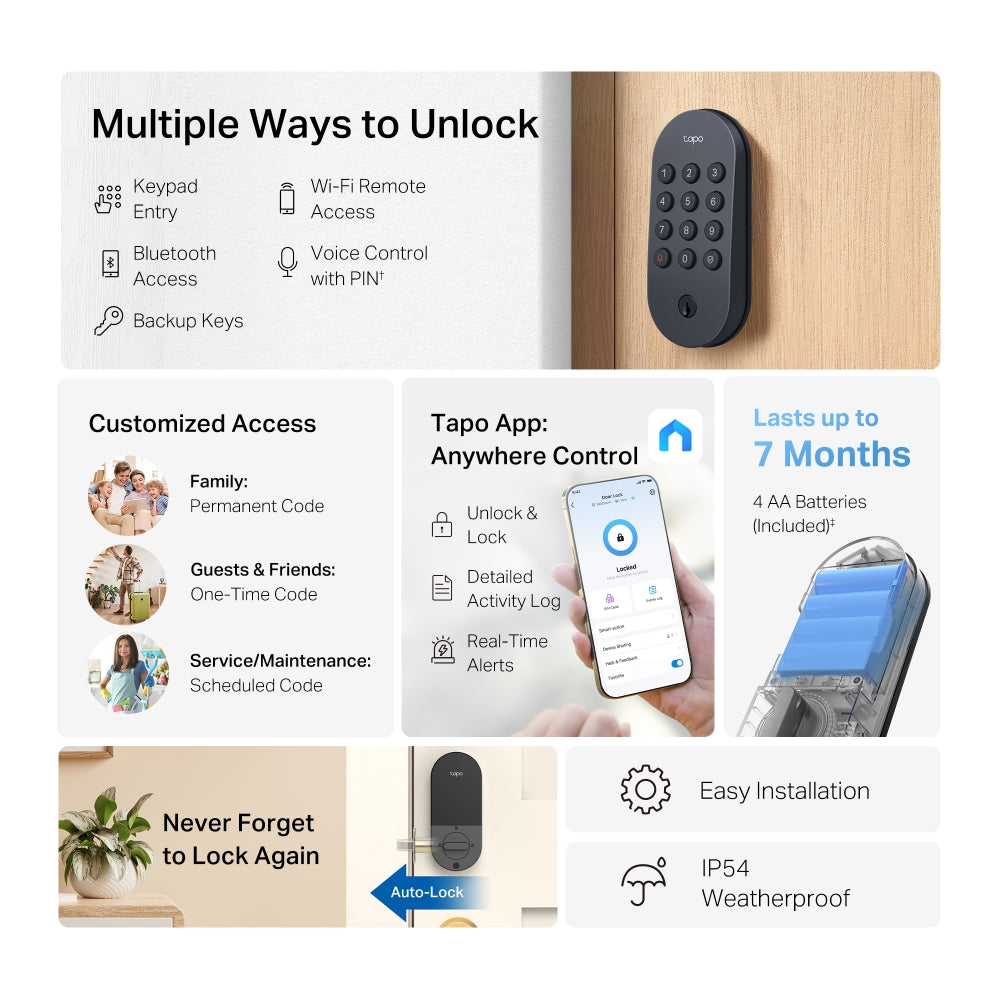
- Multiple Ways to Unlock: Keyless keypad, energy-efficient Bluetooth for nearby access, remote Wi-Fi via the Tapo App, voice commands with PIN verification, and 2 backup keys for peace of mind.
- Convenient & Secure Access for All: Manage access effortlessly by creating groups for family, guests, or visitors in the App - no physical keys required.
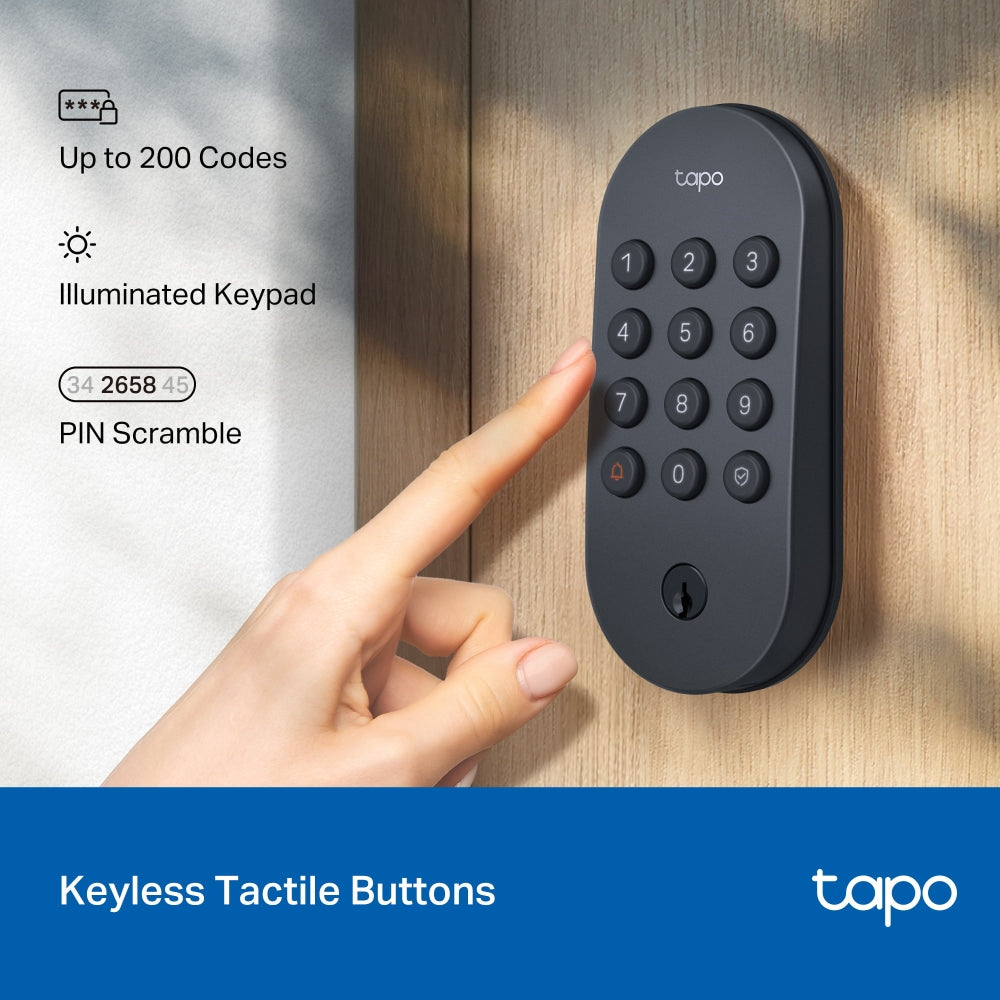
- Keyless Tactile Buttons: Skip the hassle of keys with up to 200 customisable codes. Our smart lock features a backlit keypad for nighttime use and the option to enter your passcode in between random digits for added security.
- AA Battery Powered: Lasts up to 7 months in Wi-Fi mode or 10 months in Bluetooth mode. Includes easy battery replacement and a USB-C port for emergency power. 4 AA batteries included.
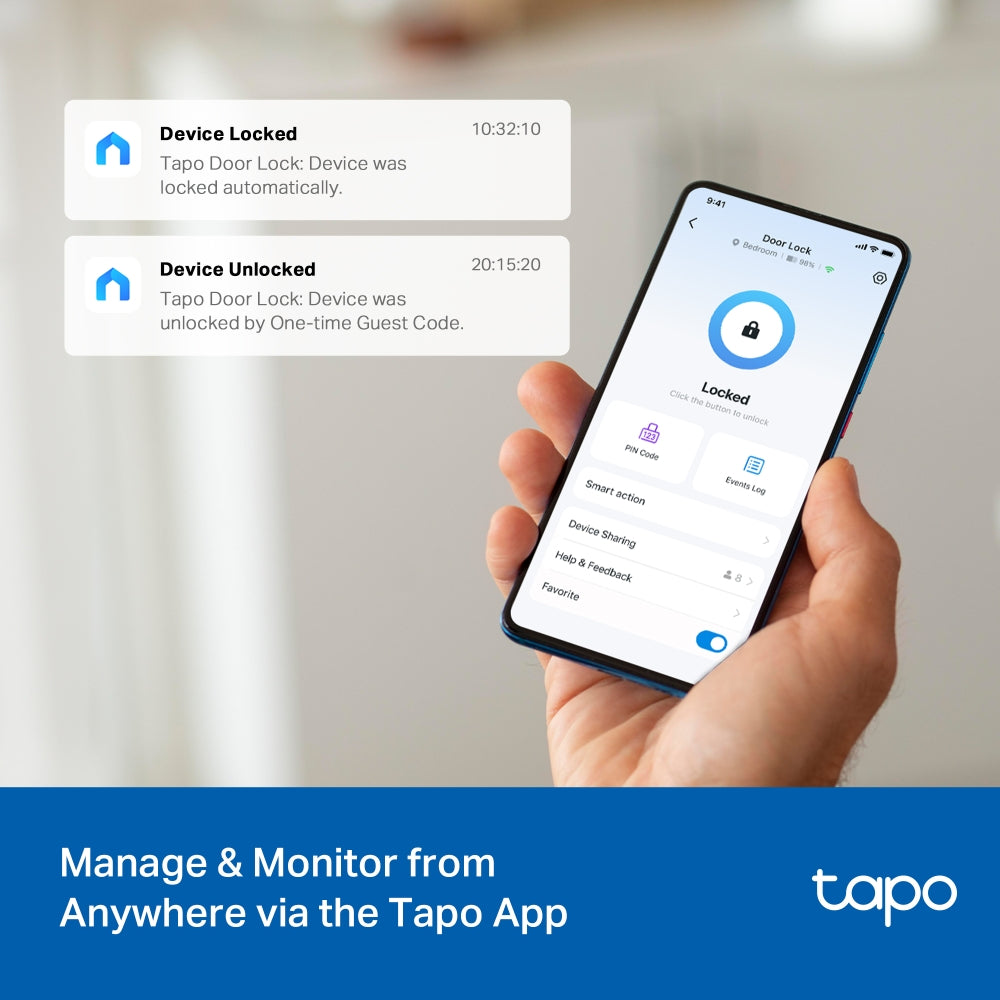
- Stay Informed, Control from Anywhere: Receive real-time alerts, check door status, and lock or unlock it remotely with the App. Set custom profiles for family and guests, and track all activity with timestamps to see who accessed your home and when.
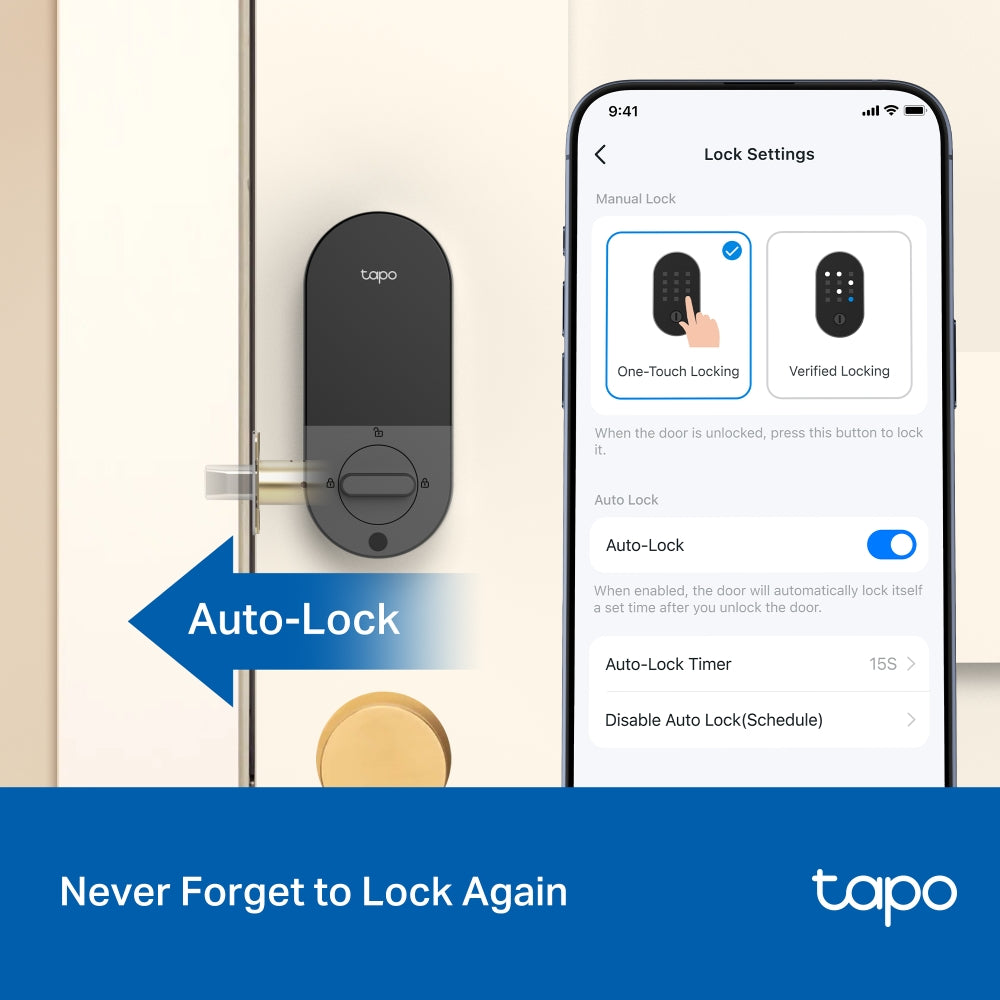
- Never Forget to Lock Again with Auto-lock: Turn on auto-lock to automatically lock after use with customisable time intervals (e.g., 15 seconds).
- Smart Home Integration: Compatible with Alexa, Google Home, and Samsung SmartThings for one-app management and voice control.
- Pin Attempt Limiter: Automatically locks after a set number of failed unlock attempts, protecting your home from unauthorised access.
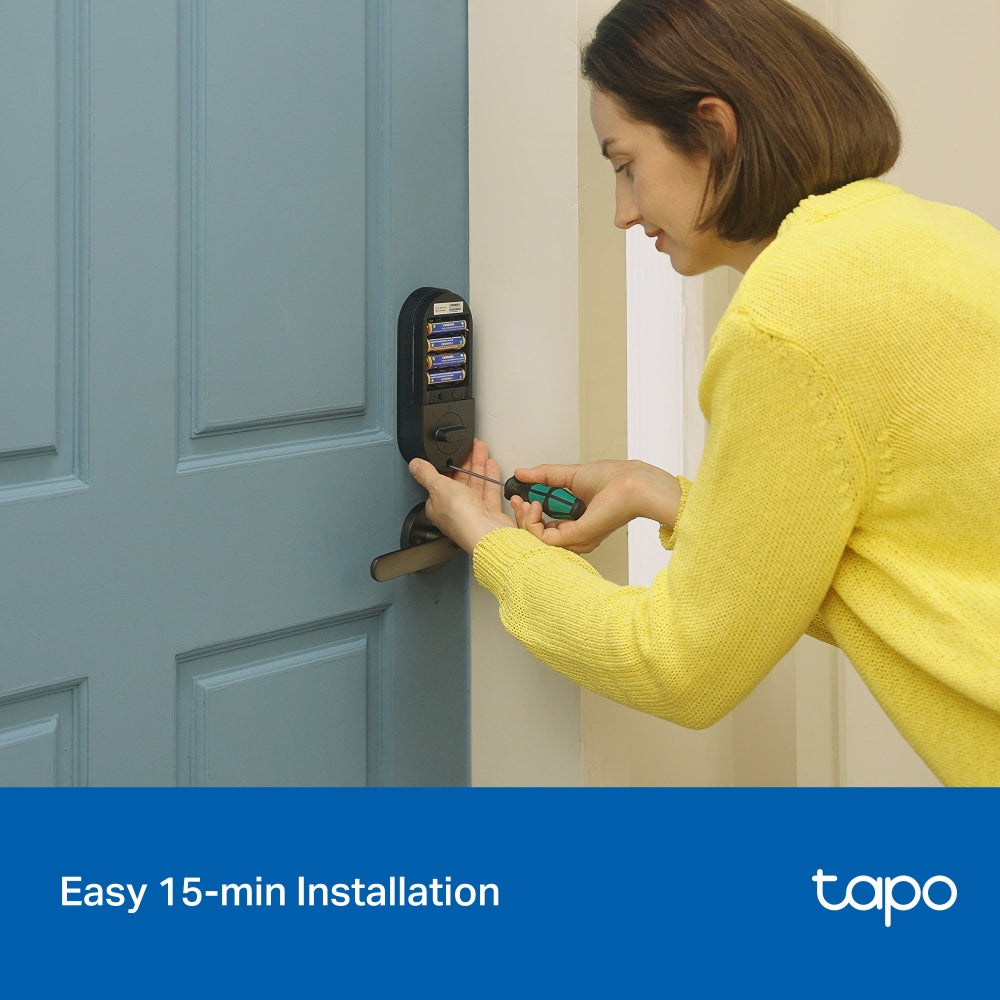
- Simple Installation: Installs easily on standard deadbolts - no drilling, no extra holes, no hassle.


FAQ
How do I install a Tapo Smart Wi-Fi Door Lock?
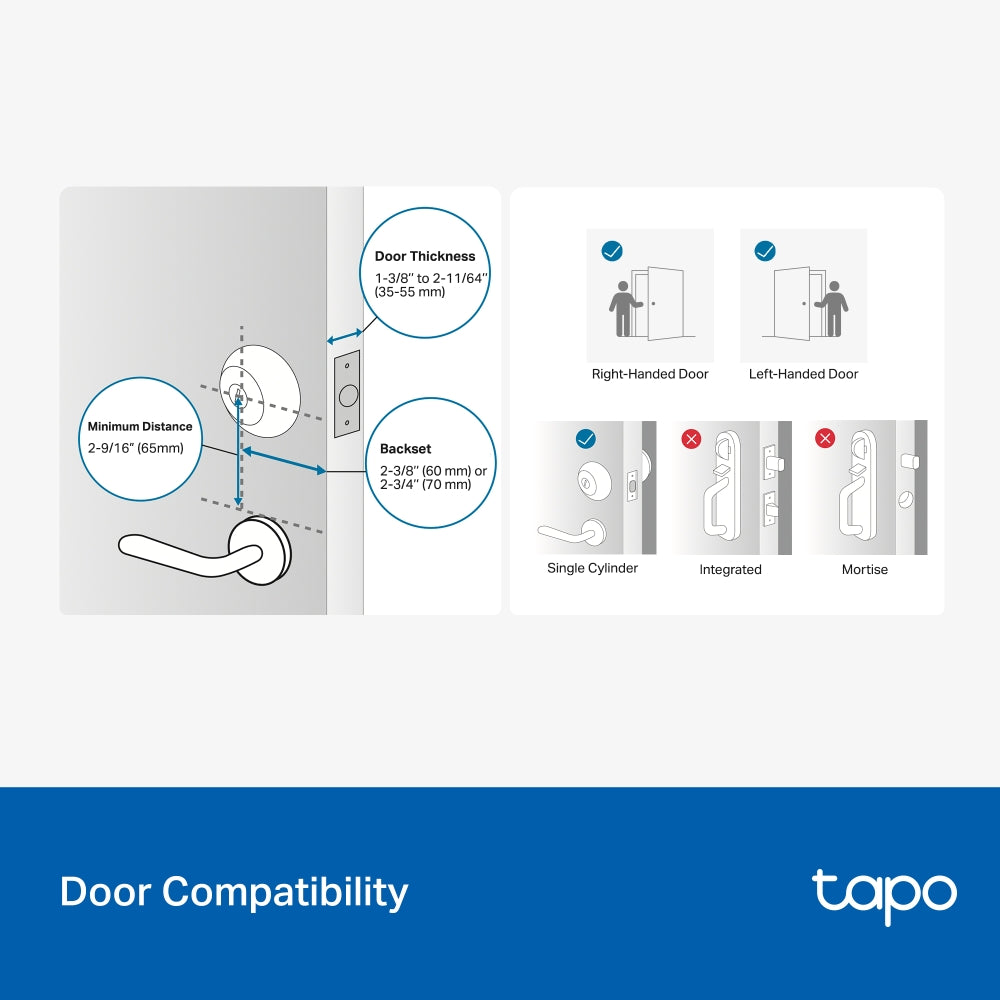
To install a Tapo smart door lock, first ensure your door is compatible (e.g., single-cylinder deadbolt and correct dimensions). Then remove the existing lock, install the new latch with the correct orientation and backset, and secure it with screws. Next, attach the exterior assembly, route the cable properly, and install the mounting plate and interior unit. Finally, complete the setup by securing all components and following the app instructions if required.
How do I set up a Tapo smart door lock in the Tapo app?
To set up a Tapo smart door lock, first download and log in to the Tapo app. Then put the lock into setup mode by pressing the reset button until the LED flashes. Add the device in the app and connect to it via Bluetooth, then connect it to your Wi-Fi if using Remote Mode.
After pairing, name the device, calibrate the lock, and set a passcode (and optionally register a fingerprint). You can choose between Local Mode (Bluetooth only) or Remote Mode (Wi-Fi control) depending on your needs.
How do I manage passwords on a Tapo smart door lock?
Tapo smart door locks allow you to create and manage multiple passwords for different users and scenarios. You can assign unique codes for family members or visitors and set specific time periods for when each password is valid.
This flexibility helps control access more securely, allowing you to customise permissions based on usage needs (e.g., temporary access or scheduled entry).
Why can’t I connect my Tapo Smart Door Lock to Wi-Fi?
Connection issues are usually caused by network problems or incorrect settings. Make sure your Wi-Fi network is working properly, and check that Wi-Fi is enabled on the lock (either via a physical button or in the app settings).
Also, ensure you haven’t set a Wi-Fi schedule that turns off the connection, as this will prevent the lock from staying connected during those periods.