

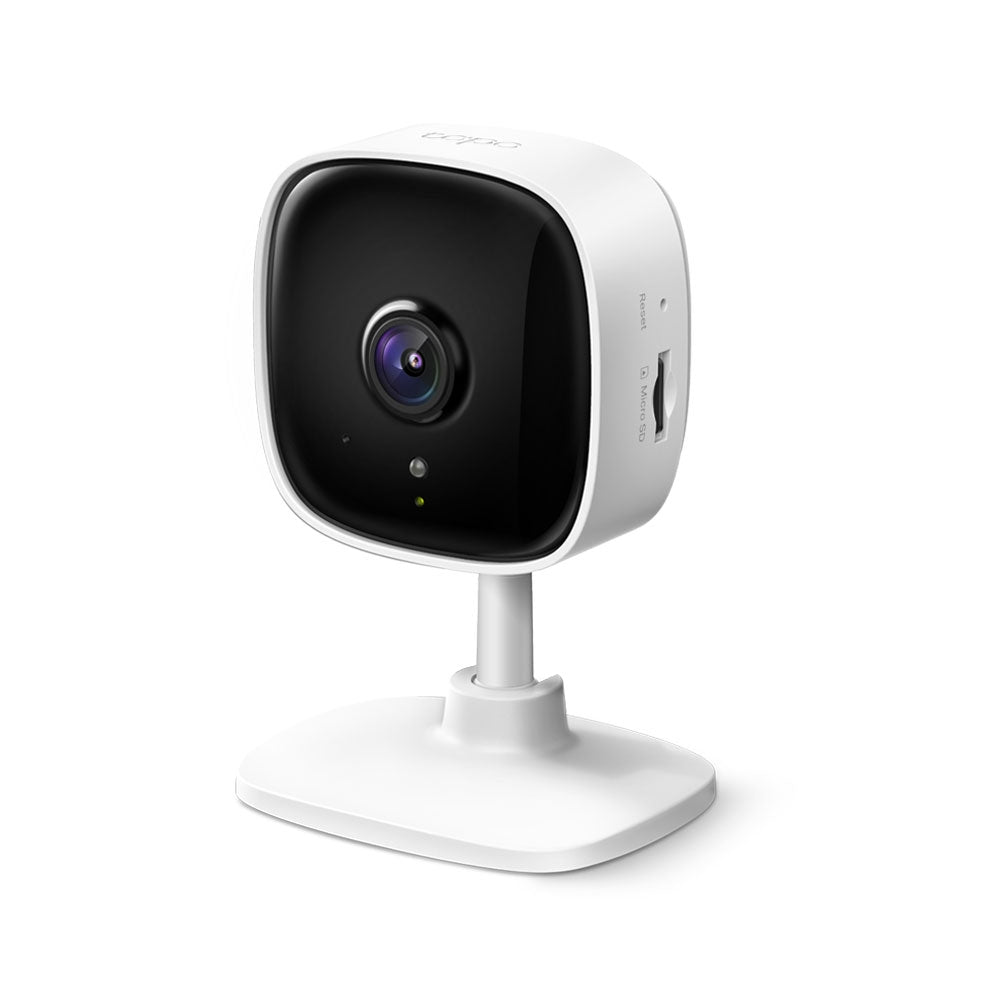
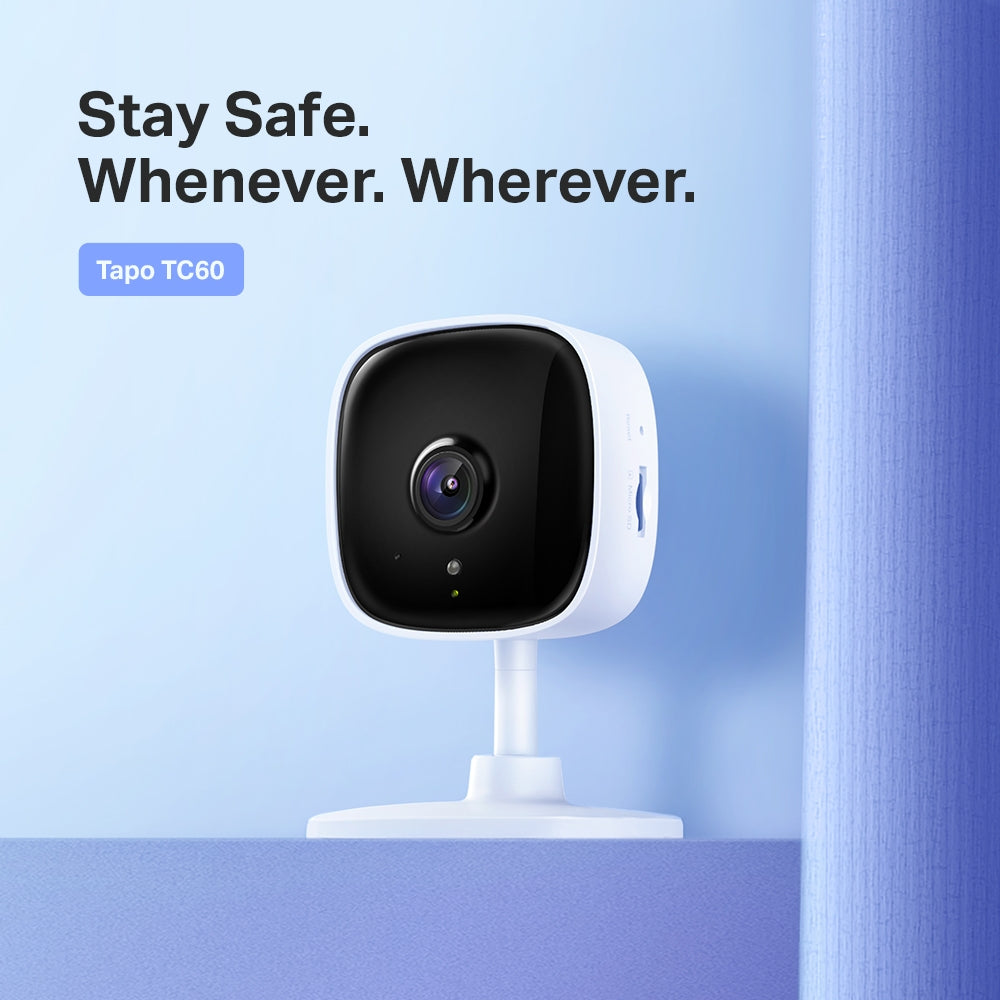


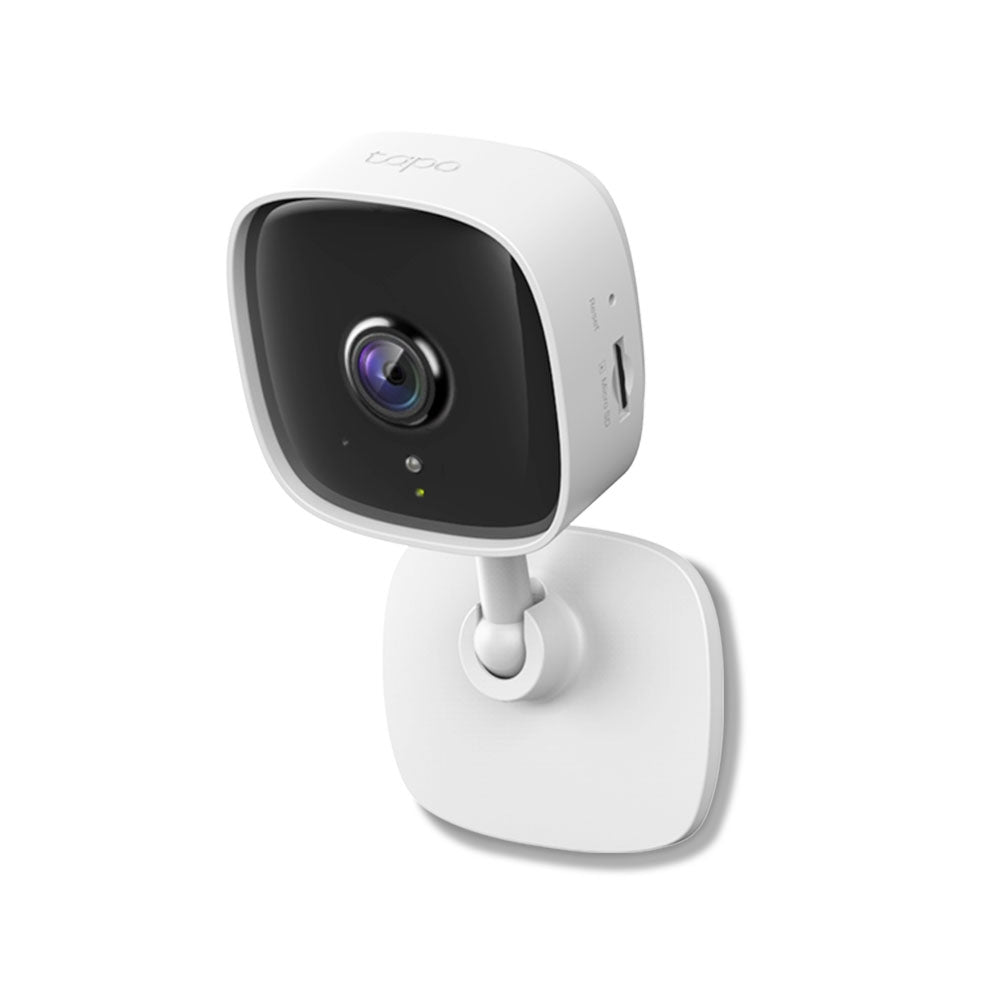
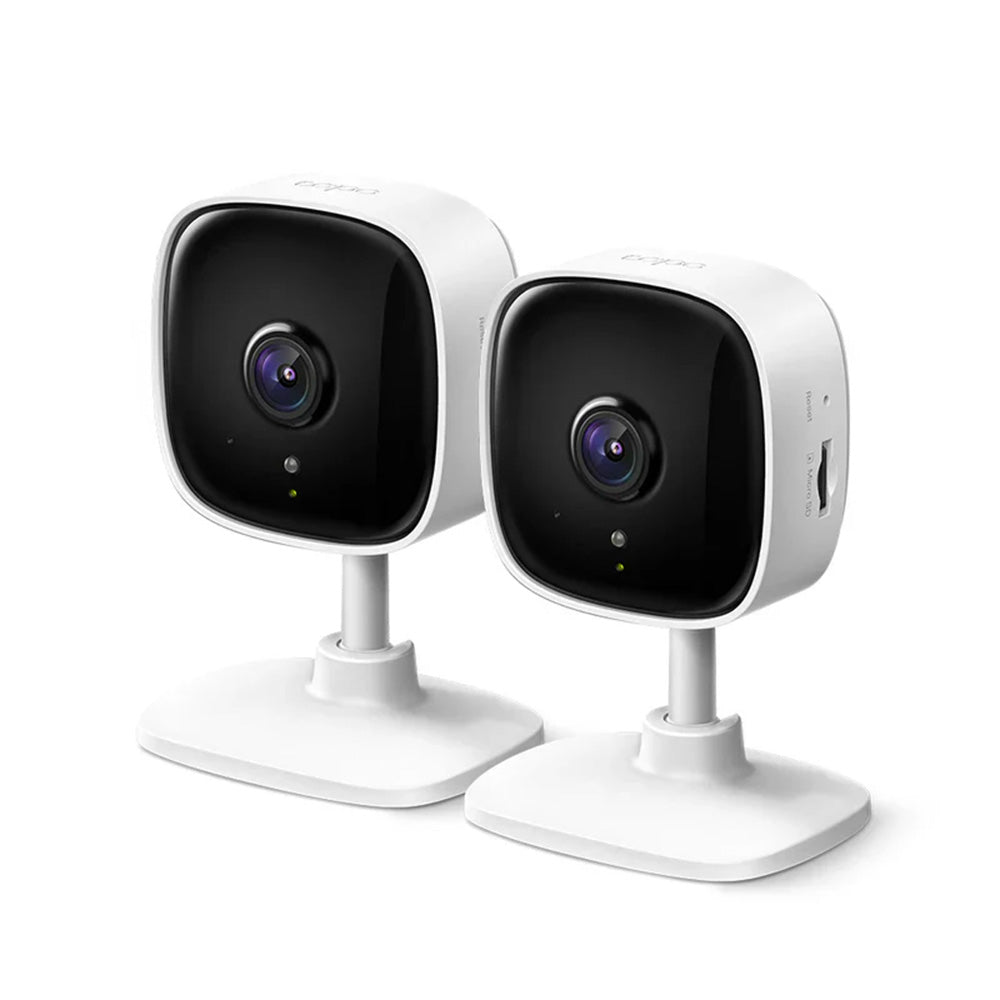
Tapo TC60 | Home Security Wi-Fi Camera, 1080P Full HD, Night Vision
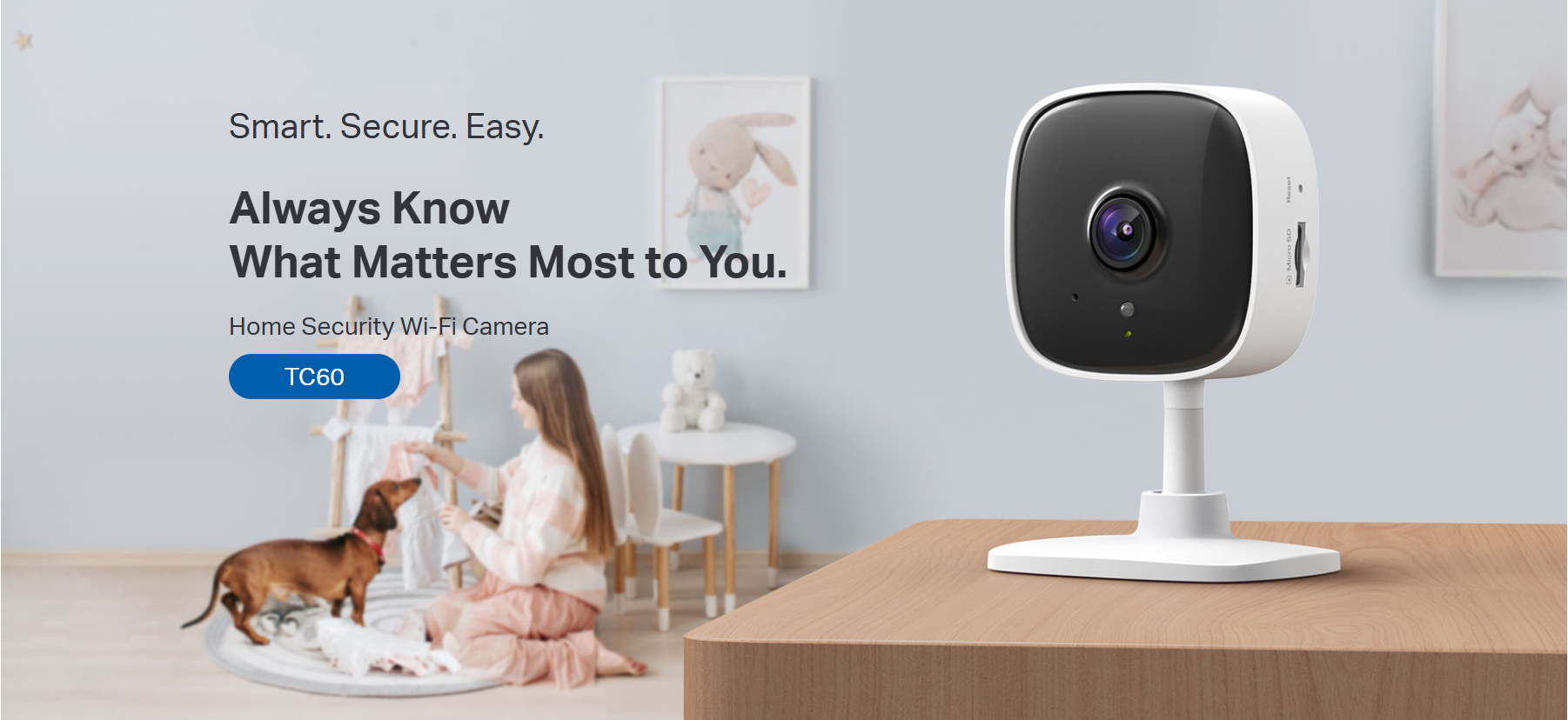
1080P wireless indoor security camera with baby crying detection, advanced night vision, two-way audio, and motion detection alerts for smart home monitoring.
HIGHLIGHTS
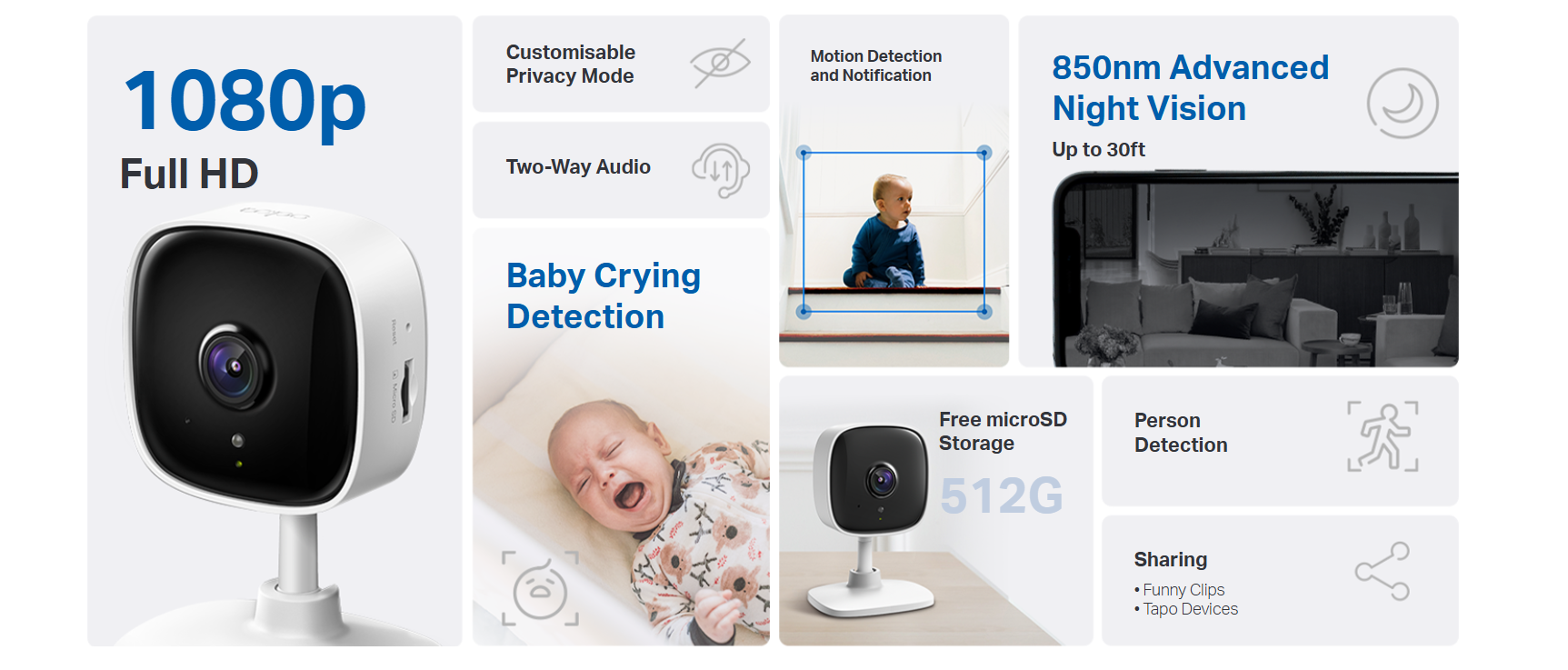
- High-Definition Video - Records every image in crystal-clear 1080p definition
- Advanced Night Vision - Provides a visual distance of up to 30 ft
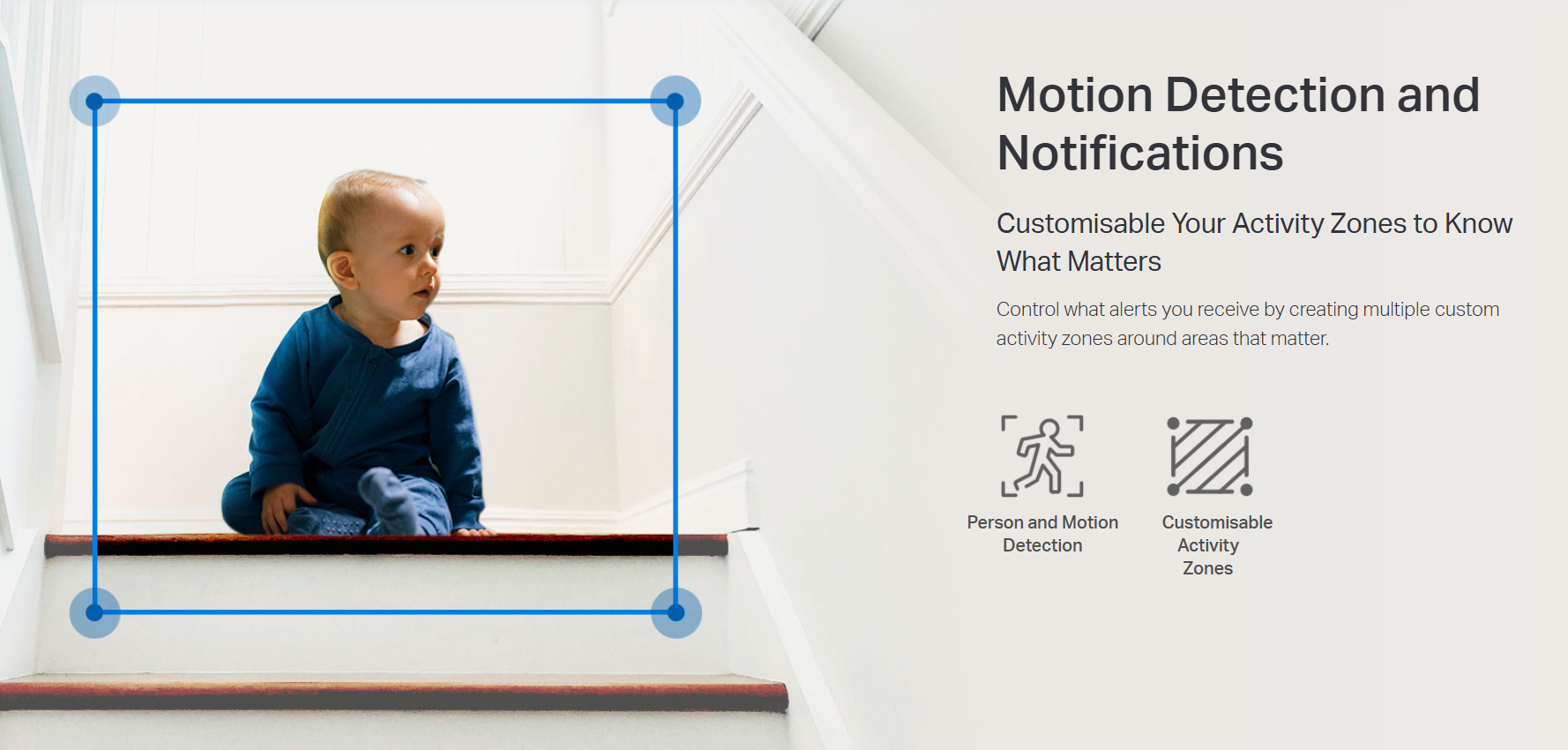
- Motion Detection and Notifications - Notifies you when the camera detects movement
- Sound and Light Alarm - Trigger light and sound effects to frighten away unwanted visitors
- Two-Way Audio - Enables communication through a built-in microphone and speaker
- Safe Storage - Locally stores up to 128 GB on a microSD card, equal to 384 hours (16 days) of footage (based on laboratory conditions)
- Easy Setup and Management - Manage everything with Tapo app
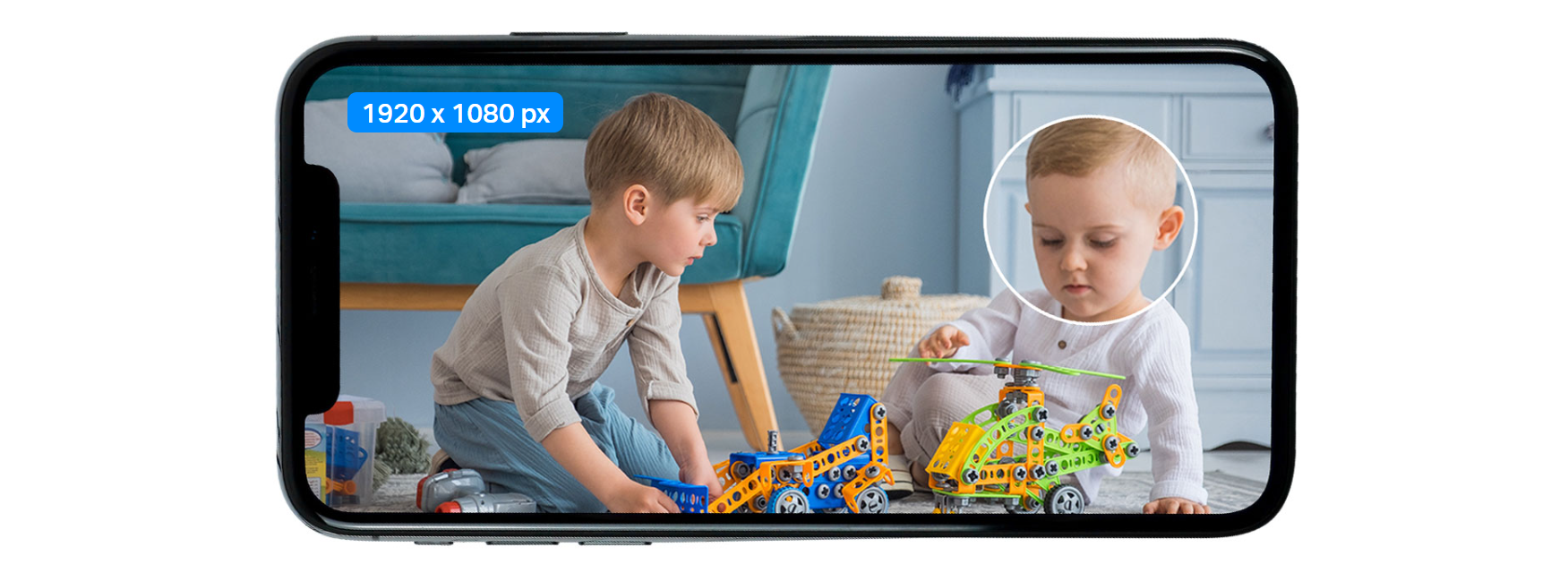
1080p Enhanced Viewing
Record all of life's wonderful moments with the realistic 1080p Full High Definition. Zoom to see the sharp views.
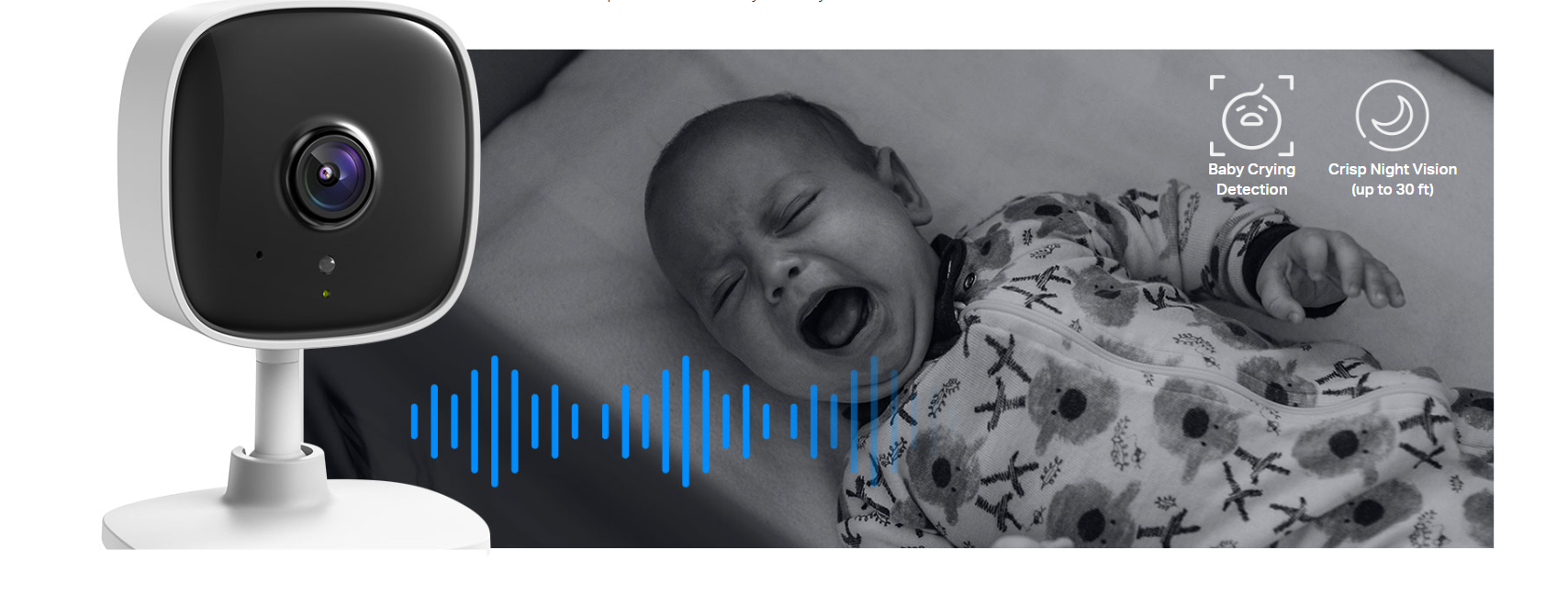
Baby Crying Detection with Advanced Night Vision
Good helper for baby care
Embedded with advanced night vision and baby crying detection, the Tapo Cam reinforces your baby care around the clock.
Two-Way Audio
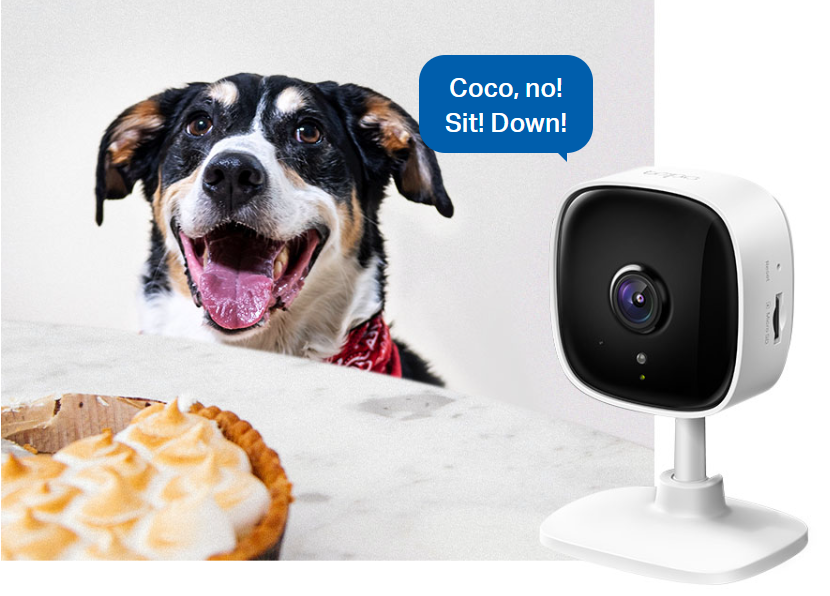
Use crisp two-way audio to communicate with nosy roommates, family, or even mischievous pets.
Privacy Zone
Protect Your Privacy from the Very Beginning
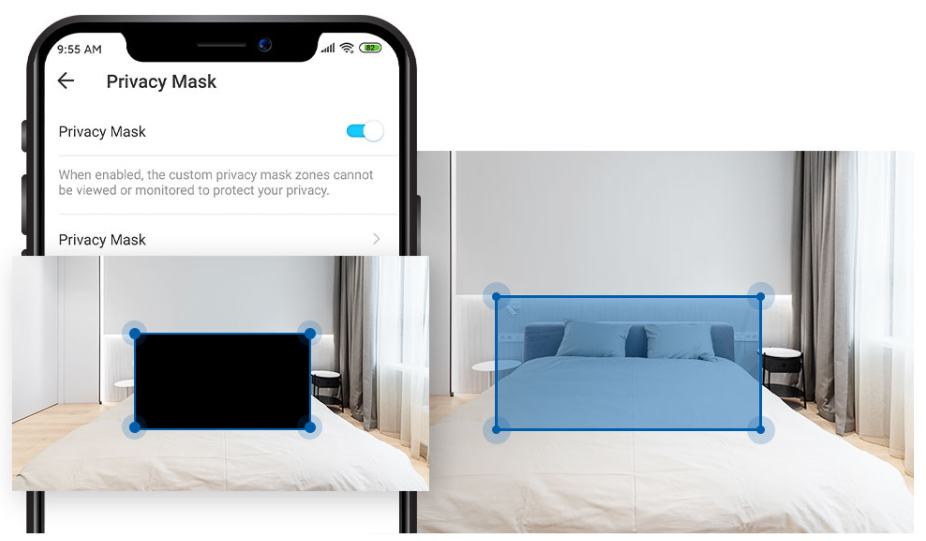
Set customisable block zones to keep certain spaces from being recorded so you never need to worry about personal moments being leaked.
Filter out any personal spaces, like your bed, and only record areas that require monitoring such as doorways and windows to ensure your privacy remains just that—private.
Tapo Sharing
Funny Clips
To share funny records with your families or guests.

Flexible StorageOptions
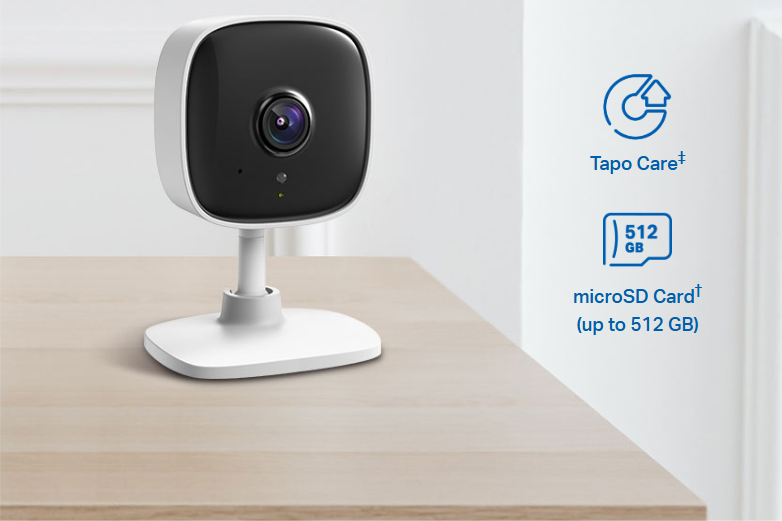
Save recorded video on a microSD Card† (up to 512 GB) or by using Tapo Care‡ cloud storage services.
† microSD Card purchased separately.
‡ Tapo Care subscribe at: https://www.tapo.com/tapocare/

Comprehensive subscription service for cloud video recording
FAQ
Use this text to share information about your product or shipping policies.
How can I view Tapo camera recordings from the SD card on a computer?
You can view recordings by removing the microSD card from your camera (or hub) and inserting it into your computer using a card reader.
Once connected, open the SD card folder to access and play the recorded video files.
Note: Video files may require a compatible media player for playback.
How do I download videos from my Tapo Camera?
There are three ways to download footage from your Tapo Camera, all accessible through the Tapo app.
1. Manual Recording: During live view or playback, tap the record button to capture footage. Clips are automatically saved to Playback & Download in the Tapo app and your phone's gallery. From there, you can share or export them anytime.
2. Cloud Video (Tapo Care): Go to Tapo app > Playback & Download > Cloud Video, select the clip you want, and tap the Download icon. Note that cloud videos expire based on your Tapo Care plan — download important clips before they expire.
3. SD Card Recordings: In the Tapo app, go to Playback & Download > Playback > SD Card Videos. You can either download individual detection events, or use the Clip & Download feature to trim and save a specific segment (1–10 minutes) from continuous or motion-detection footage.
Downloaded videos are saved within the Tapo app for offline viewing. To export to your phone's gallery, go to Playback & Download > Download, select the clip, and save it to your phone's album.
What should I do if I can’t find my Tapo camera in the Tapo app?
If your camera doesn’t appear in the app, try the following:
1. Check connection: Make sure the camera is properly connected to Wi-Fi (check the LED status)
2. Reset and reconnect: If needed, reset the camera and set it up again
Verify app settings: Ensure you’re viewing the correct Home or Room in the app
3. Check network settings: Confirm your phone and camera are on the same Wi-Fi and that no firewall or security settings are blocking the connection
4. Test with hotspot: Try setting up the camera using a mobile hotspot to rule out router issues
If the issue persists, please contact TP-Link support for further assistance.