




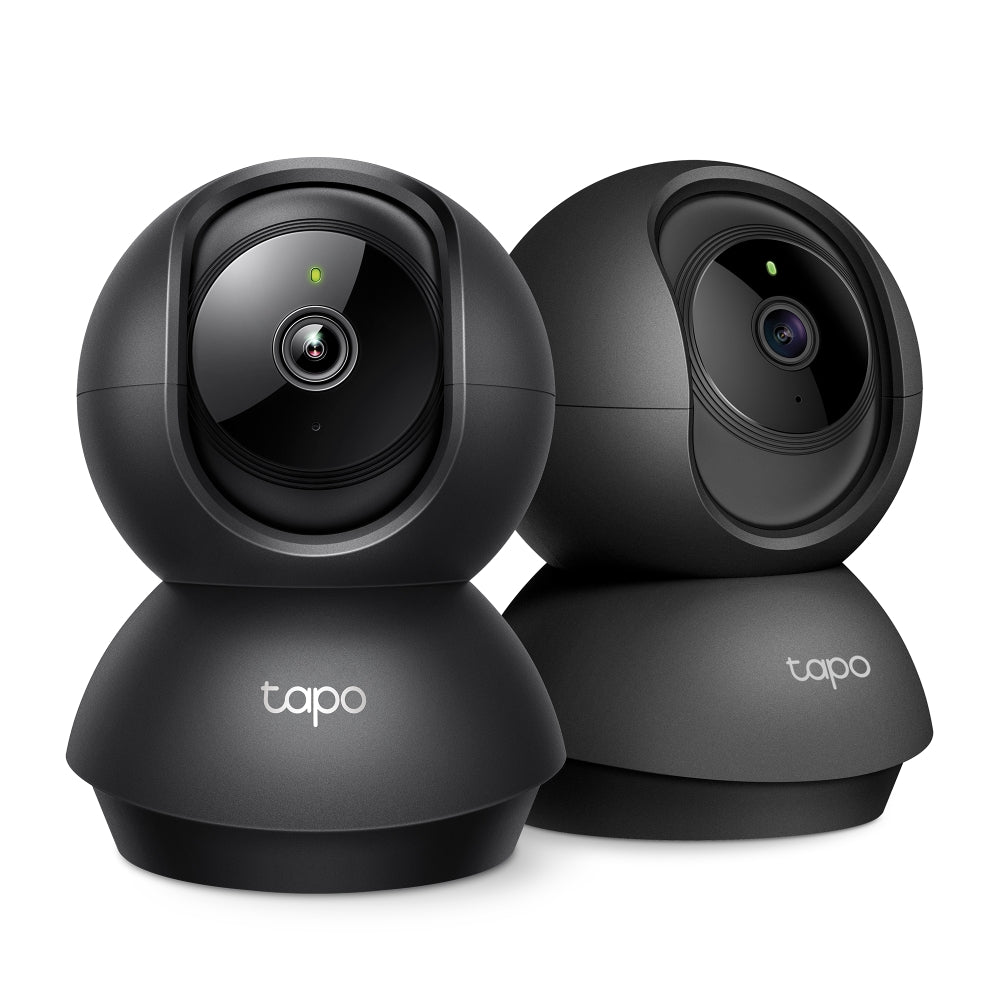
Tapo C211 | Pan/Tilt Home Security Wi-Fi Camera, 2K 3MP, Night Vision
2K indoor security camera with 360° pan tilt coverage, baby crying detection, motion tracking, two-way audio, and night vision for comprehensive wireless home surveillance.
HIGHLIGHTS
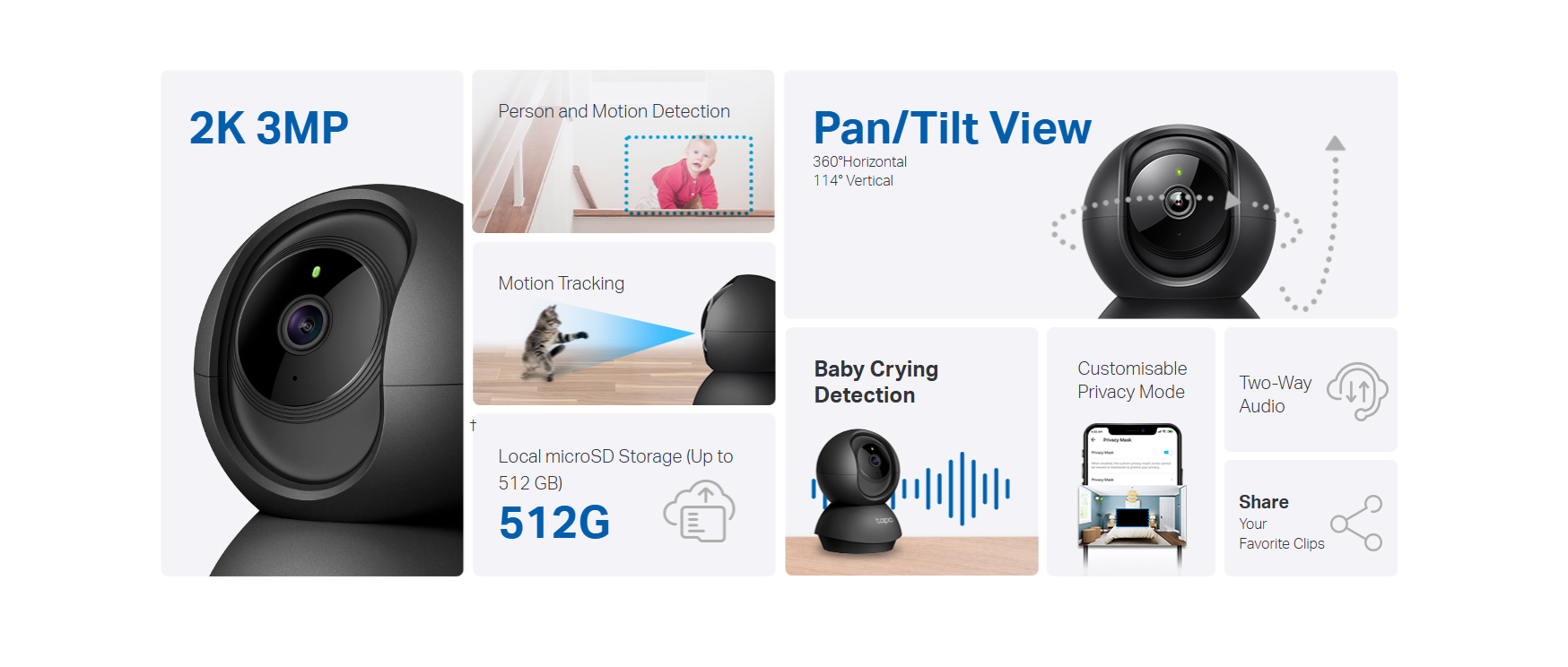
- 2K 3MP High Definition: Capture every detail inside your home with crystal-clear 2K high definition video with this indoor security camera.
- Up, Down, All Around: See everything across an entire room or walkway with the 360° horizontal and 114° vertical range pan/tilt field of view.
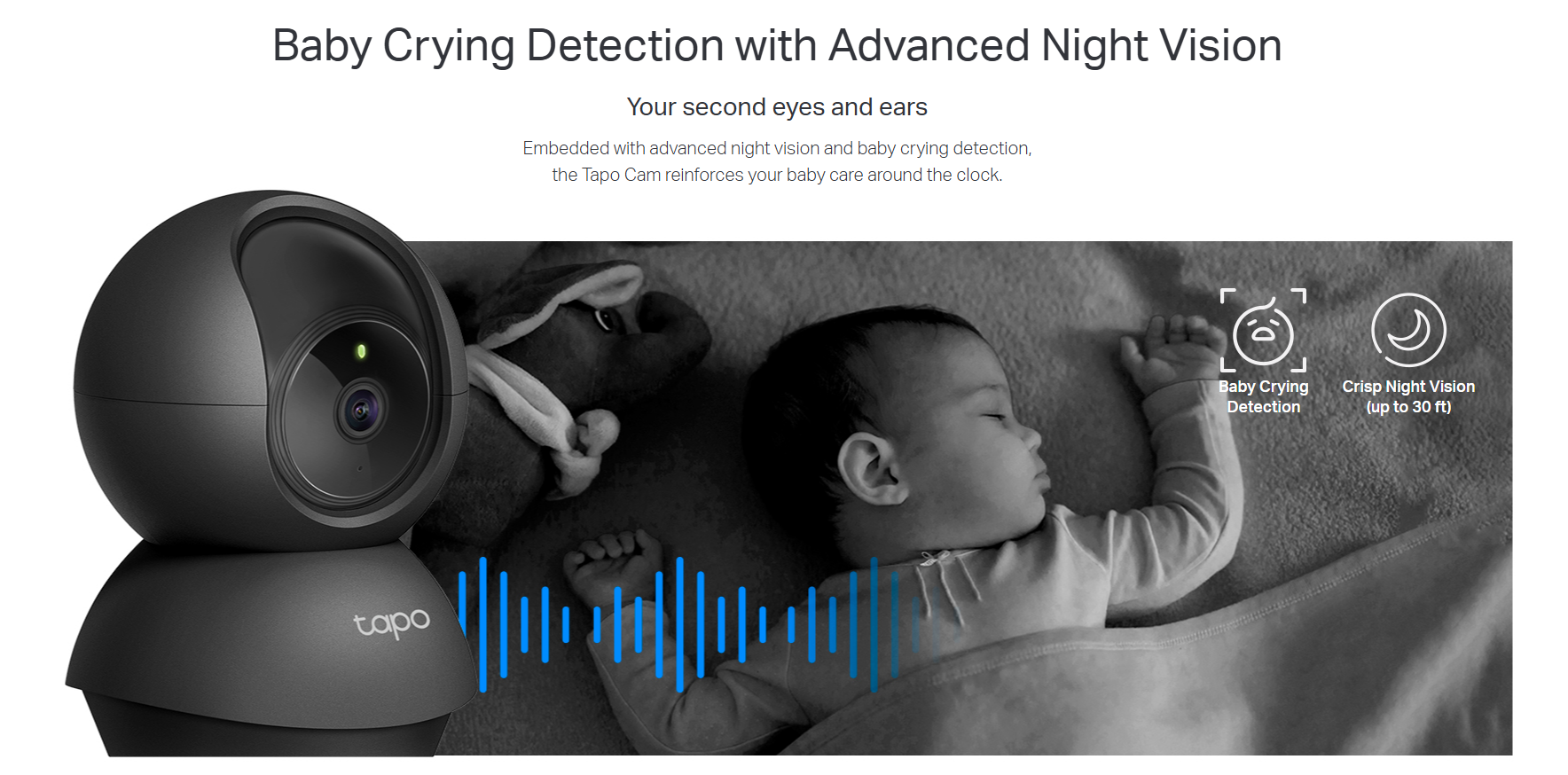
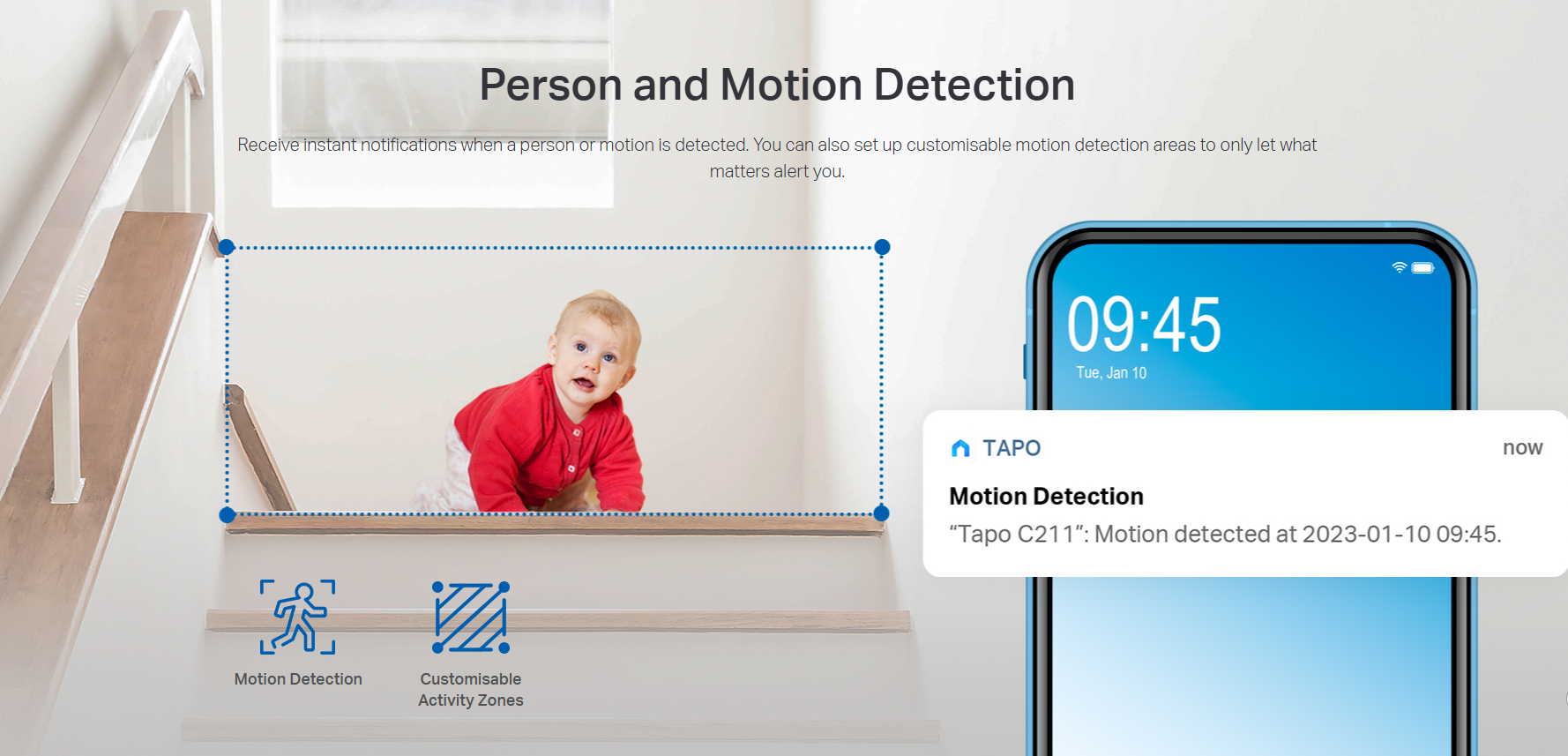
- Detection & Instant Notification: Get instant push notifications when motion baby crying detection or a person is detected .
- Night Vision up to 30 Ft.: Never miss a thing that goes on, even at night.
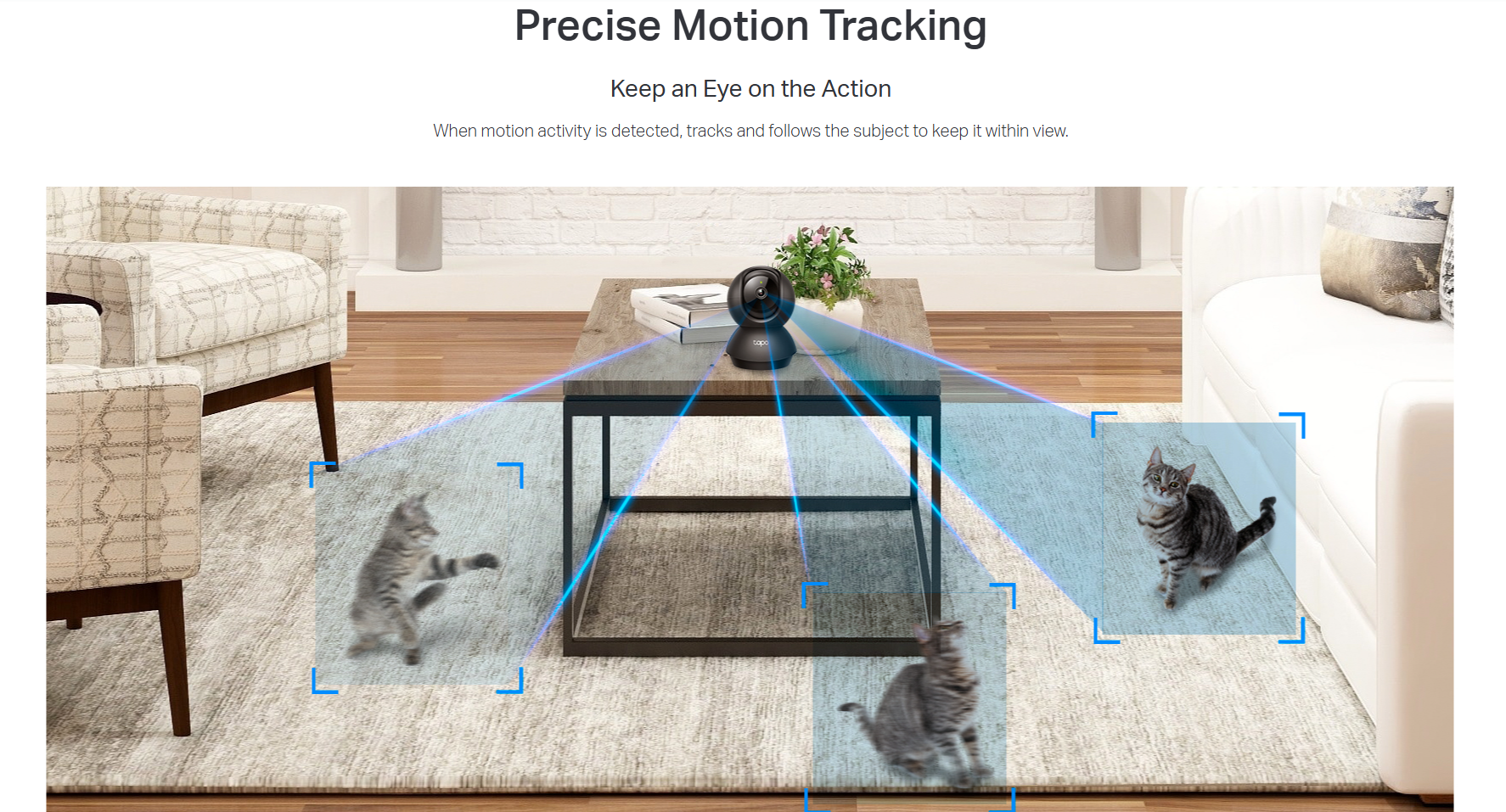
- Precise Motion Tracking: Tracks and follows the subject to keep it within your view to keep an eye on the action.
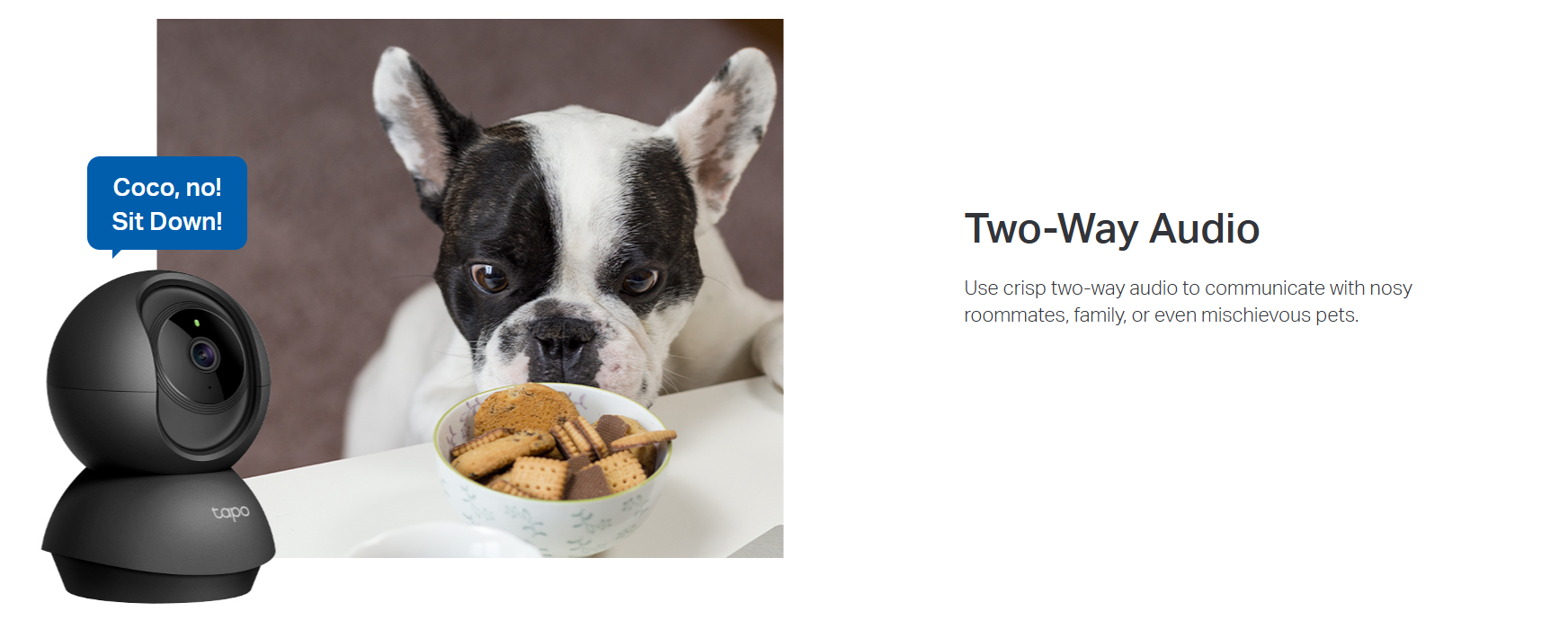
- 2-Way Audio: Enables real-time conversational communication through a built-in microphone and speaker. Never truly leave home with the built-in 2-way audio.
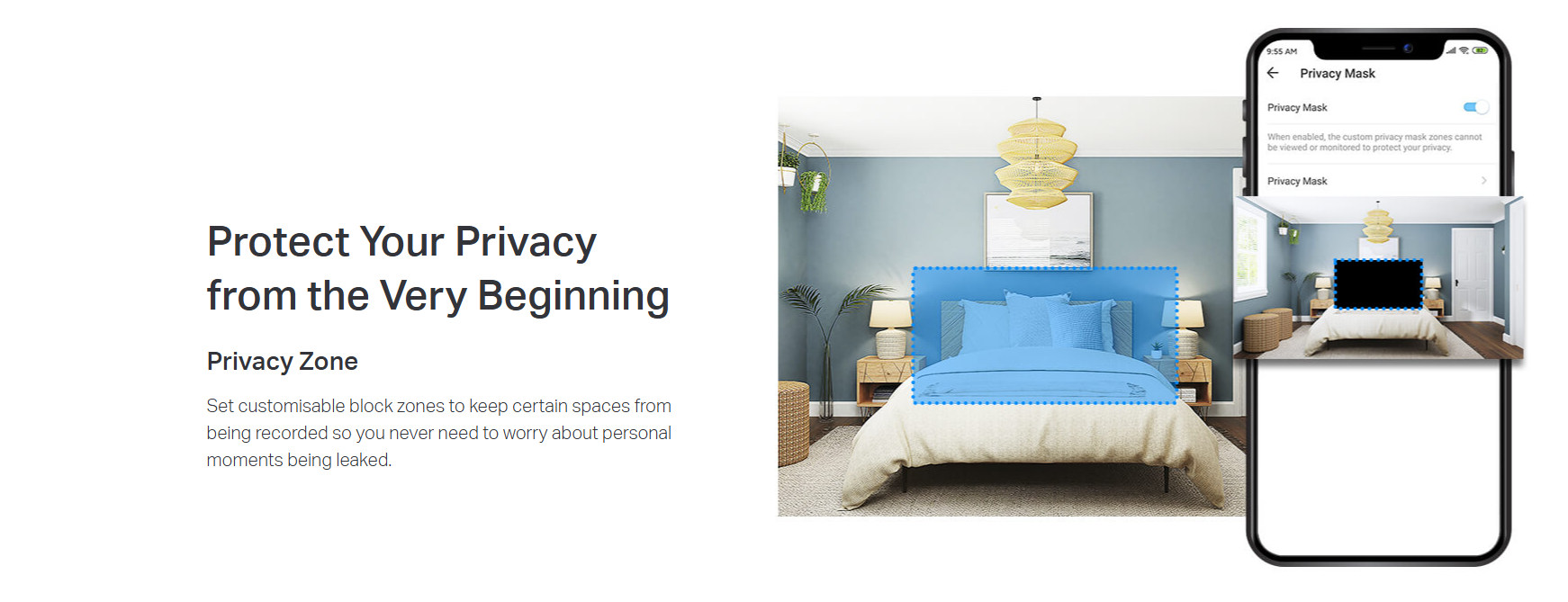
- Privacy Zone: Set customisable block zones to keep certain spaces from being recorded so you never need to worry about personal moments being leaked.
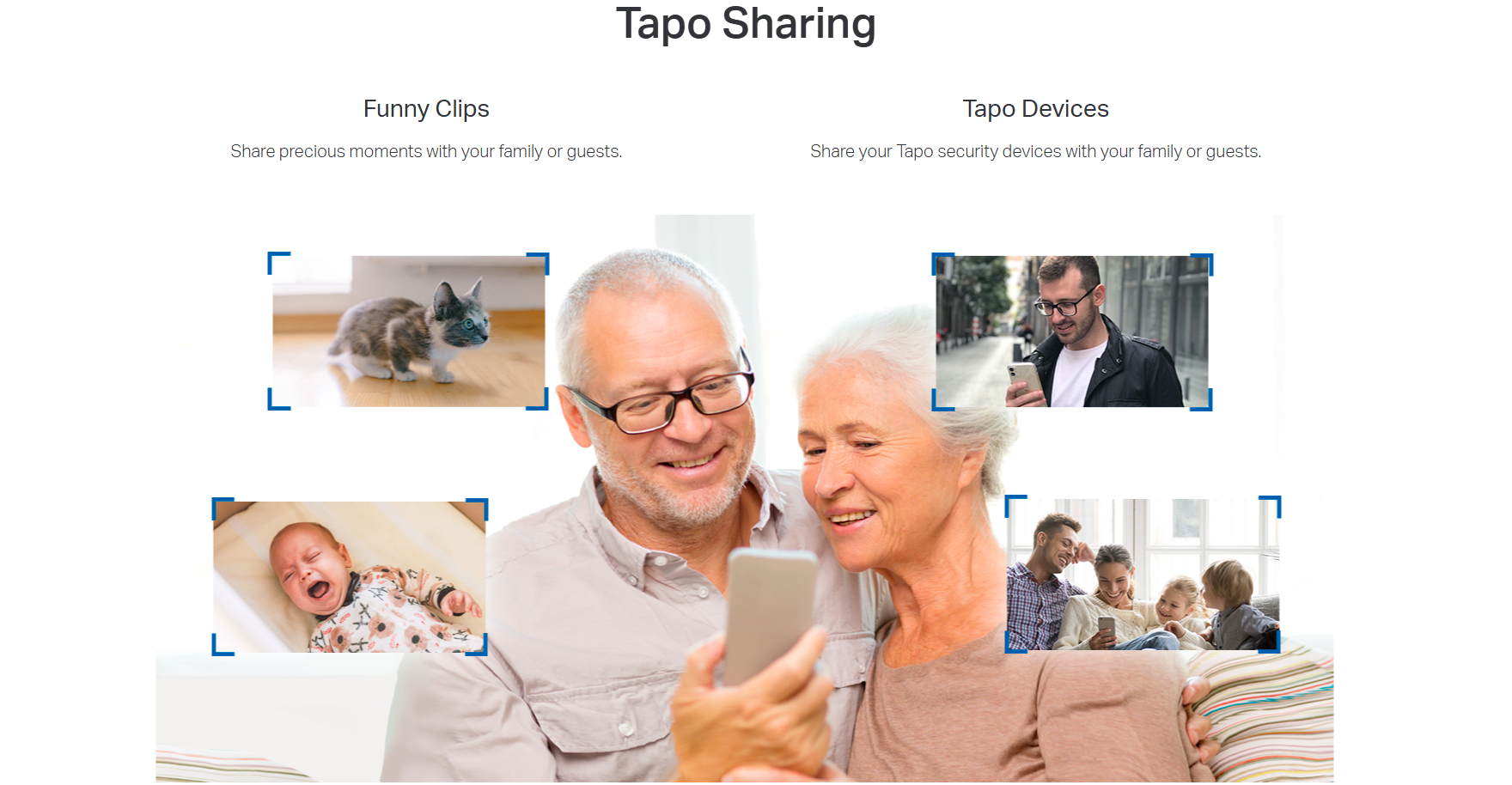
- Device Sharing: View your Wi-Fi camera feed from two different smart phone devices. Now mom and dad can both see what's happening at home with a single camera.
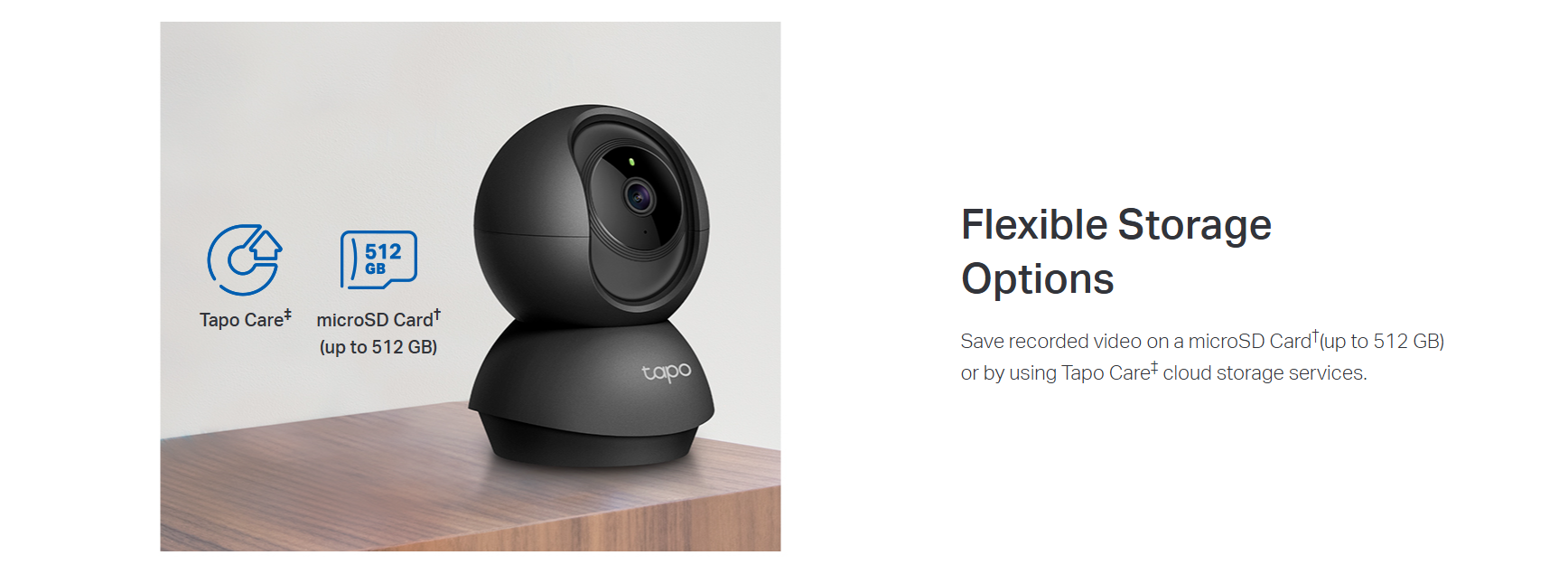
- Secure Local or Cloud Storage: Save footage continuously on up to a 512 GB microSD card† or subscribe to Tapo Care for cloud storage.‡
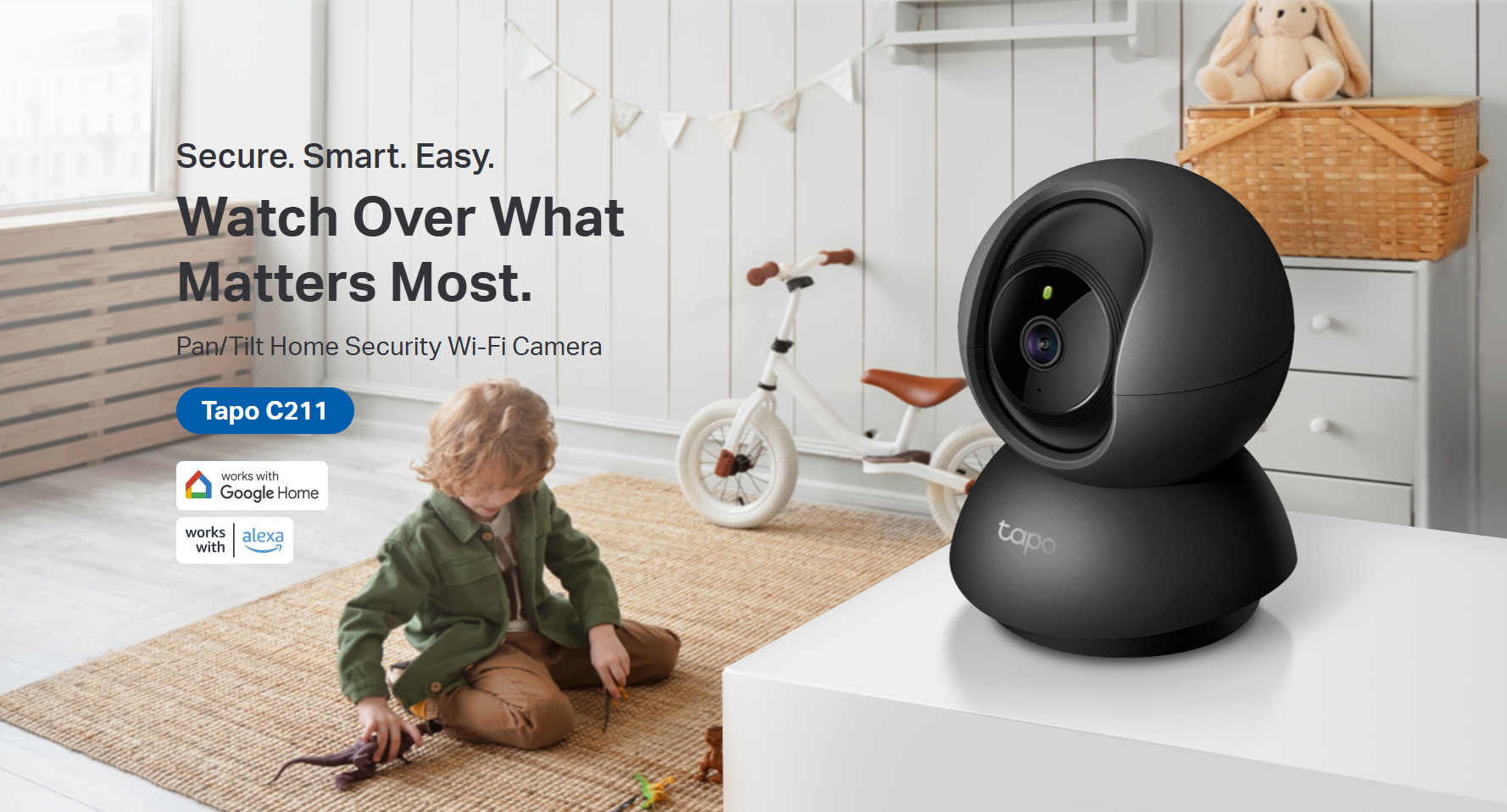
- Voice Control: Works with the Google Assistant and Amazon Alexa to free up your hands.*

†microSD card purchased separately.
‡Subscribe for cloud storage at https://www.tapo.com/tapocare/
*Google Assistant and Amazon Alexa are not available in all languages and countries.
FAQ
Use this text to share information about your product or shipping policies.
How do I set a detection zone on my Tapo camera?
You can customise detection zones in the Tapo app to focus on specific areas and reduce unnecessary alerts.
1. Go to your camera in the Tapo app → Device Settings → Detection → Detection Zones
2. Choose either:
Set for All: Apply the same detection area to all detection types
Set for Each: Set different detection areas for each detection type
3. Adjust the zone by dragging the corners, then save your changes
How do I use Siri to control my Tapo smart devices?
You can use Siri to control your Tapo smart devices by creating a custom shortcut through the Shortcuts app on your iPhone or iPad (requires iOS 12 or above).
Before you begin:
1. Make sure your Tapo device is set up and connected to the internet.
2. Give each Tapo device a unique, easy-to-recognise name.
Steps:
1. Open the Shortcuts app and tap to add a new shortcut.
2. Give your shortcut a name (e.g. "Light On").
3. Tap Add Action and search for "Tapo".
4. Select the action you want (e.g. Turn on/off a device).
5. Choose the Tapo device you want to control (e.g. P125M).
6. Tap Done to save.
Once set up, simply ask Siri or tap the shortcut to control your Tapo device instantly.
How do I download videos from my Tapo Camera?
There are three ways to download footage from your Tapo Camera, all accessible through the Tapo app.
1. Manual Recording: During live view or playback, tap the record button to capture footage. Clips are automatically saved to Playback & Download in the Tapo app and your phone's gallery. From there, you can share or export them anytime.
2. Cloud Video (Tapo Care): Go to Tapo app > Playback & Download > Cloud Video, select the clip you want, and tap the Download icon. Note that cloud videos expire based on your Tapo Care plan — download important clips before they expire.
3. SD Card Recordings: In the Tapo app, go to Playback & Download > Playback > SD Card Videos. You can either download individual detection events, or use the Clip & Download feature to trim and save a specific segment (1–10 minutes) from continuous or motion-detection footage.
Downloaded videos are saved within the Tapo app for offline viewing. To export to your phone's gallery, go to Playback & Download > Download, select the clip, and save it to your phone's album.