


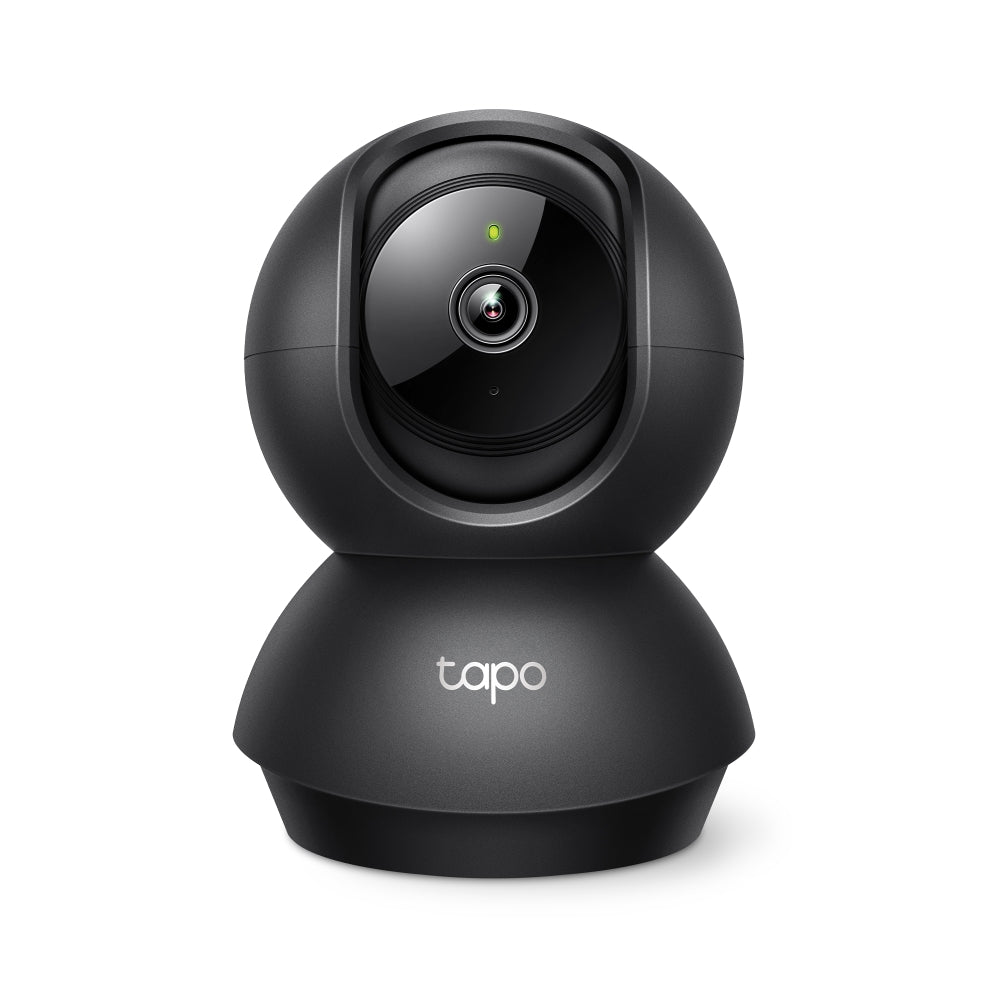


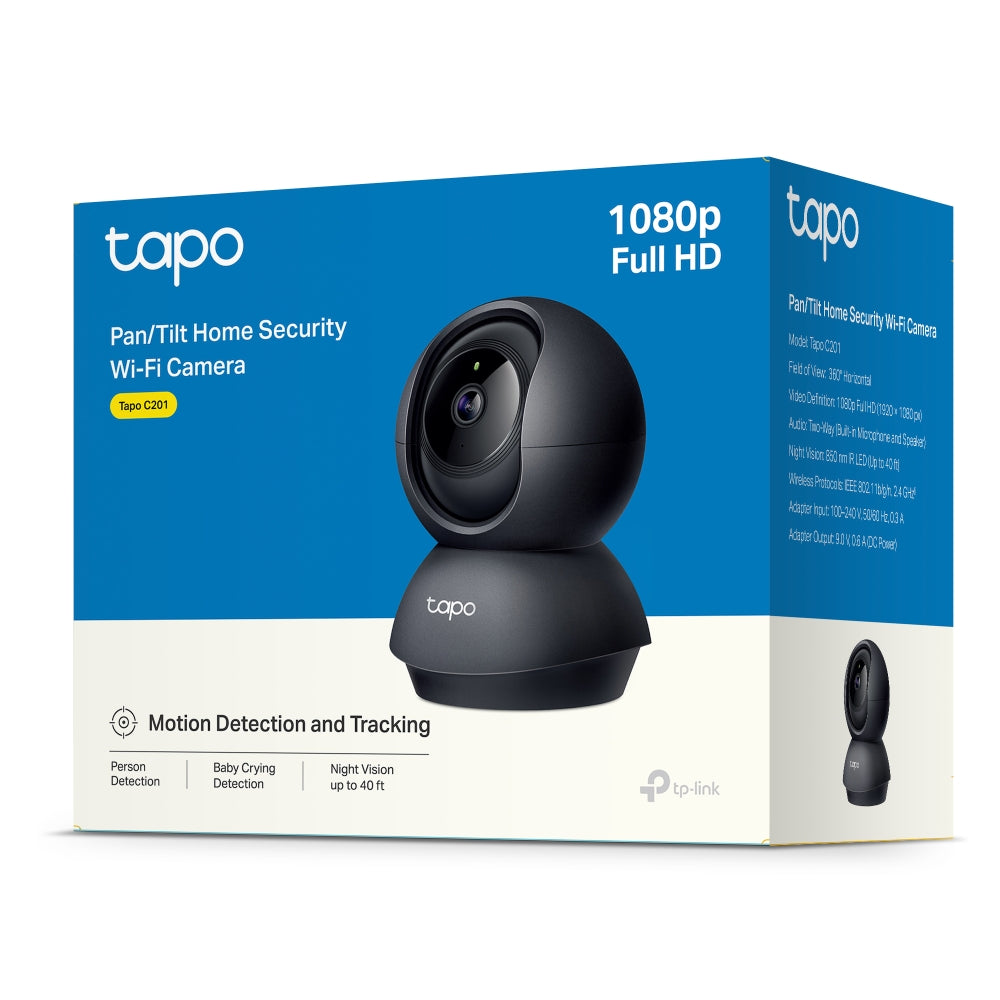
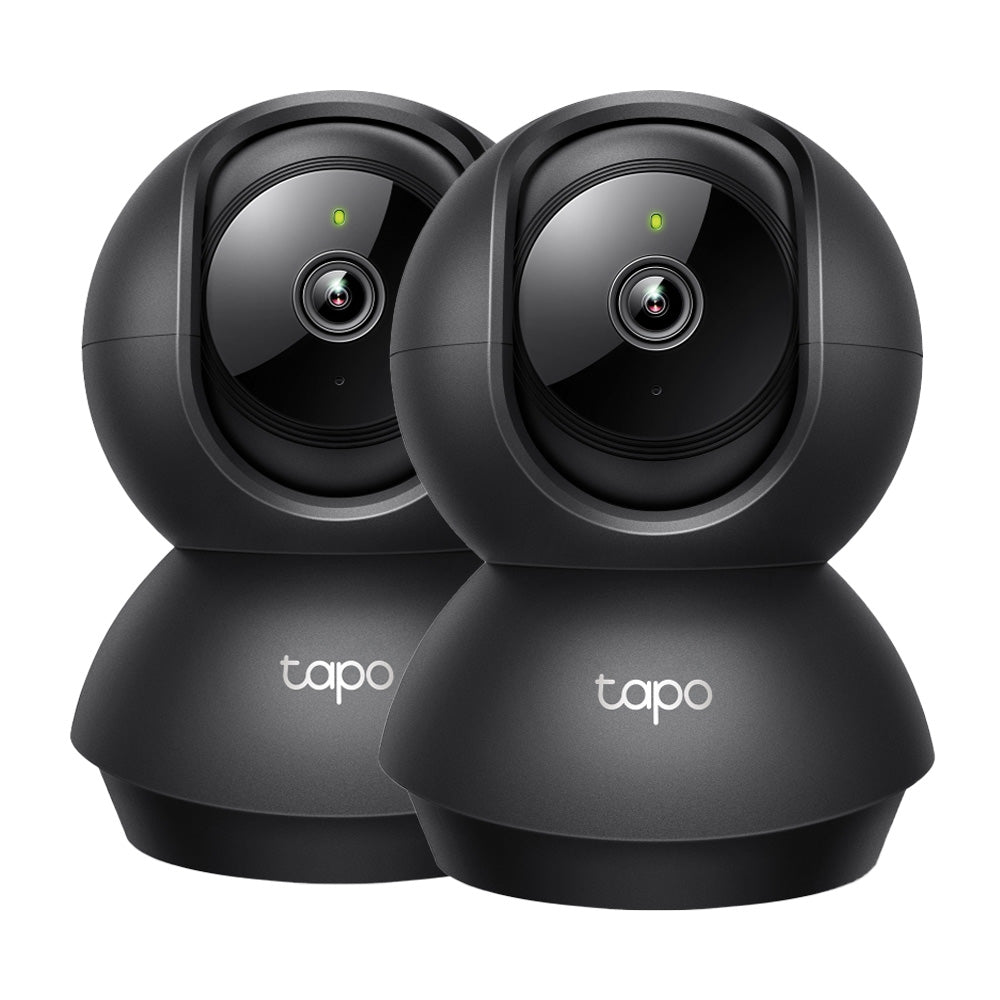
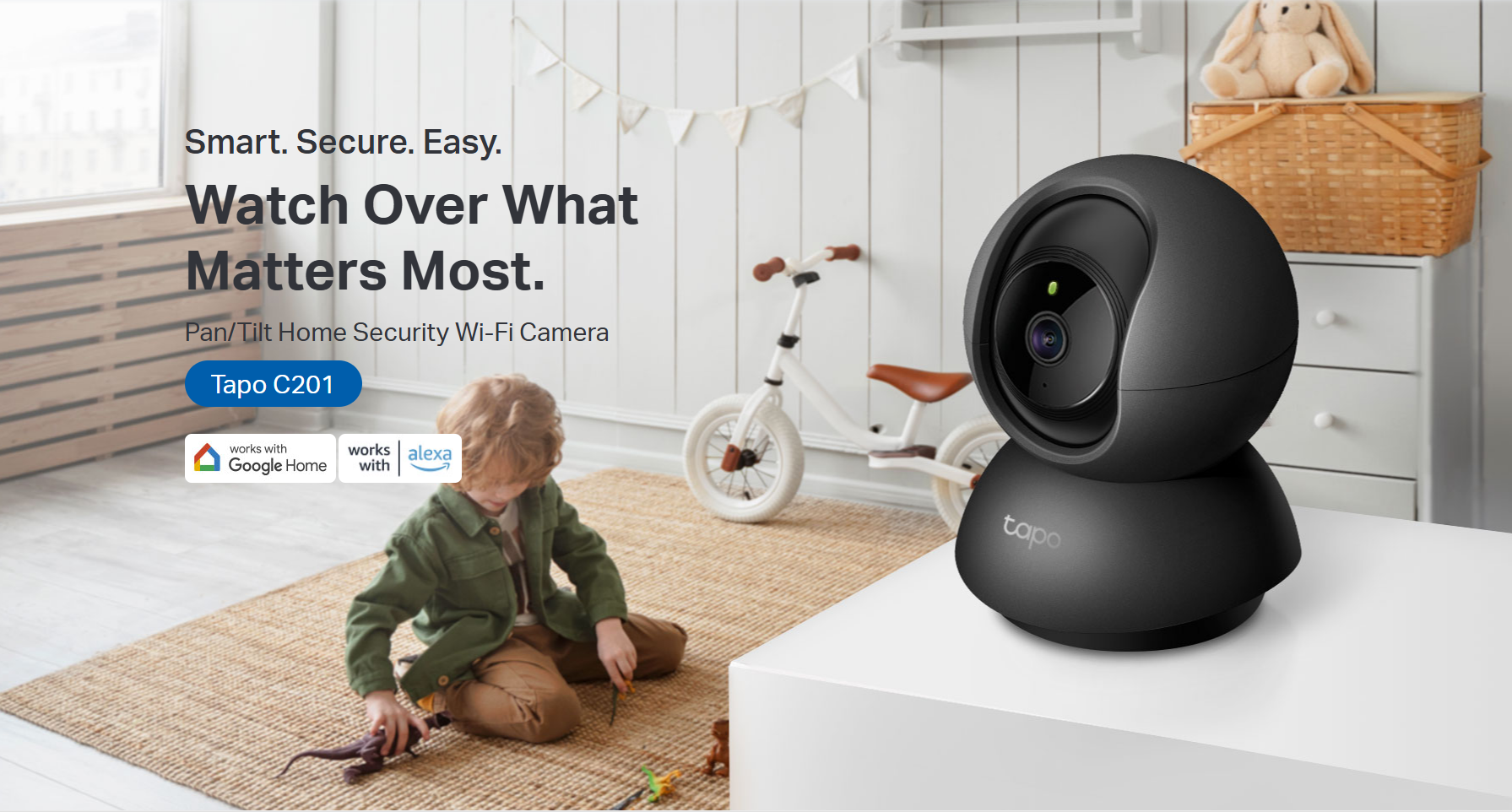
Tapo C201 | Pan/Tilt Home Security Camera, 1080P, Night Vision
1080P pan tilt wireless indoor security camera with 360° coverage, motion detection alerts, two-way audio, and night vision up to 40 feet for smart home monitoring.
HIGHLIGHTS
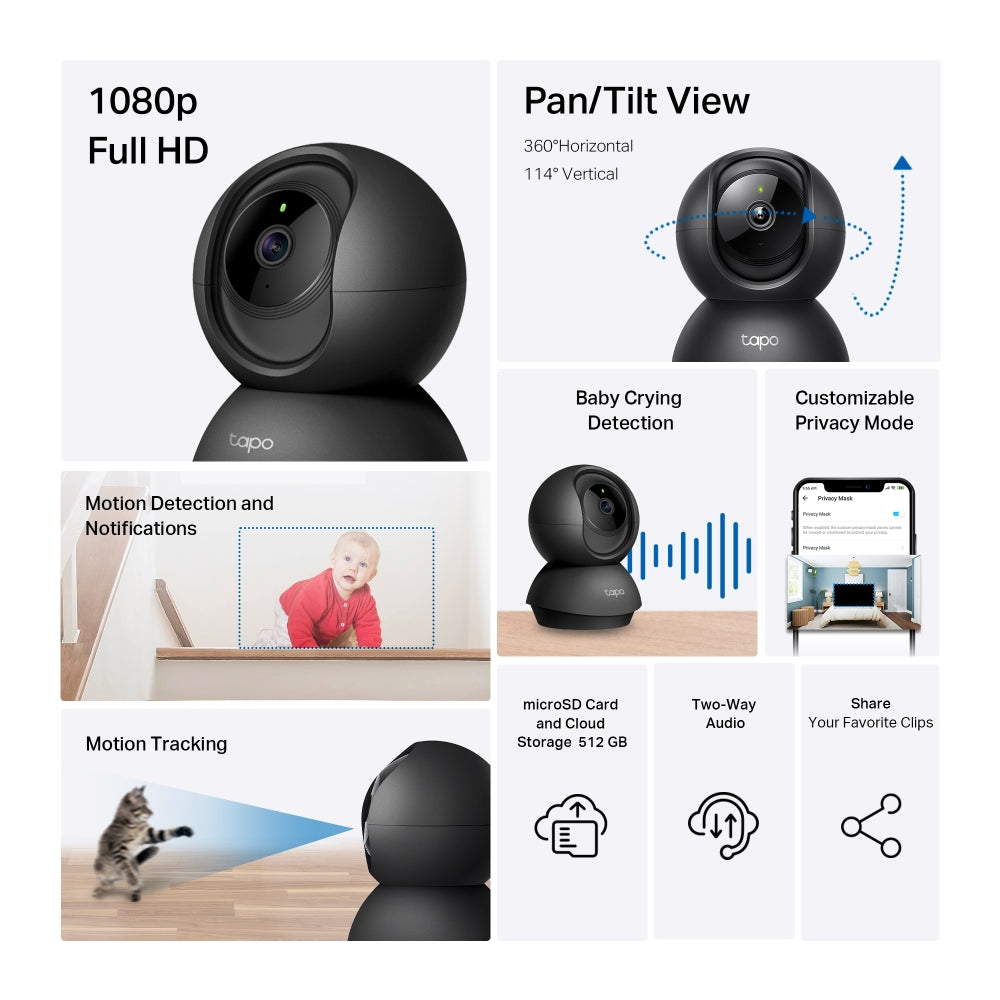
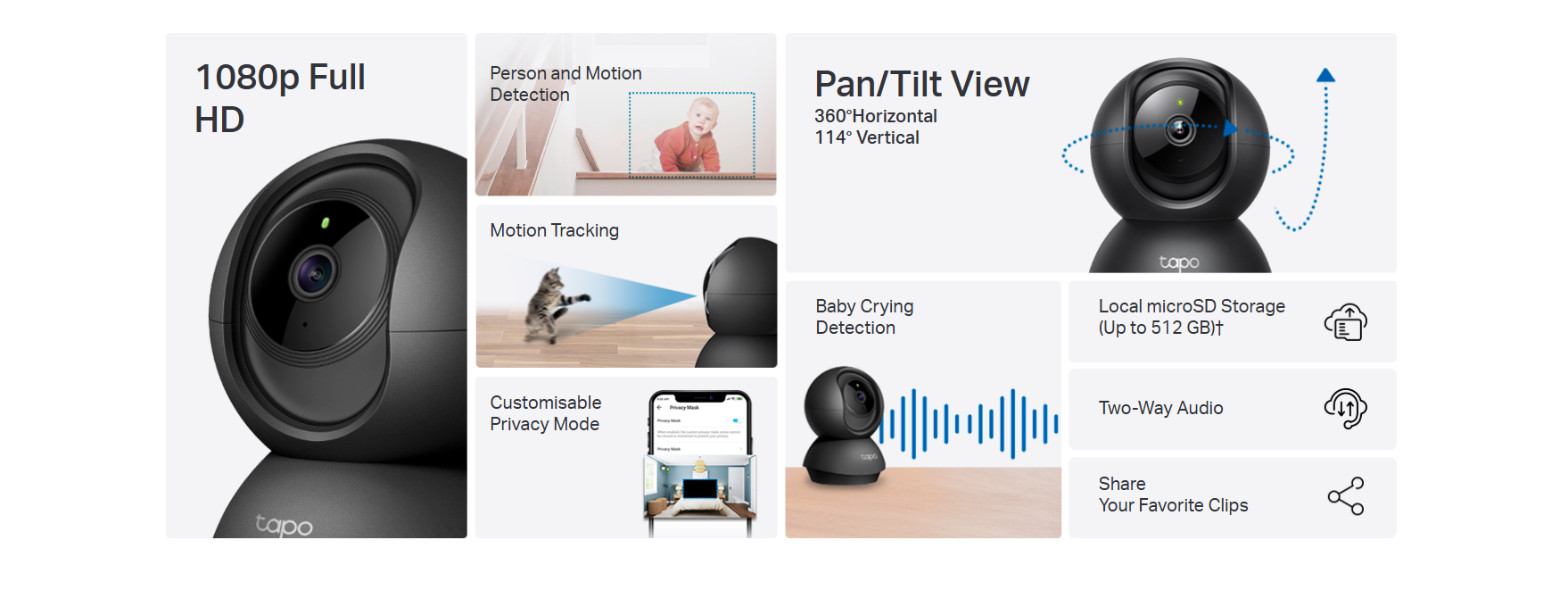
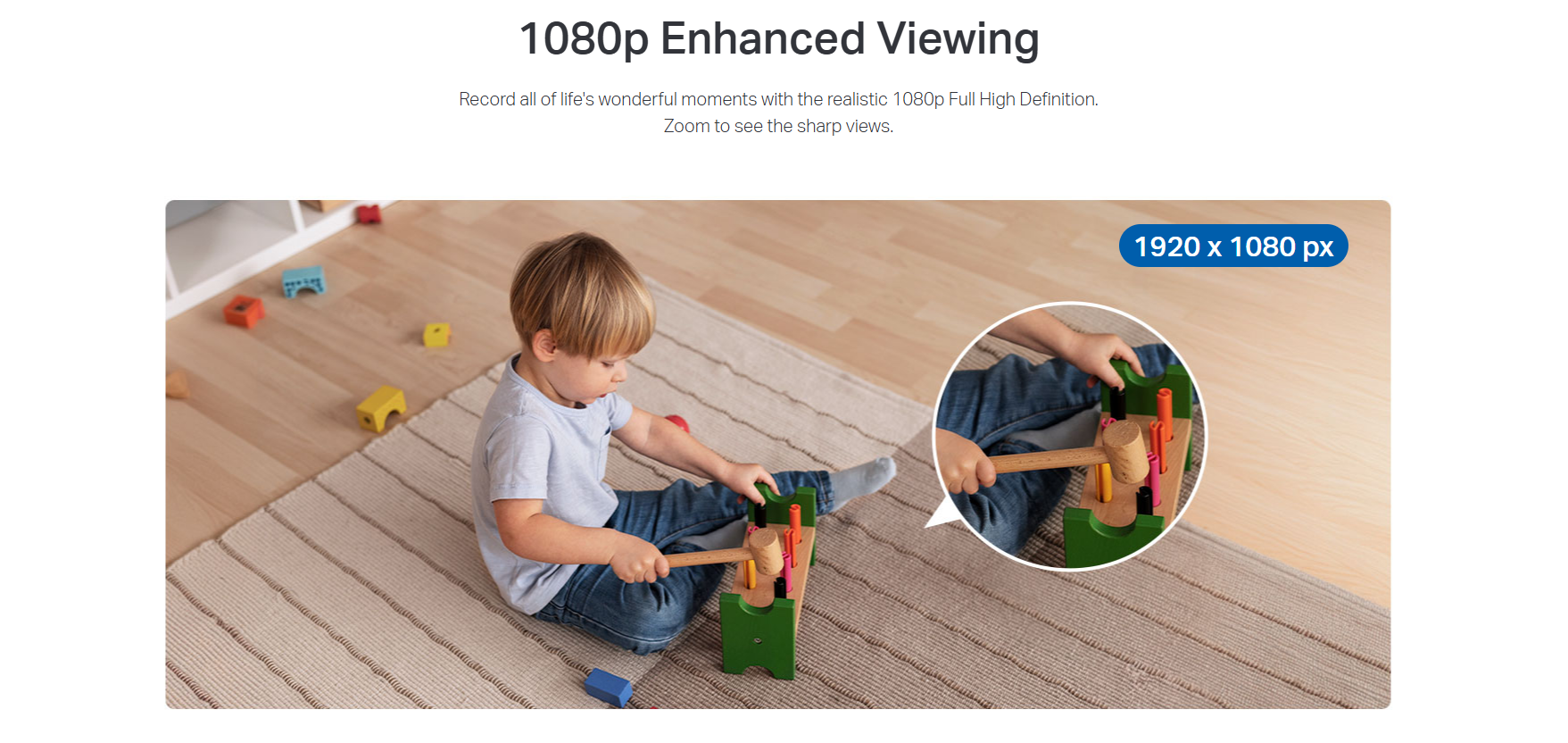
- High-Definition Video: The Tapo C201 features 1080p high-definition video, providing users with clear and detailed footage.
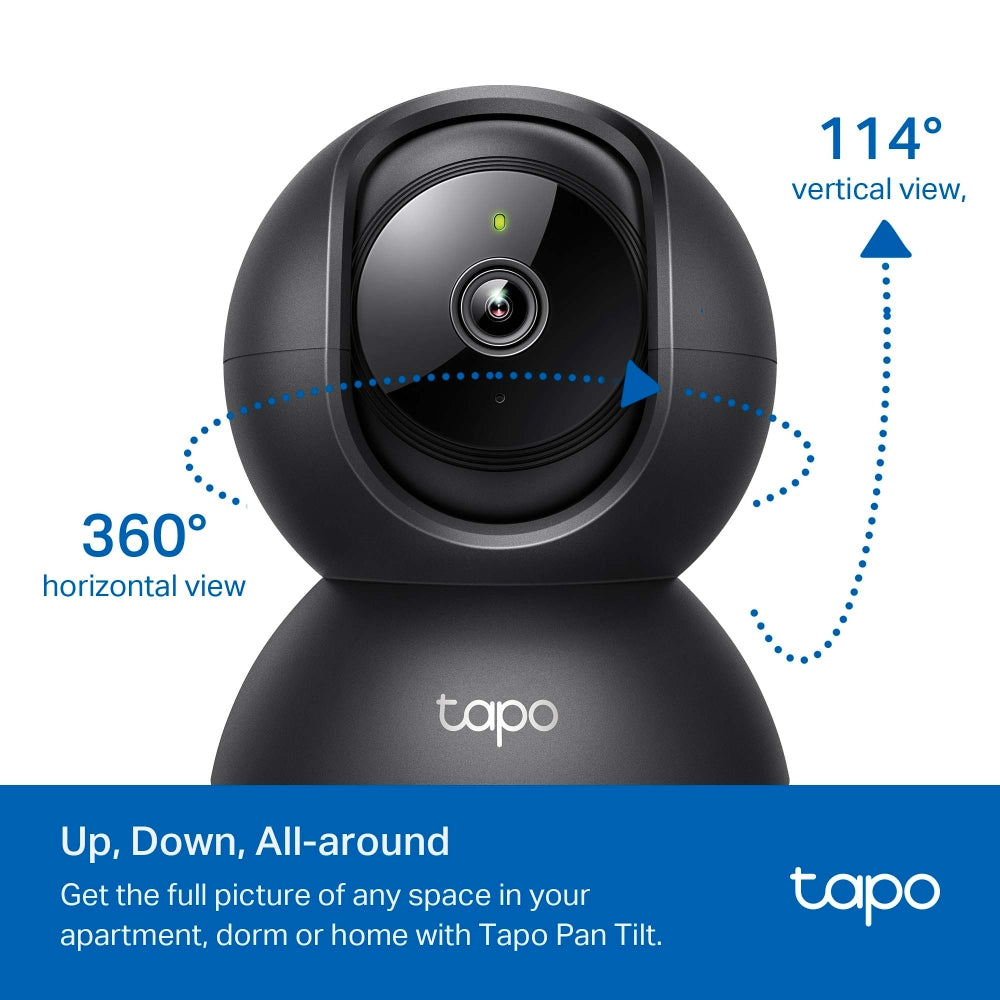
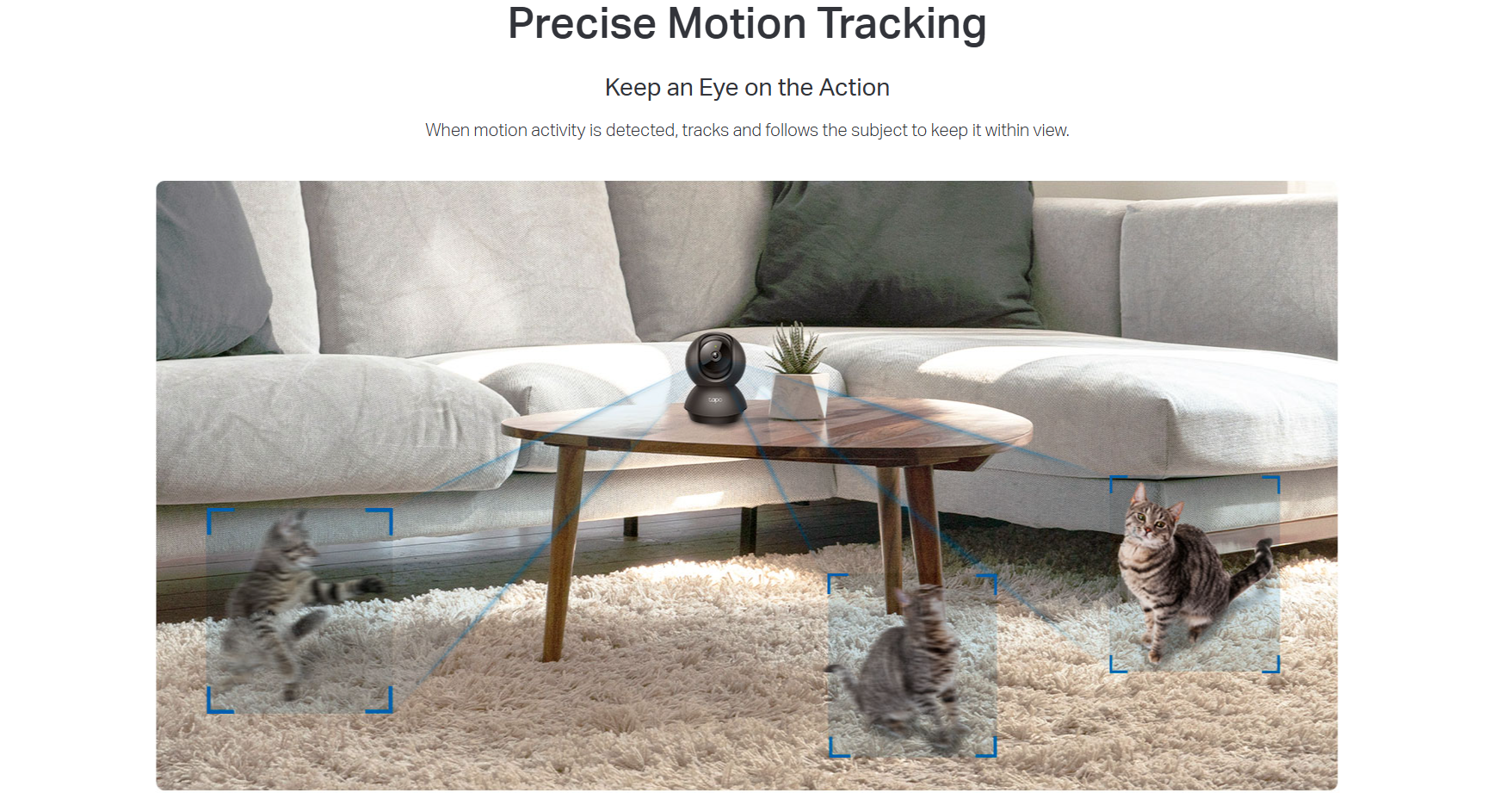
- Pan and Tilt: The device offers 360° horizontal and 114° vertical range, enabling complete coverage of the area.
- Night Vision: With advanced night vision up to 40 feet, the Tapo C201 allows users to monitor their homes around the clock.
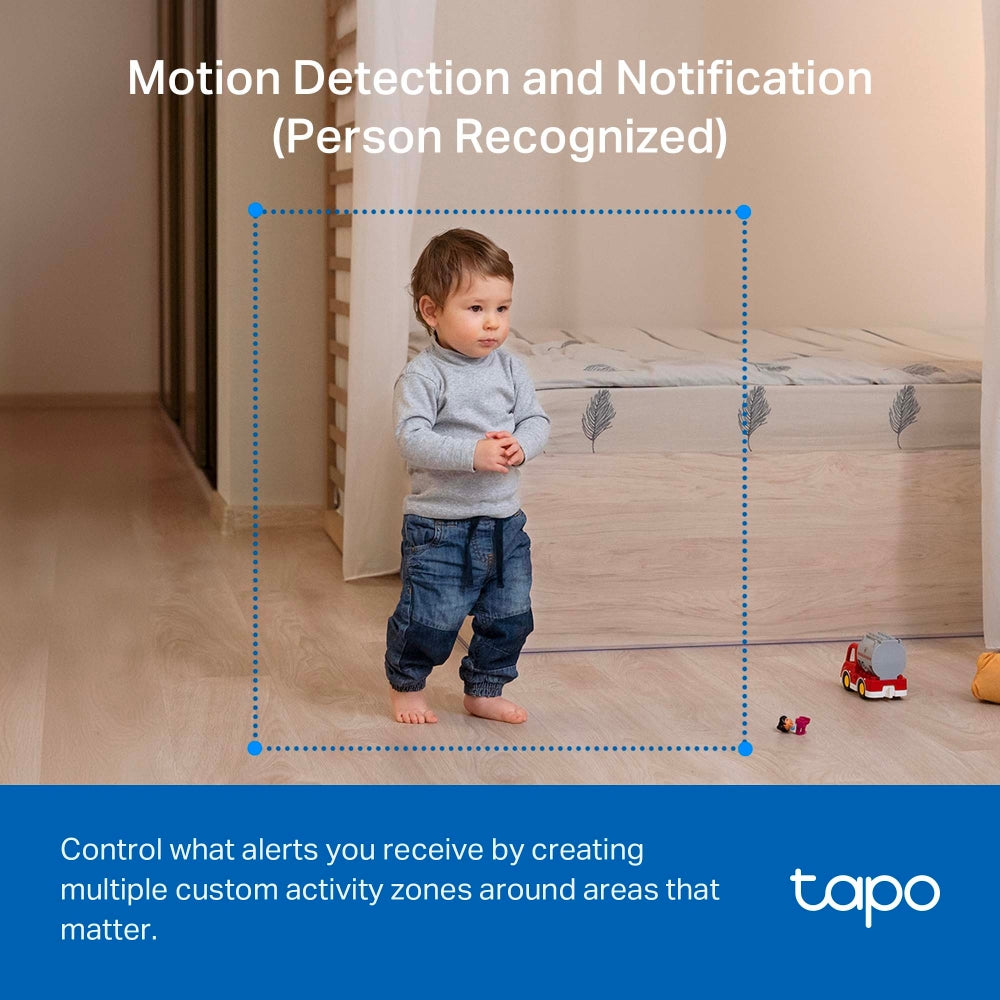
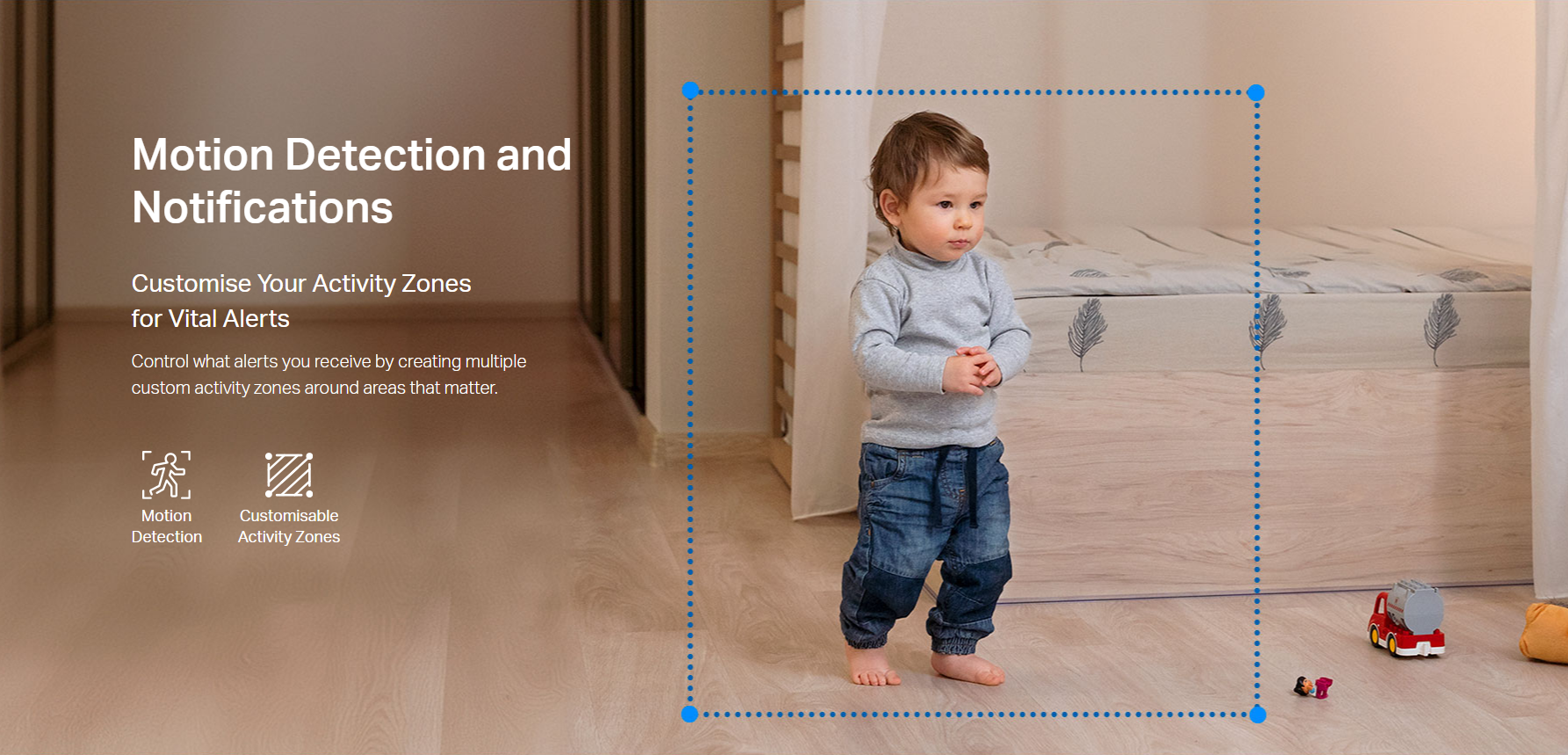
- Motion Detection and Alerts: The device uses smart motion detection technology to send instant notifications to your phone whenever movement is detected.
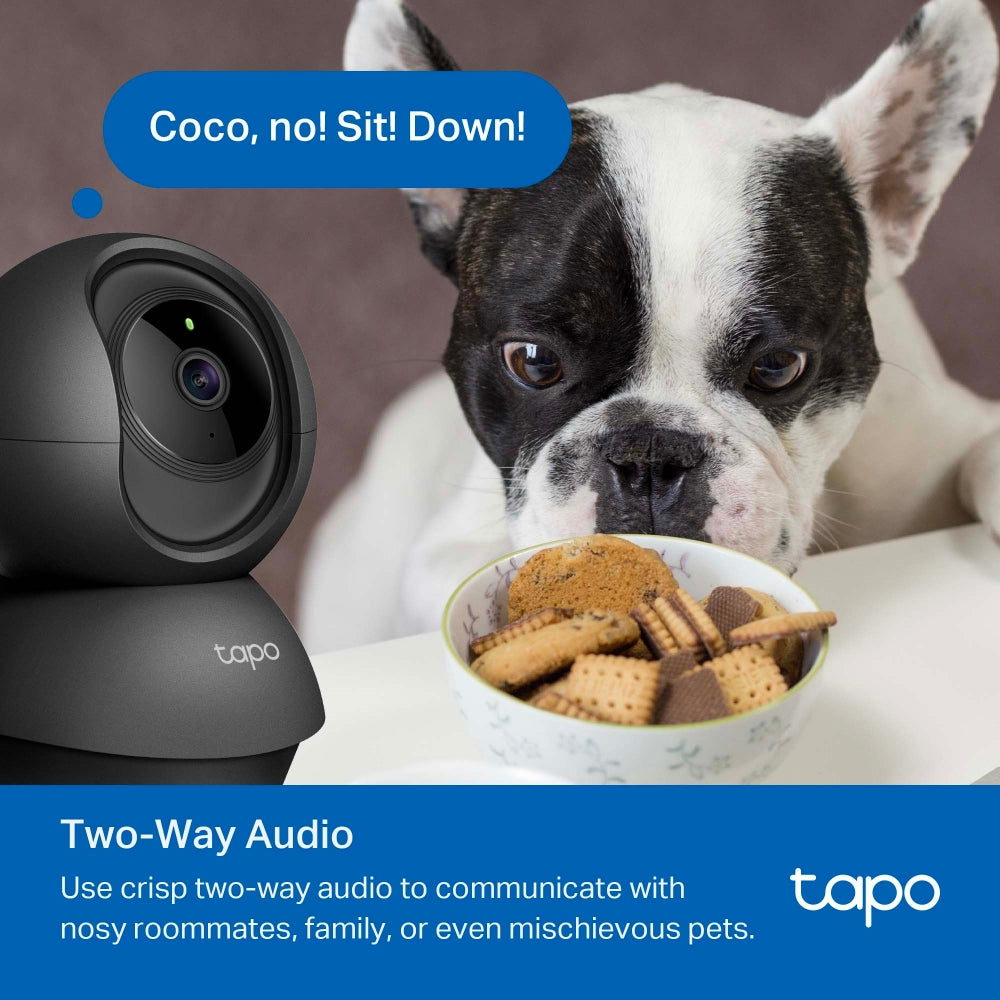
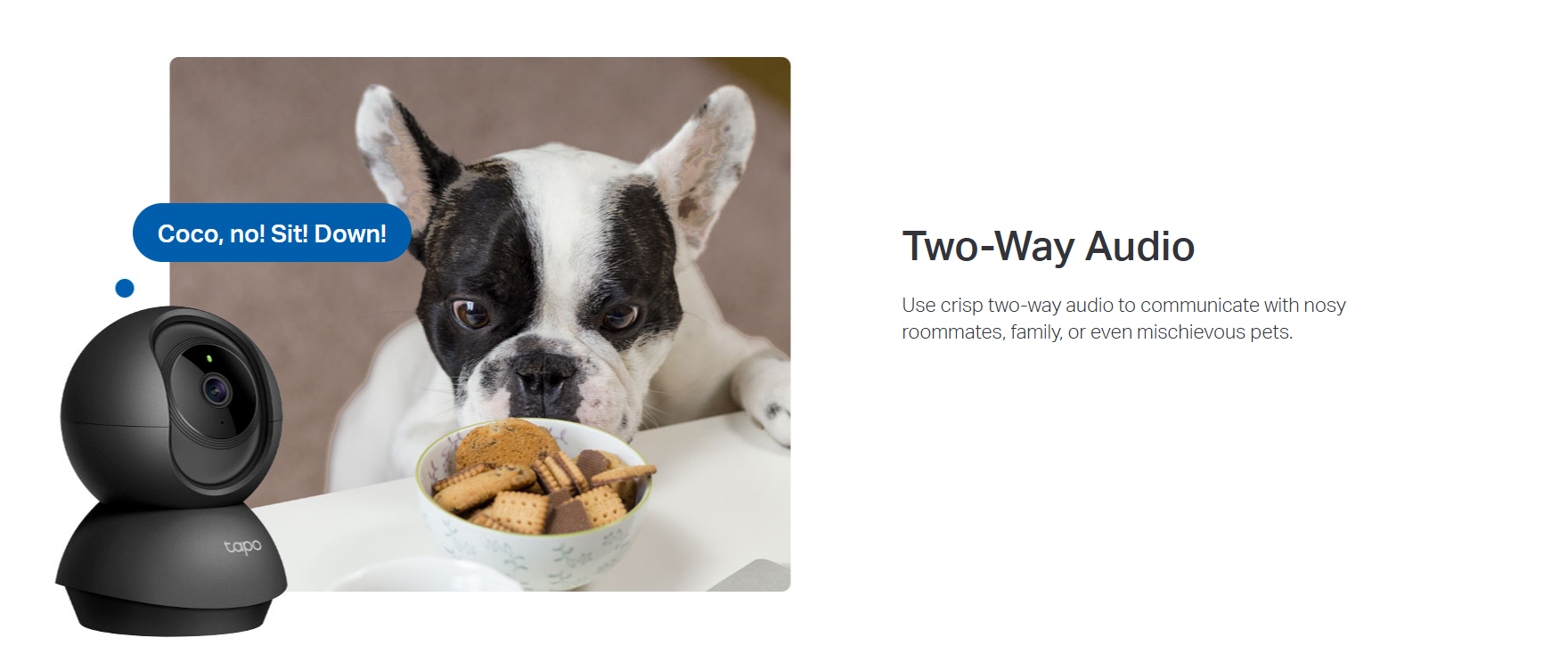
- Two-Way Audio: The Tapo C201 comes equipped with a built-in microphone and speaker, allowing users to communicate with family, pets, or warn off intruders.
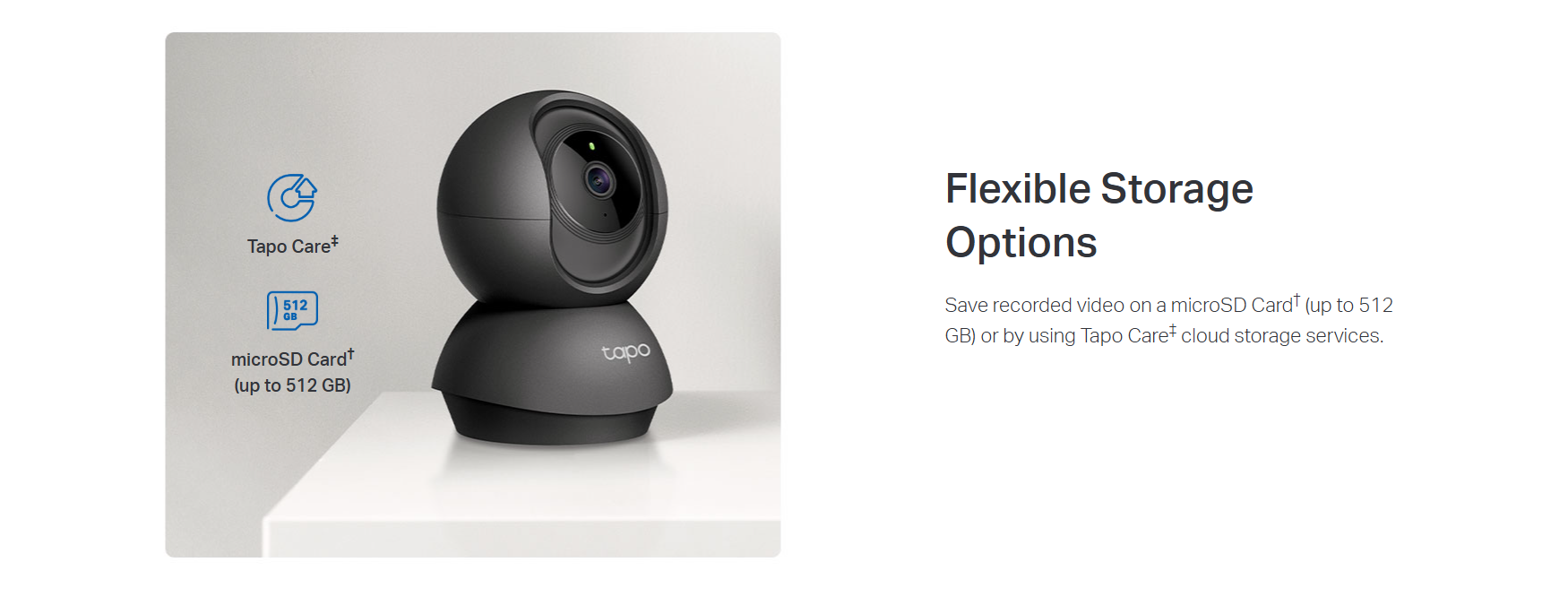
- Local Storage: The device supports microSD cards up to 512GB for local storage, providing a secure and cost-effective way to store footage.
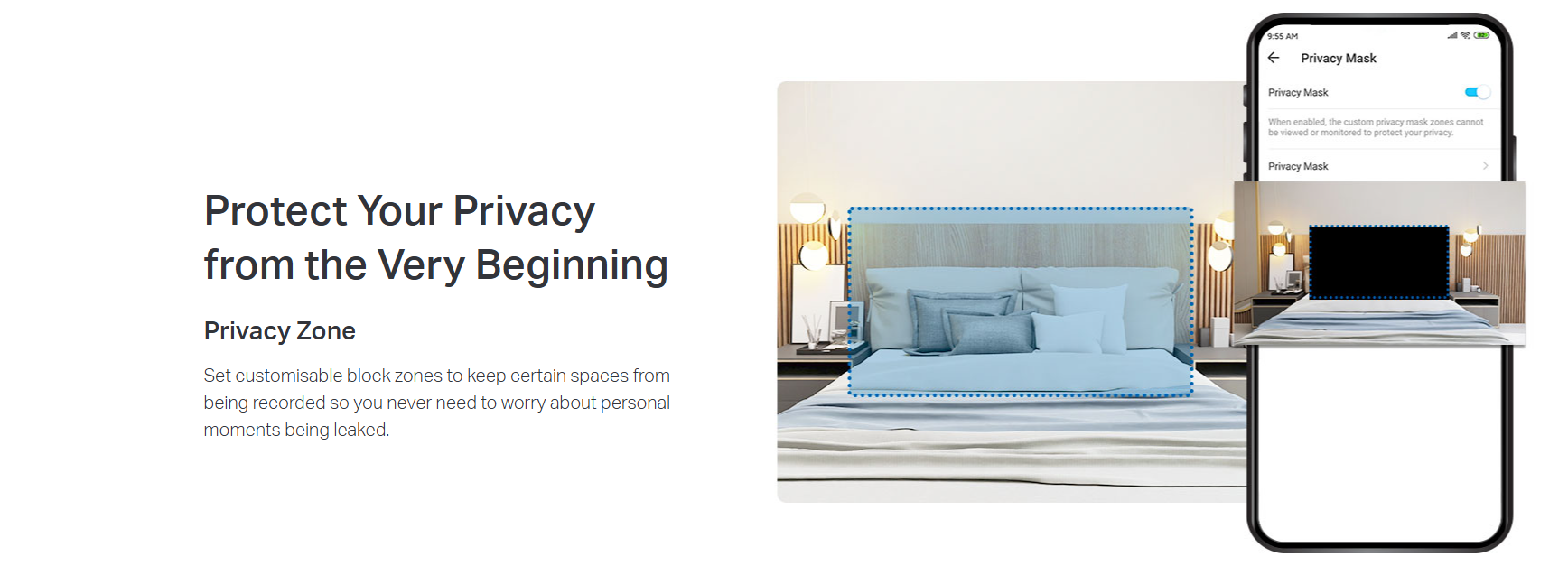
- Privacy Mode: Users can enable Privacy Mode to stop recording and control when the camera is monitoring and when it's not.
- Easy Setup and Management: With the Tapo app, users can easily set up and manage their Tapo C201, and access live streaming and other controls.
- Voice Control: The Tapo C201 is compatible with Google Assistant and Amazon Alexa, offering hands-free control for users.
- Secure Encryption: The device uses advanced encryption and wireless protocols to ensure data privacy and secure communication between your phone and the device.

FAQ
Use this text to share information about your product or shipping policies.
How do I set a detection zone on my Tapo camera?
You can customise detection zones in the Tapo app to focus on specific areas and reduce unnecessary alerts.
1. Go to your camera in the Tapo app → Device Settings → Detection → Detection Zones
2. Choose either:
Set for All: Apply the same detection area to all detection types
Set for Each: Set different detection areas for each detection type
Adjust the zone by dragging the corners, then save your changes
Note: Feature availability may vary by model and firmware version.
How do I change the time stamp format on my Tapo camera?
You can customise the time stamp format directly in the Tapo app.
1. Open your camera and go to Device Settings
2. Tap Video & Display → On-screen Display Info
3. Enable Time Stamp, then select your preferred date format and save
This allows you to adjust how the date and time appear on your camera footage.
For detailed steps with images, please refer to: https://www.tp-link.com/au/support/faq/4399/
What should I do if I can’t find my Tapo camera in the Tapo app?
If your camera doesn’t appear in the app, try the following:
1. Check connection: Make sure the camera is properly connected to Wi-Fi (check the LED status)
2. Reset and reconnect: If needed, reset the camera and set it up again
3. Verify app settings: Ensure you’re viewing the correct Home or Room in the app
4. Check network settings: Confirm your phone and camera are on the same Wi-Fi and that no firewall or security settings are blocking the connection
5. Test with hotspot: Try setting up the camera using a mobile hotspot to rule out router issues
If the issue persists, please contact TP-Link support for further assistance.