


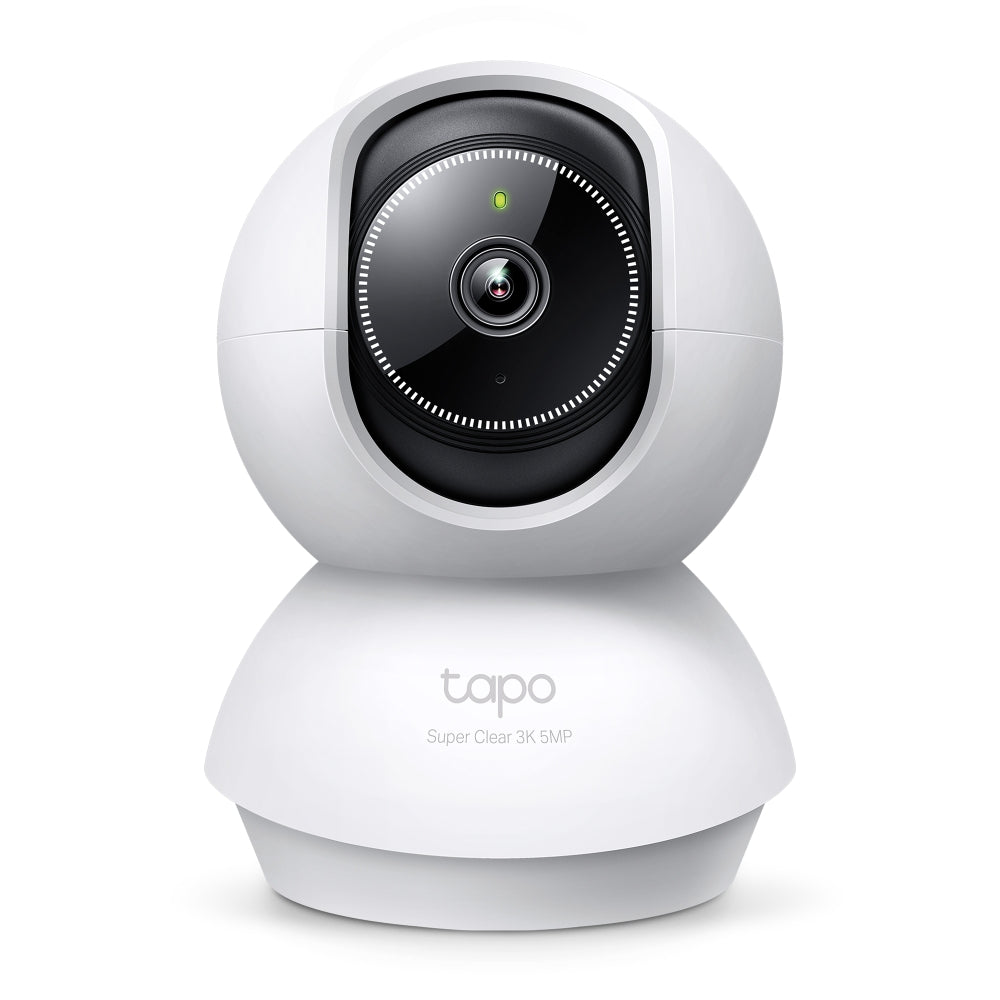
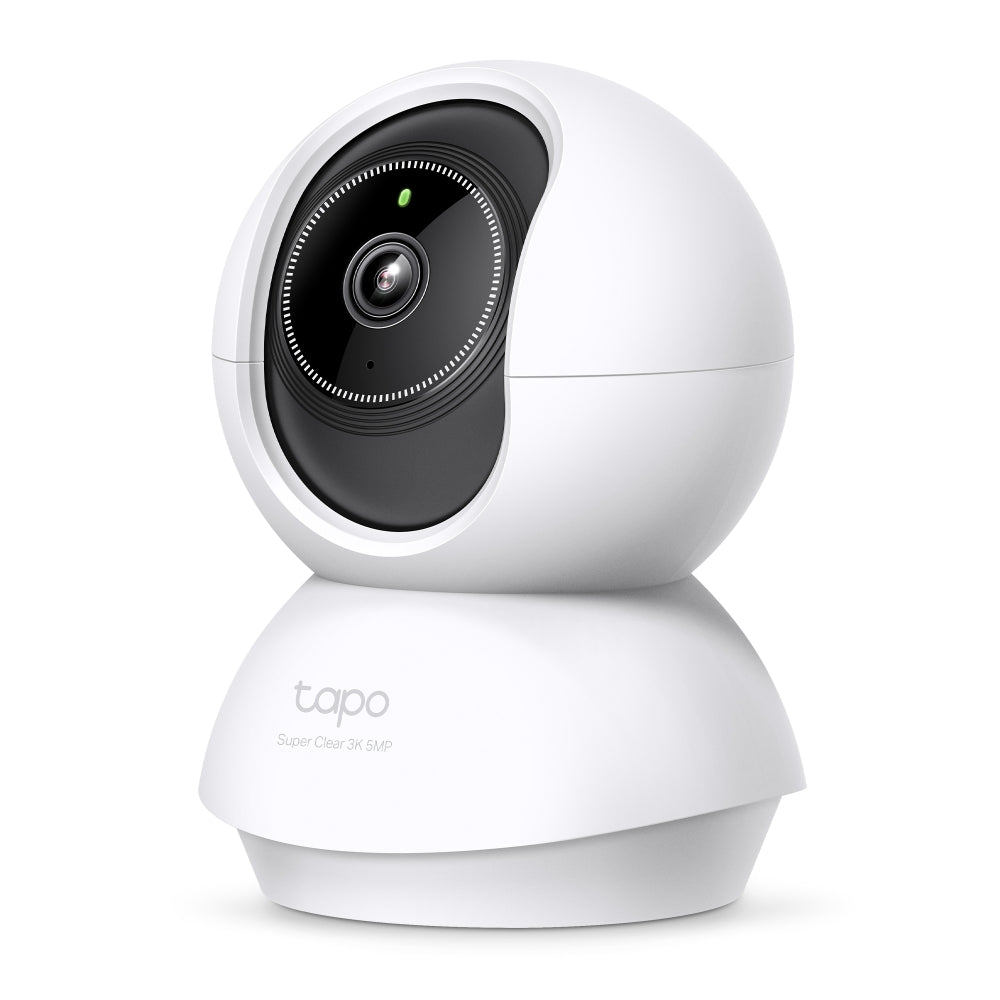


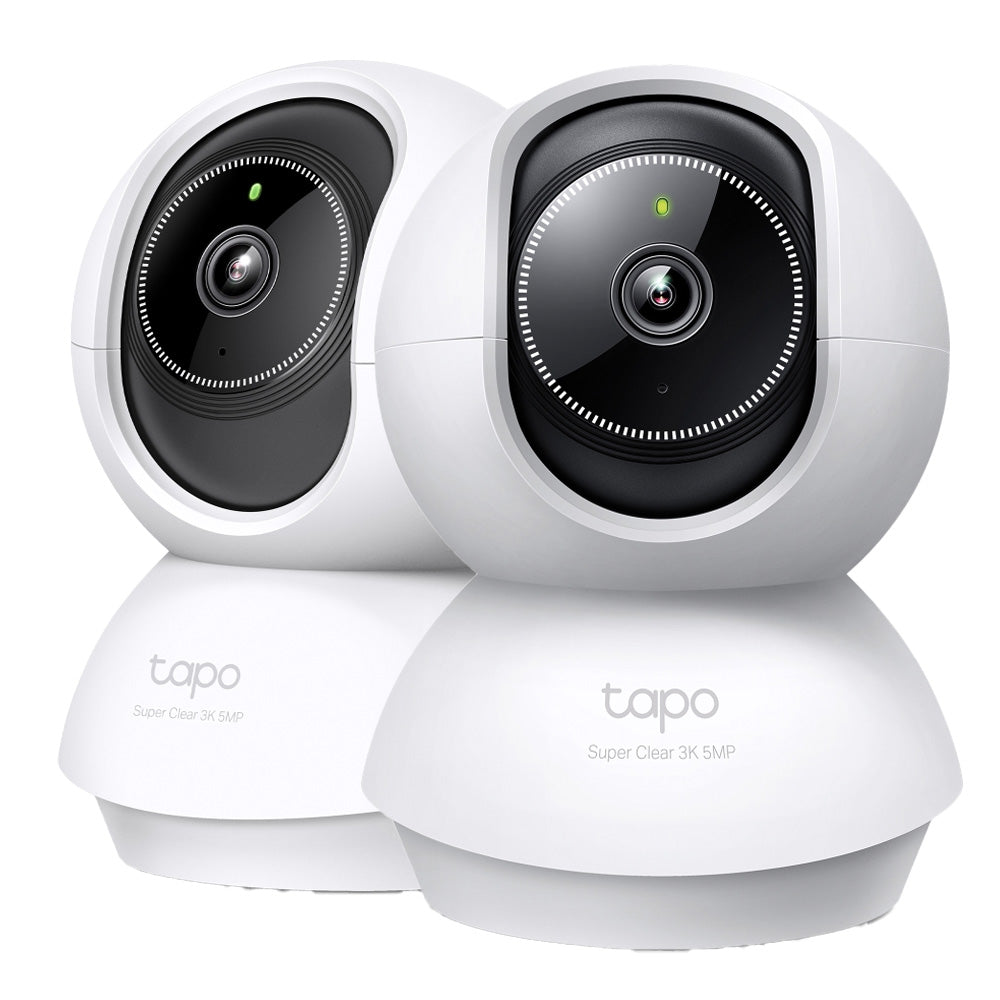
Tapo C230 | Pan/Tilt AI Security Camera, 3K, Smart AI Detection
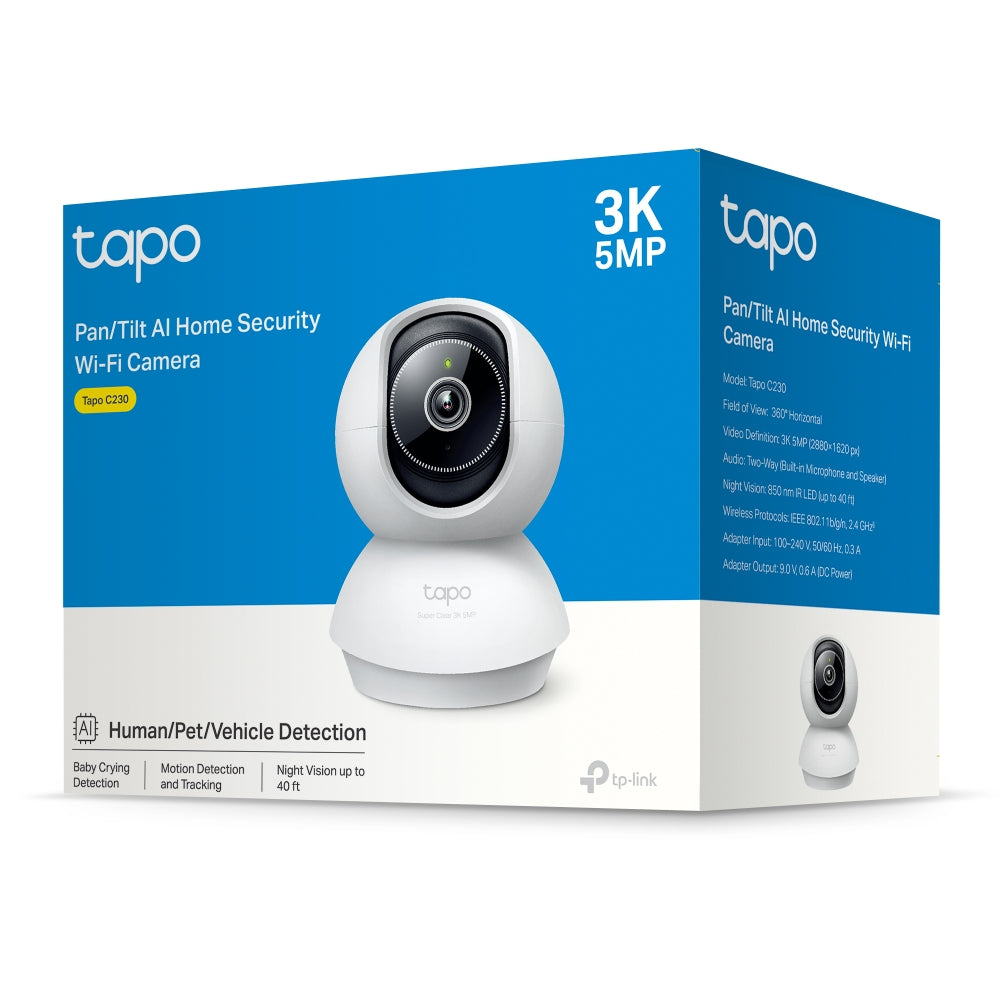
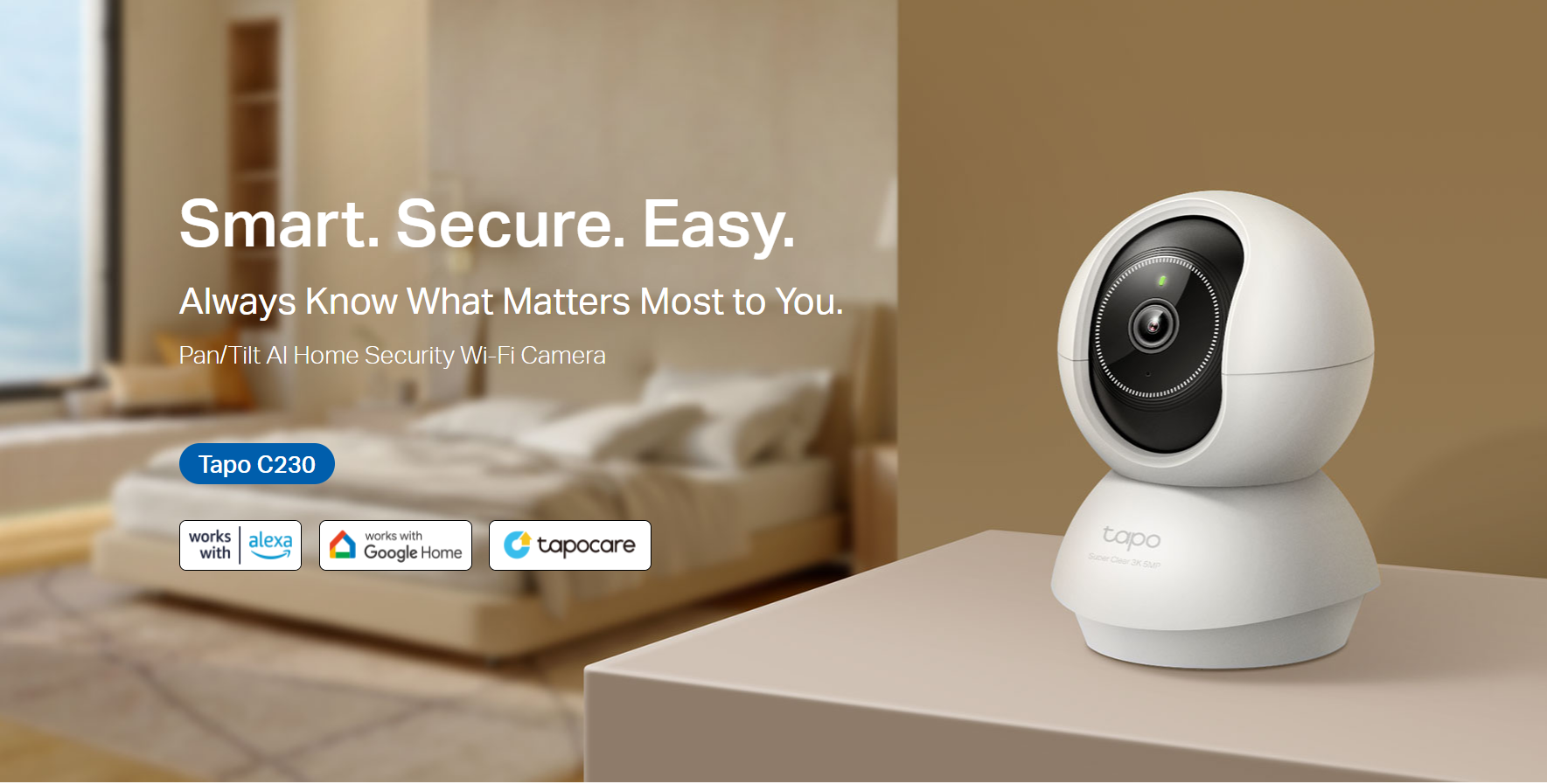
3K 5MP pan tilt wireless indoor camera with 360° horizontal rotation, smart AI detection, enhanced night vision, and sound alarm for premium home security monitoring.
HIGHLIGHTS
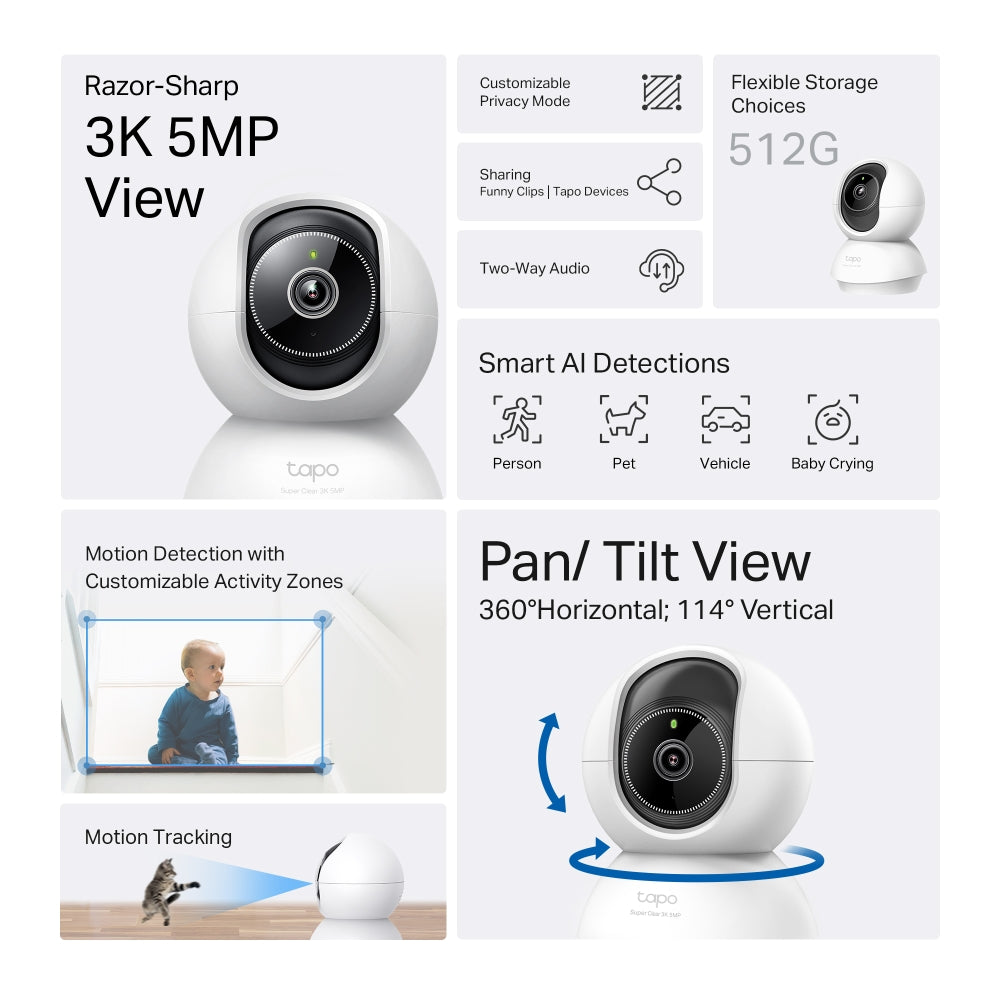
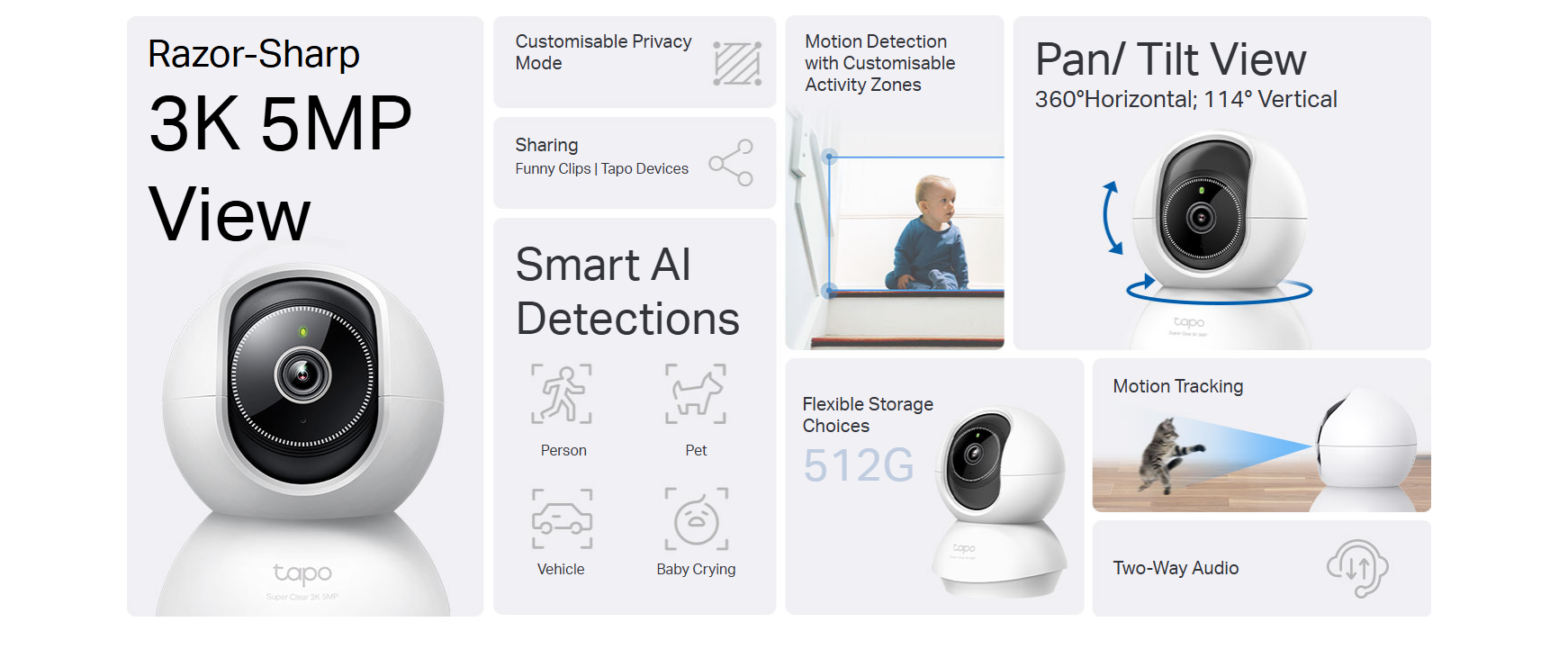
- High-Quality Video Recording: Capture every detail with exceptional clarity in 3K 5MP resolution.
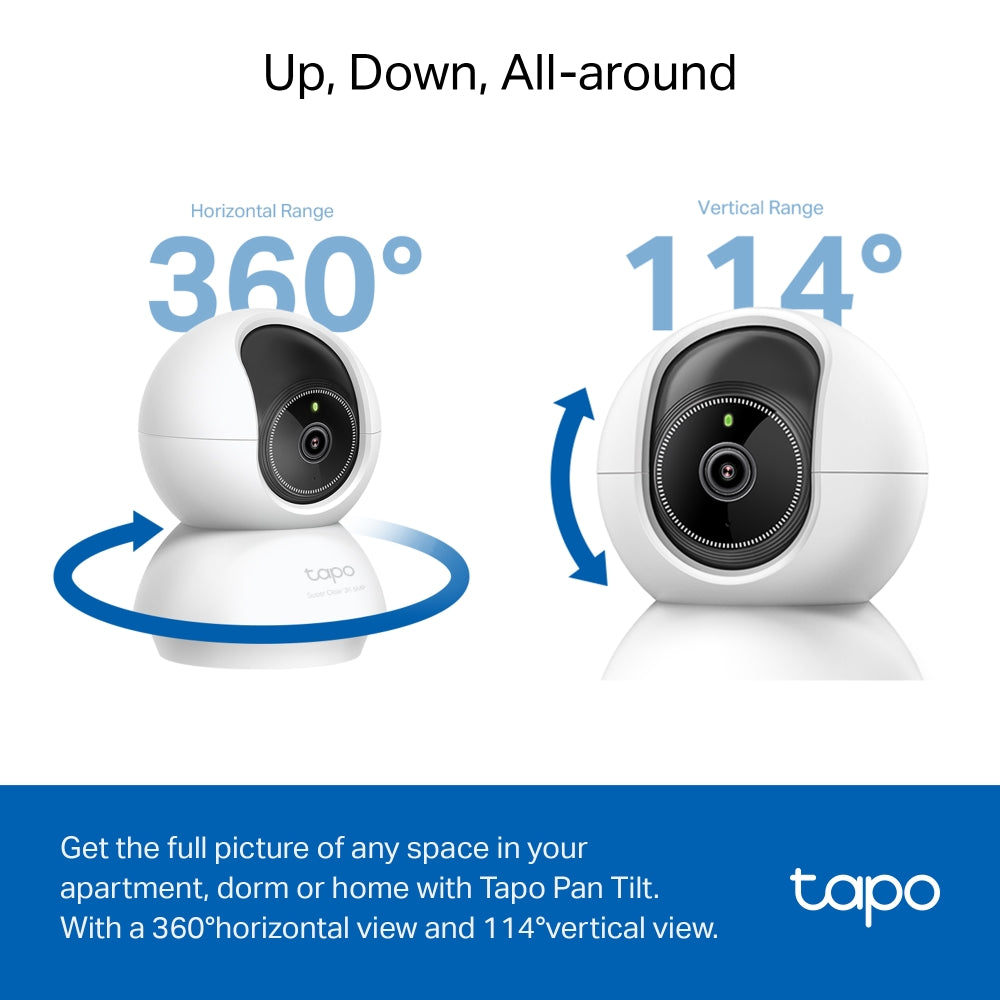
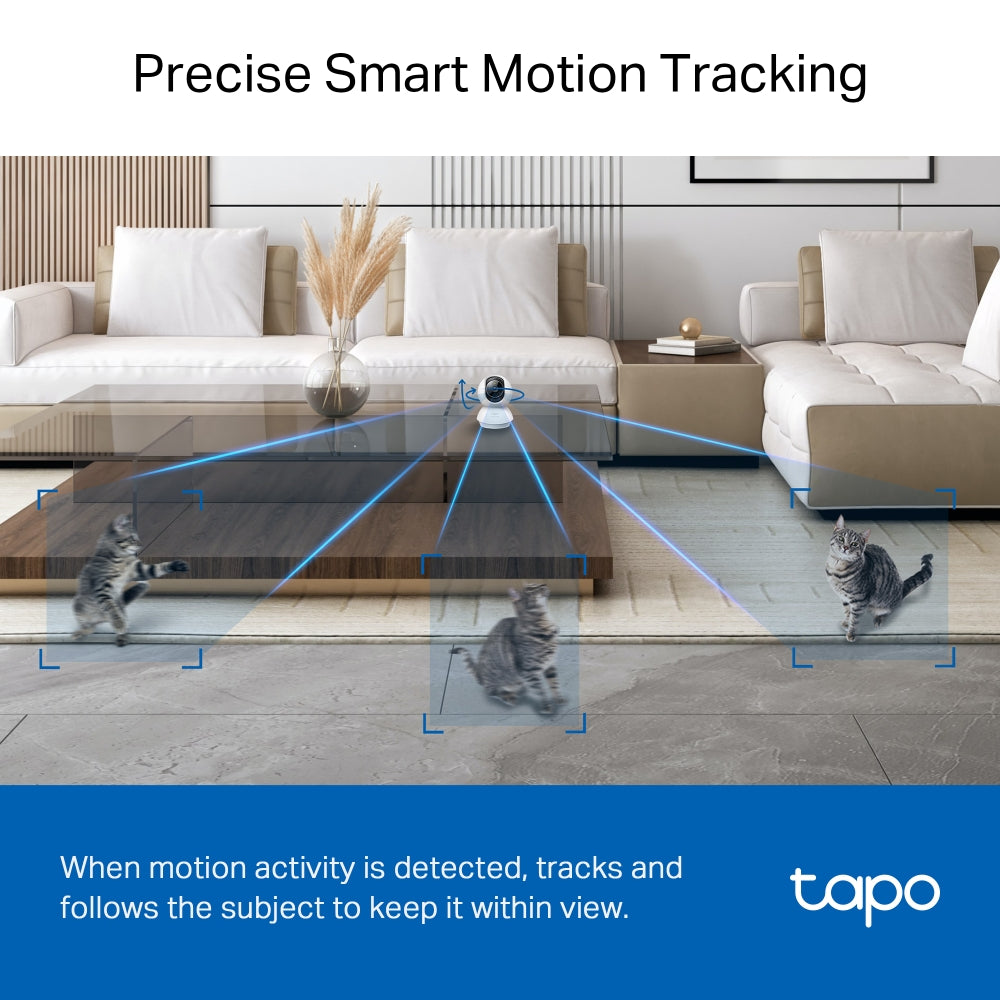
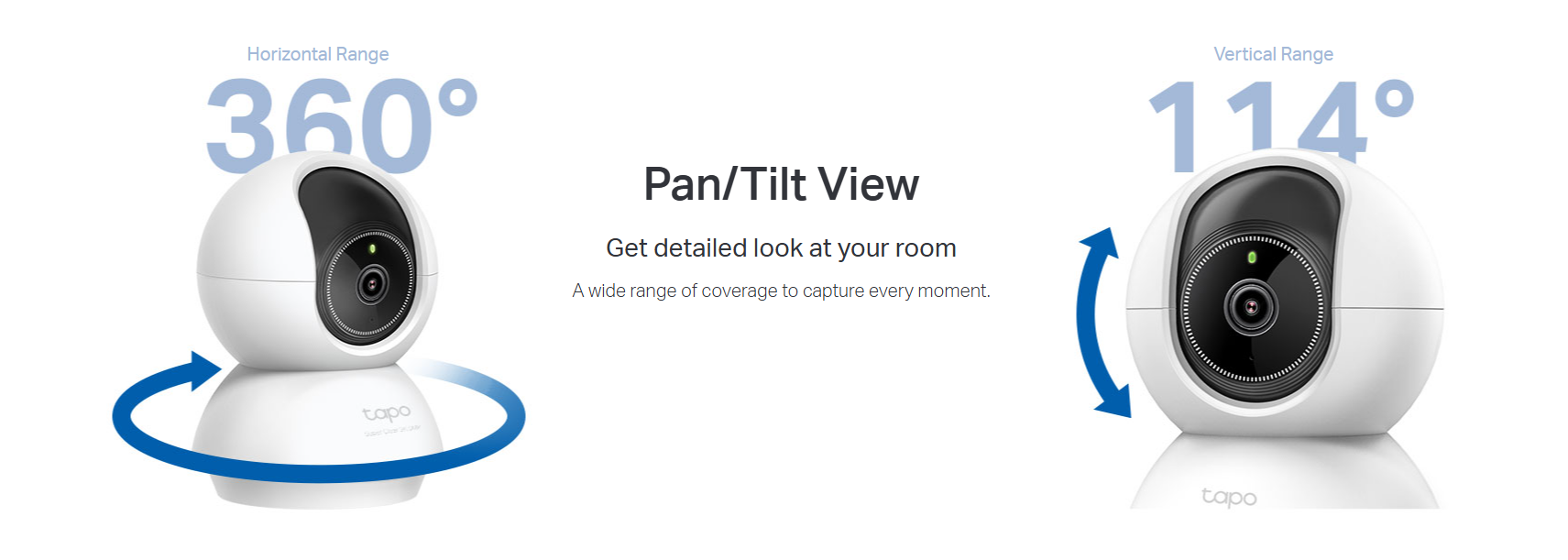
- Wide Range of Movement: Enjoy a full 360º horizontal and 114º vertical range for pan and tilt, allowing you to cover more area.
- Enhanced Night Vision: See clearly even in low-light conditions with advanced night vision that provides visibility up to 40 ft.
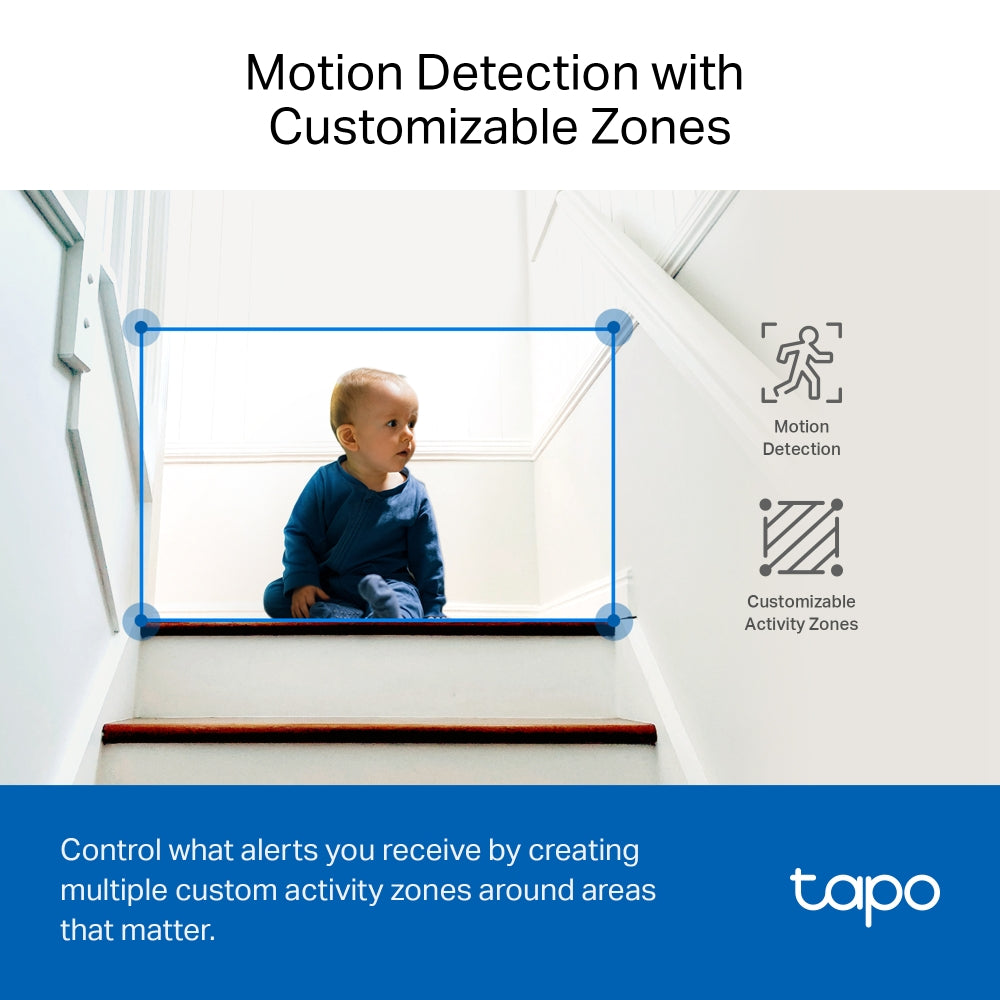
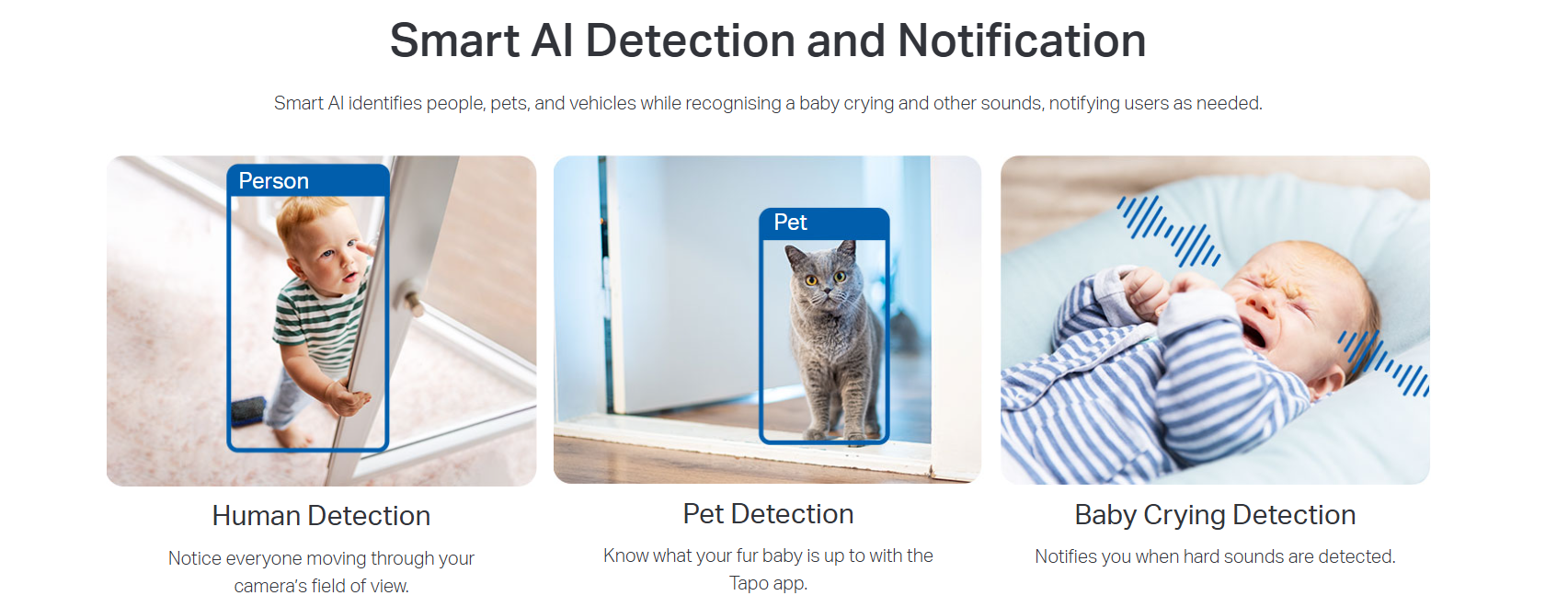
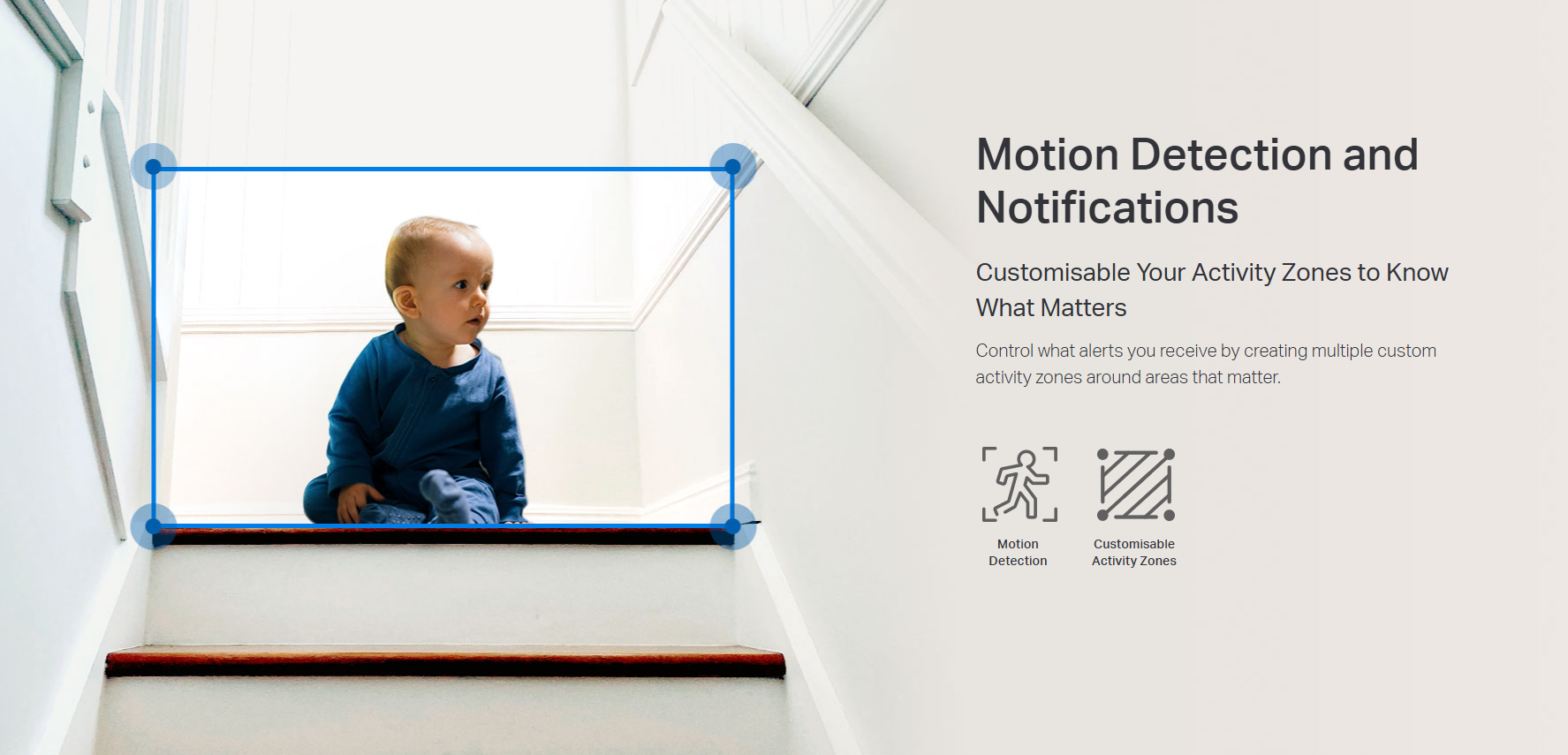
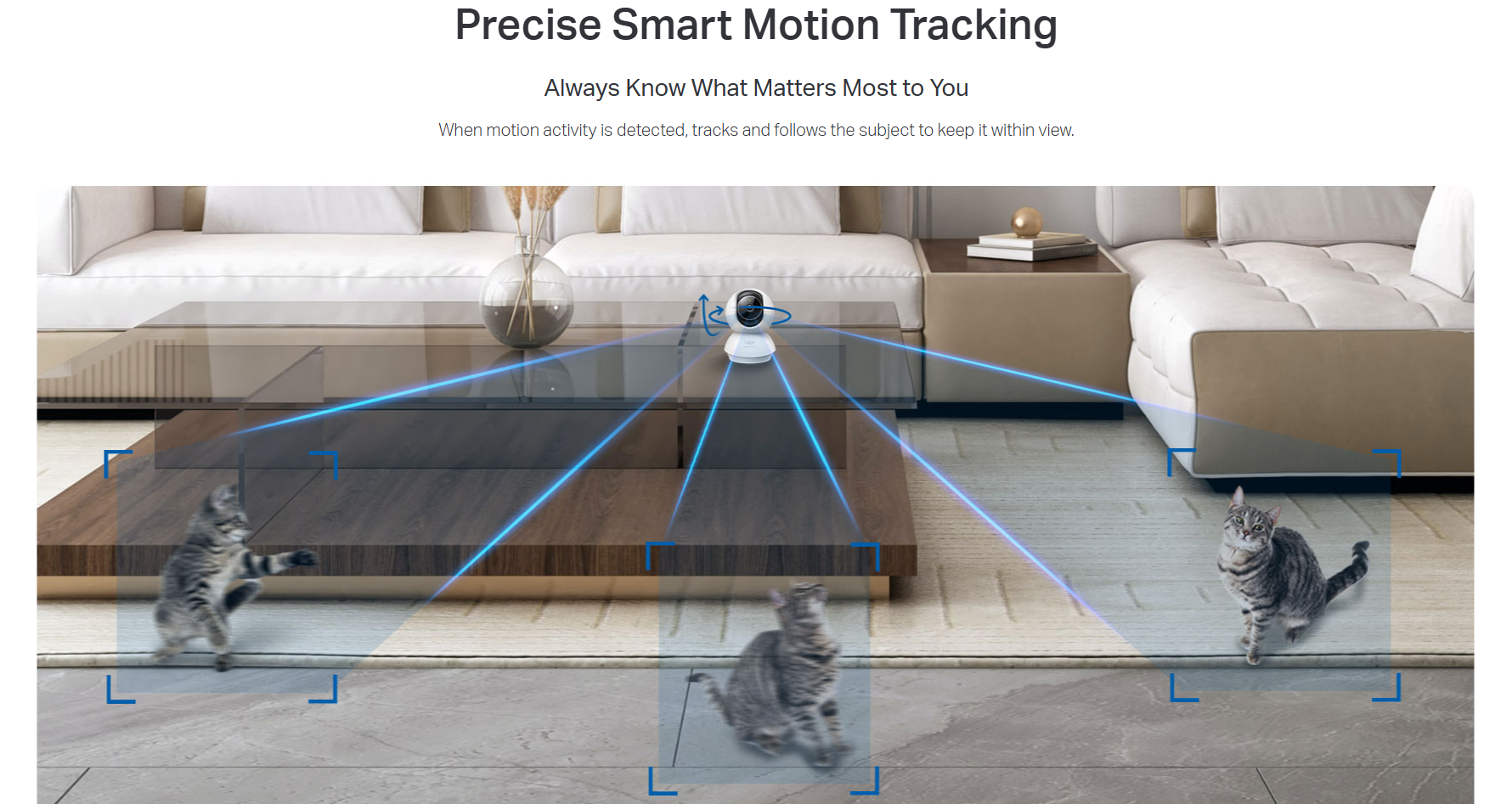
- Smart AI Detection and Notifications: Benefit from smart AI technology that detects relevant events and sends you instant notifications.
- Sound and Light Alarm: Scare away unwanted visitors using a sound and light alarm that triggers attention-grabbing effects.
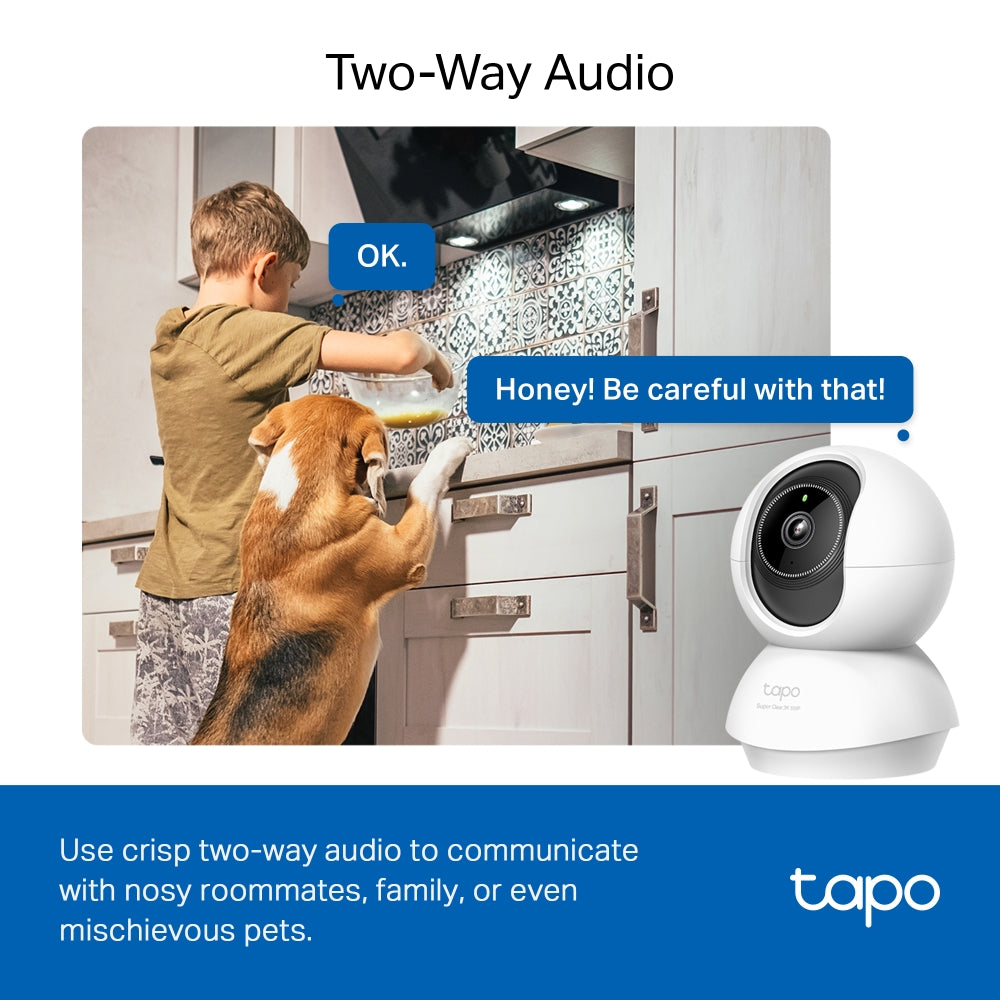
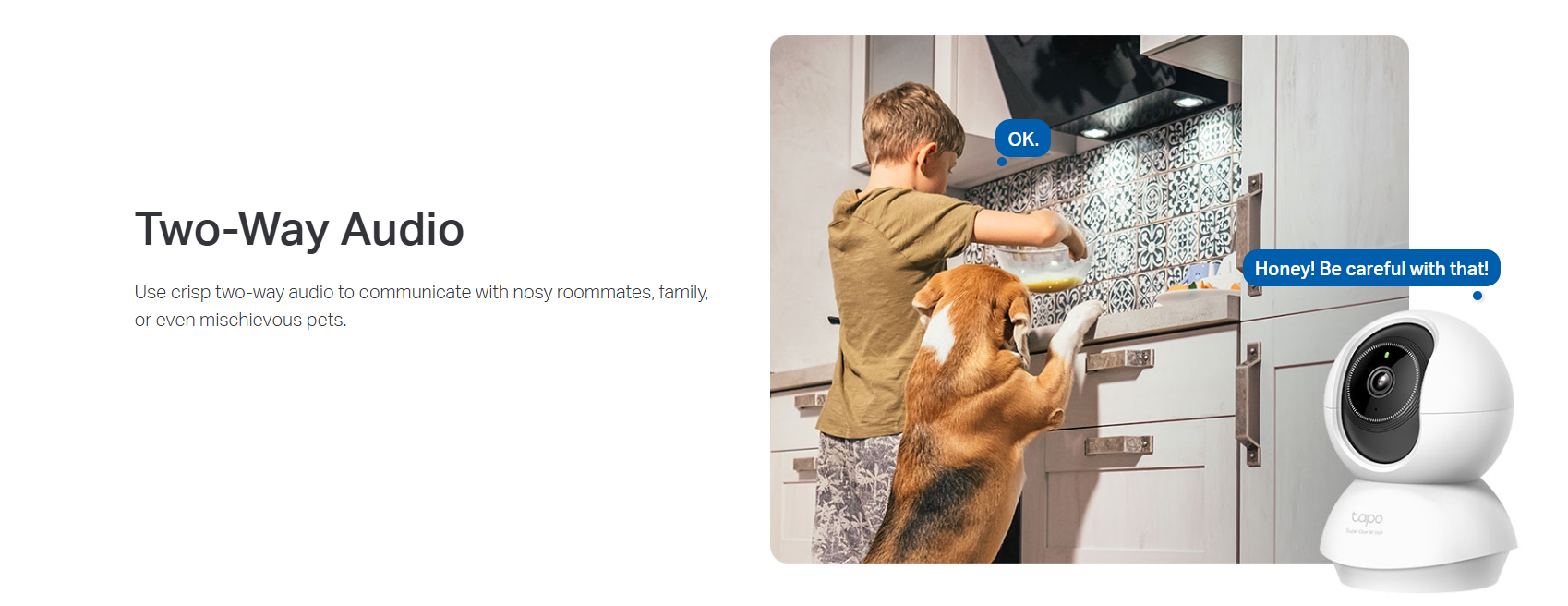
- Two-Way Audio: Enables communication through a built-in microphone and speaker
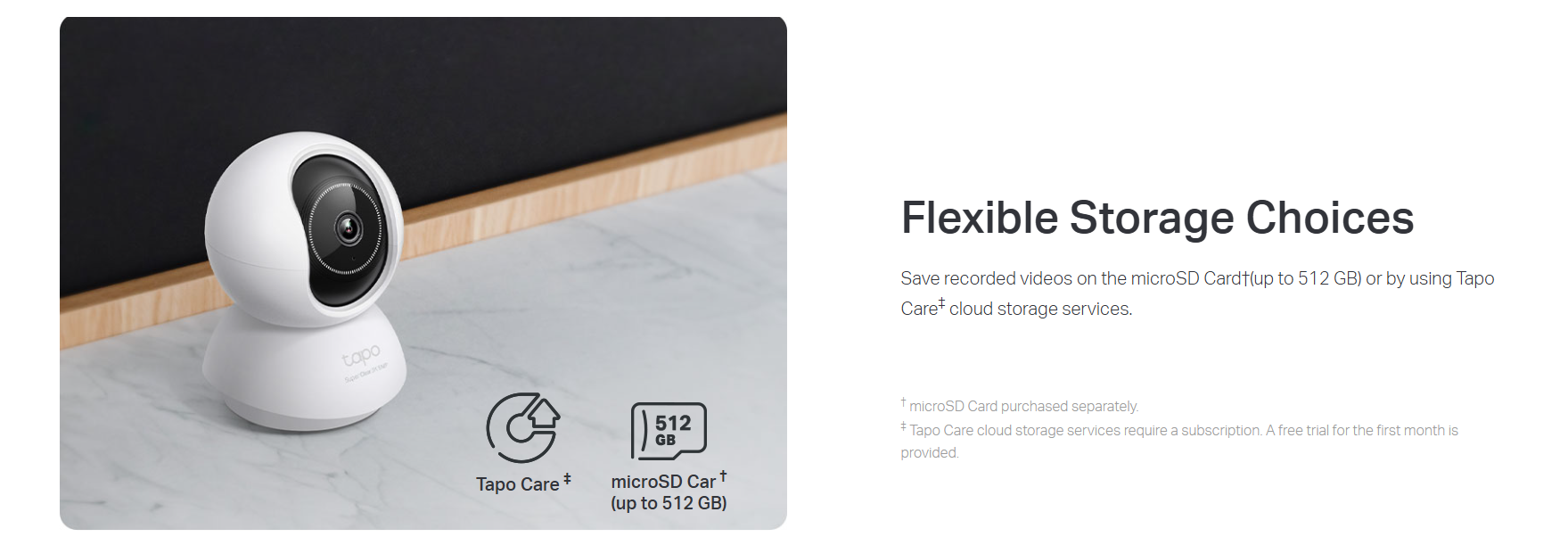
- Safe Storage: Store footage directly on a microSD card with a capacity of up to 512 GB, ensuring safe and convenient storage.(microSD card purchased separately.)
- Hands-Free Operation: Control the device using your voice with compatibility for Google Assistant and Amazon Alexa, freeing up your hands for other tasks. (Availability of Google Assistant and Amazon Alexa may vary based on language and country)
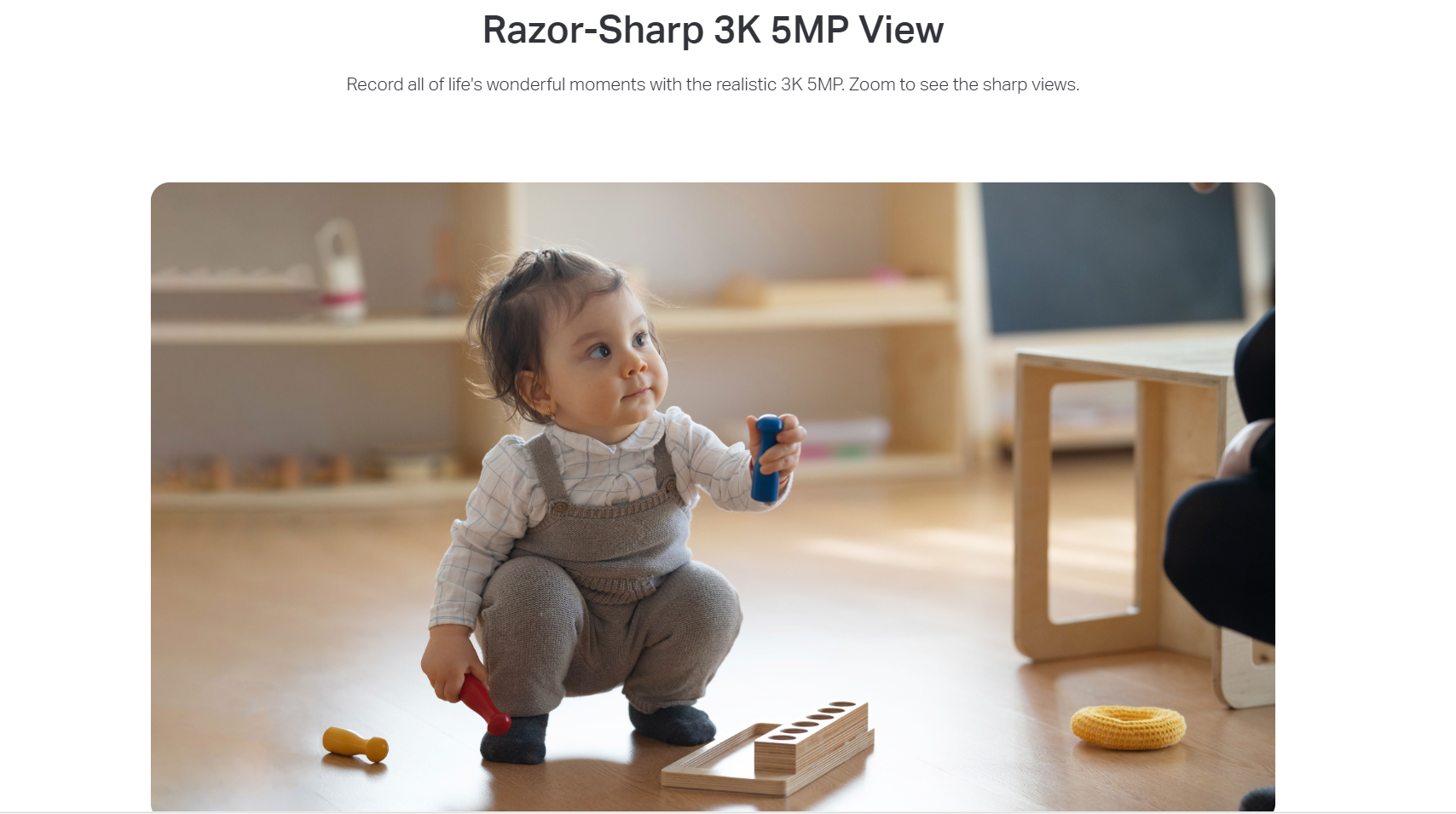

•High-Quality Video Recording: Capture every detail with exceptional clarity in3K 5MP resolution.
•Wide Range of Movement: Enjoy a full 360º horizontal and 114º vertical range for pan and tilt, allowing you to cover more area.
•Enhanced Night Vision: See clearly even in low-light conditions with advanced night vision that provides visibility up to 40 ft.
•Smart AI Detection and Notifications: Benefit from smart AI technology that detects relevant events and sends you instant notifications.
•Sound and Light Alarm: Scare away unwanted visitors using a sound and light alarm that triggers attention-grabbing effects.
•Two-Way Audio: Enables communication through a built-in microphone and speaker
•Safe Storage: Store footage directly on a microSDcard with a capacity of up to 512 GB, ensuring safe and convenient storage. (microSDcard purchased separately.)
•Hands-FreeOperation: Control the device using your voice with compatibility for Google Assistant and Amazon Alexa, freeing up your hands for other tasks. (Availability of Google Assistant and Amazon Alexa may vary based on language and country)
FAQ
Use this text to share information about your product or shipping policies.
How do I install and format a microSD card for my Tapo camera?
You can set up a microSD card in two simple steps: installation and formatting.
Install the card: Insert the microSD card into your camera (or into the hub for hub-based devices). Ensure it is placed in the correct direction and fully inserted
Format the card: Open the Tapo app, go to your device settings, and select Format microSD Card to enable recording
Note: Formatting will erase all existing data on the card.
For model-specific instructions and visual guidance, please refer to:
https://www.tp-link.com/au/support/faq/3088/
What should I do if I can't pan or tilt my camera in the Tapo app?
If you're unable to pan or tilt your camera in the Tapo app (under Live View > Pan & Tilt) and the camera does not respond when you click the arrow buttons, please try the following suggestions:
Step 1: Ensure that the camera is functioning properly and that you can access it smoothly in the Tapo app.
Step 2: Manually pan and tilt the camera lens to ensure no foreign objects are blocking its movement.
Step 3: Go to the camera's Device Settings > Pan & Tilt page, and click on “Pan & Tilt Correction” to check if the camera lens can move.
Step 4: Try rebooting the camera to see if this resolves the issue.
How do I use Siri to control my Tapo smart devices?
You can use Siri to control your Tapo smart devices by creating a custom shortcut through the Shortcuts app on your iPhone or iPad (requires iOS 12 or above). Before you begin:
1. Make sure your Tapo device is set up and connected to the internet.
2. Give each Tapo device a unique, easy-to-recognise name.
Steps:
1. Open the Shortcuts app and tap to add a new shortcut.
2. Give your shortcut a name (e.g. "Light On").
3. Tap Add Action and search for "Tapo".
4. Select the action you want (e.g. Turn on/off a device).
5. Choose the Tapo device you want to control (e.g. P125M).
6. Tap Done to save.
Once set up, simply ask Siri or tap the shortcut to control your Tapo device instantly.