

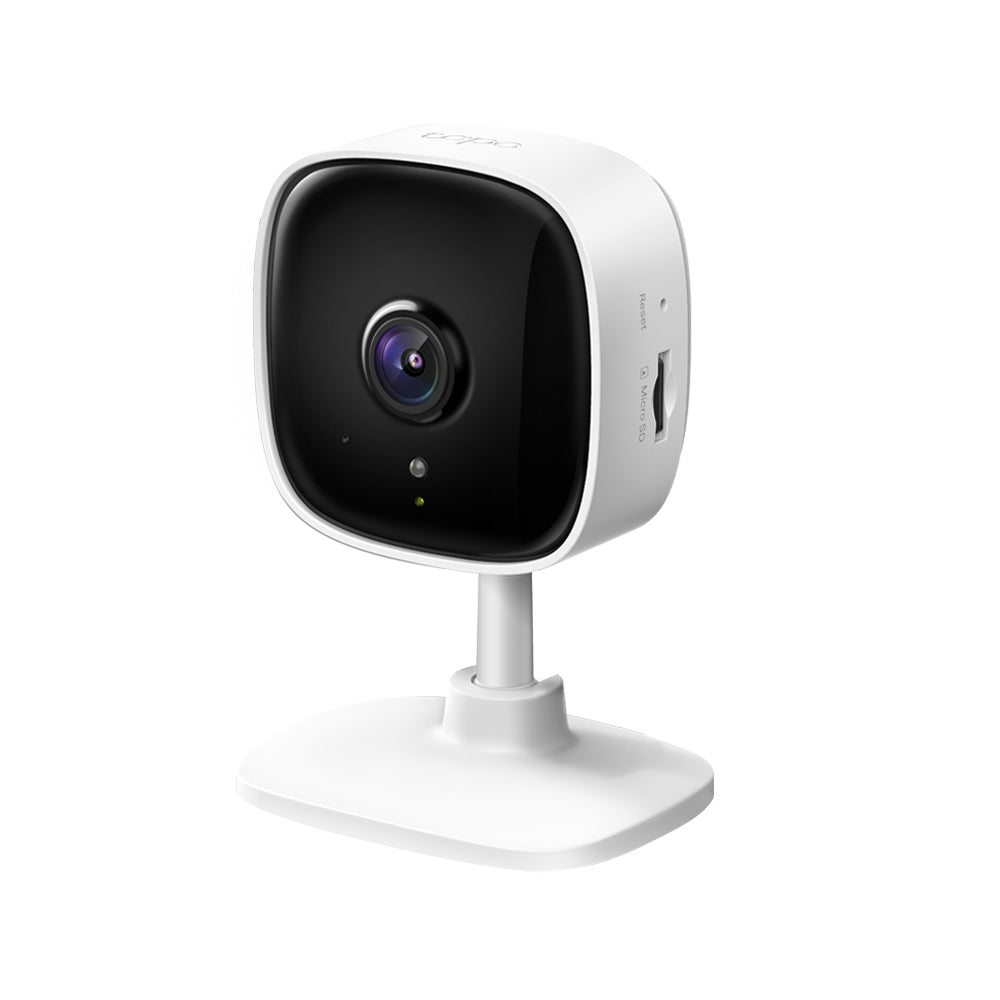
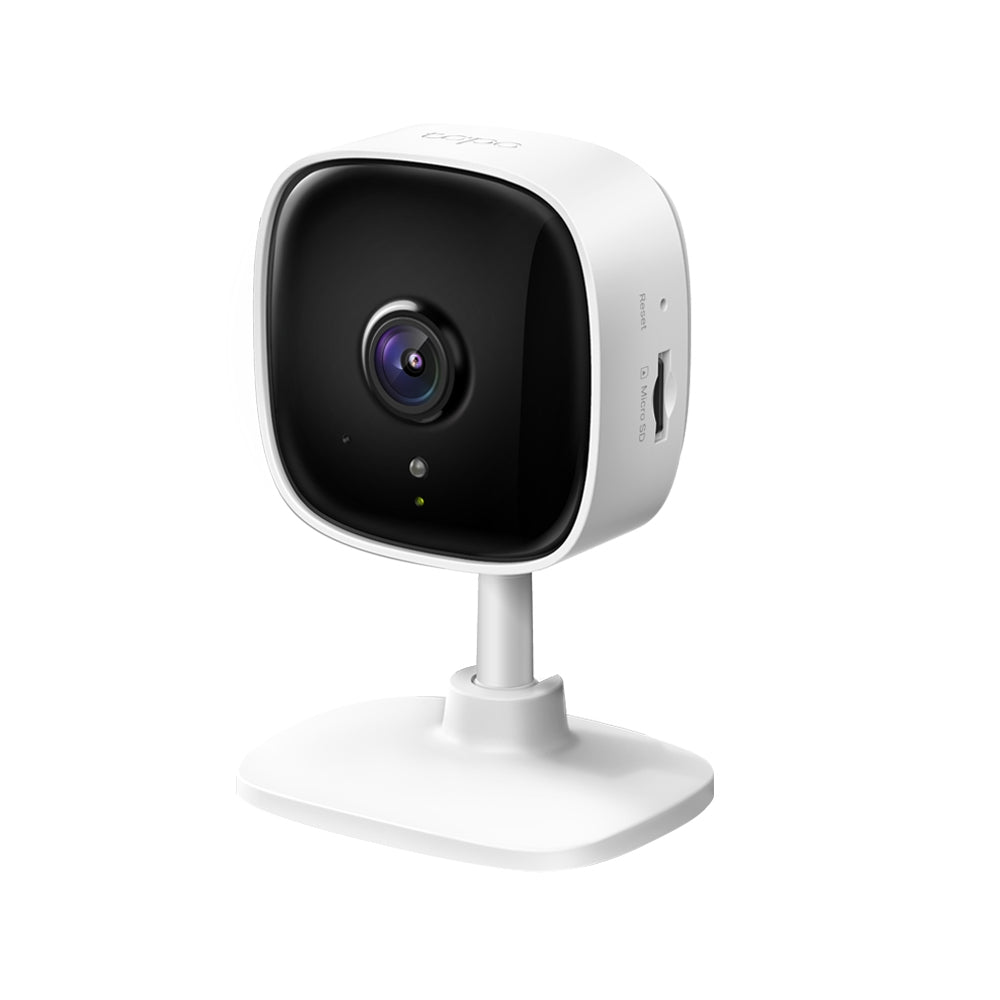
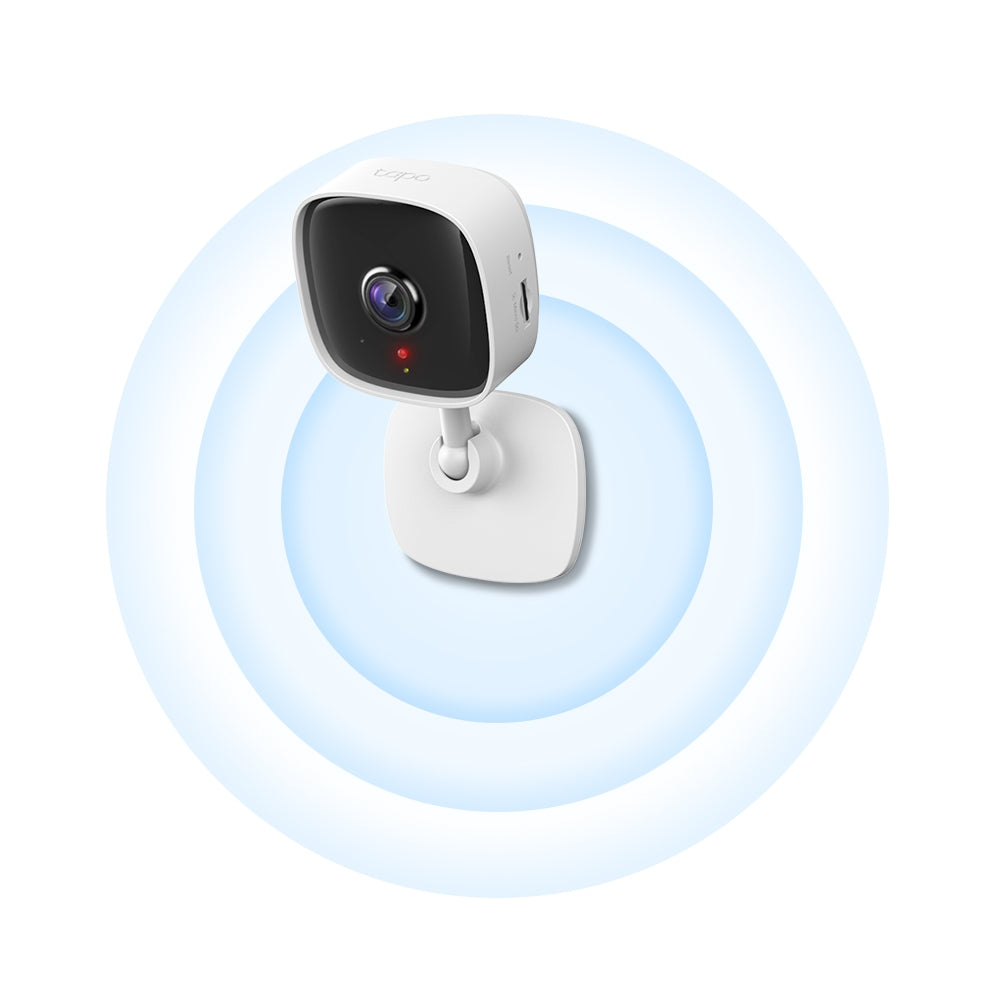
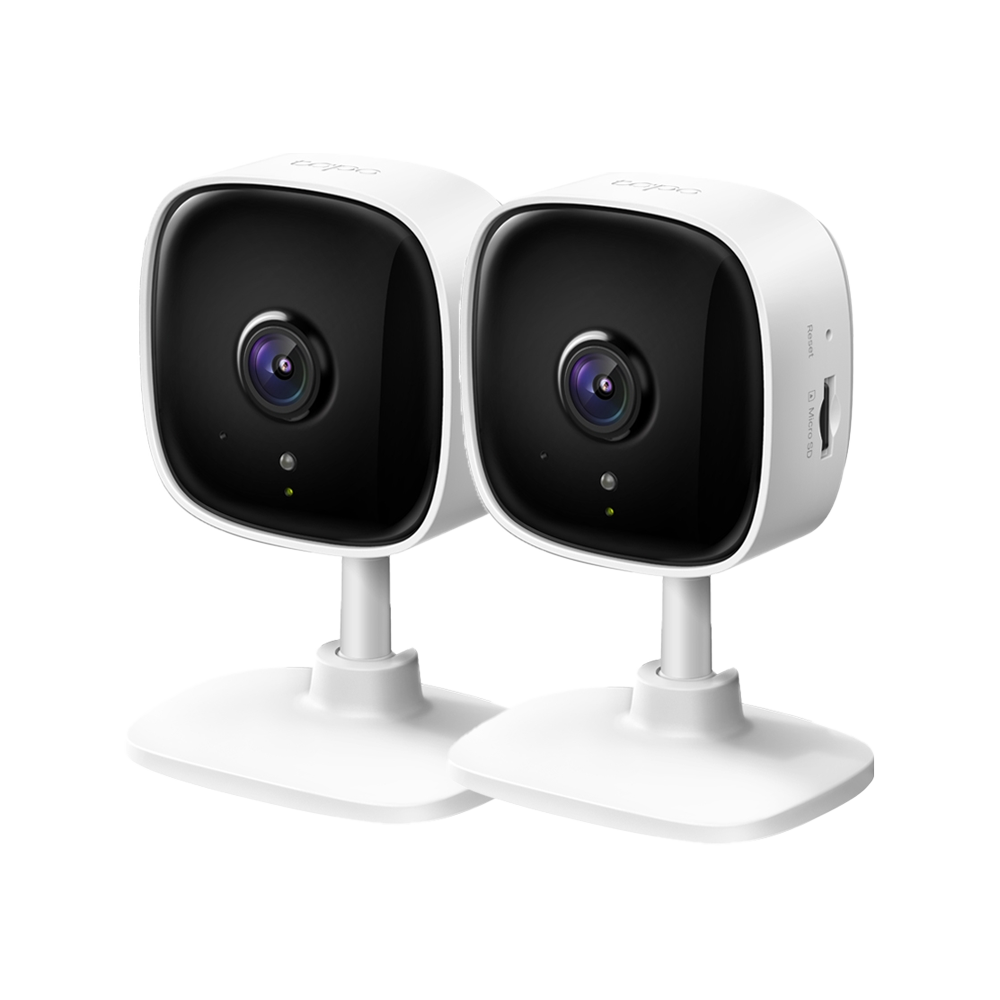
Tapo C110 | Home Security Wi-Fi Camera, 2K 3MP, Night Vision
2K 3MP wireless indoor security camera with motion detection notifications, advanced night vision up to 30ft, two-way audio, sound and light alarm for essential home monitoring.
HIGHLIGHTS
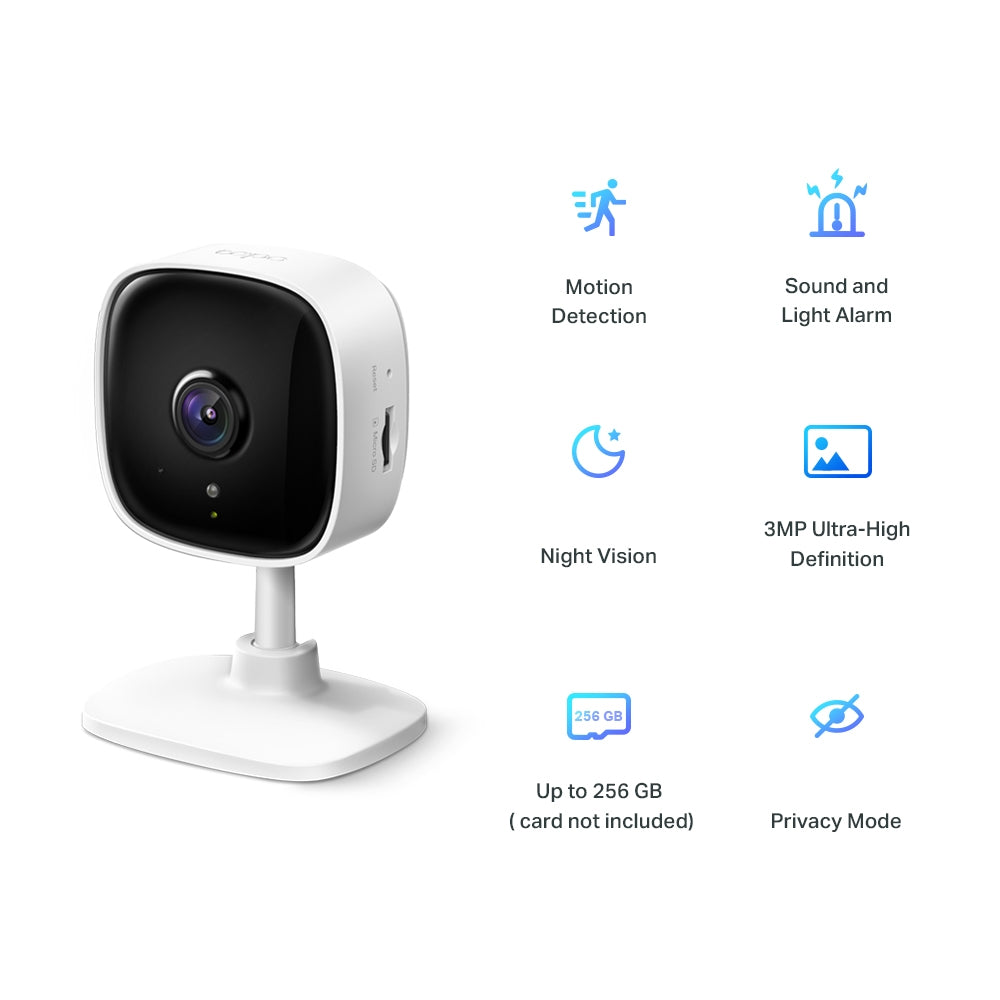
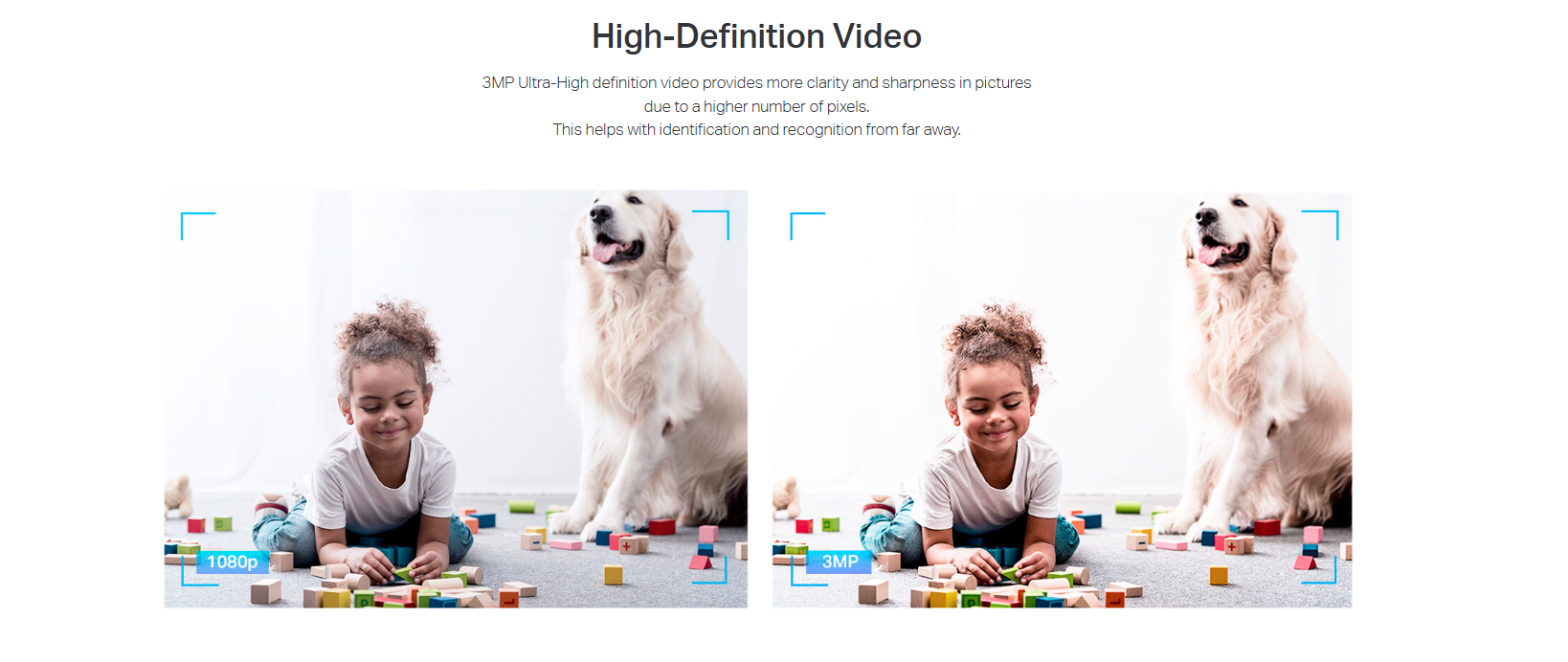
- Ultra-High Definition Video - Records every image in ultra-high 3MP definition
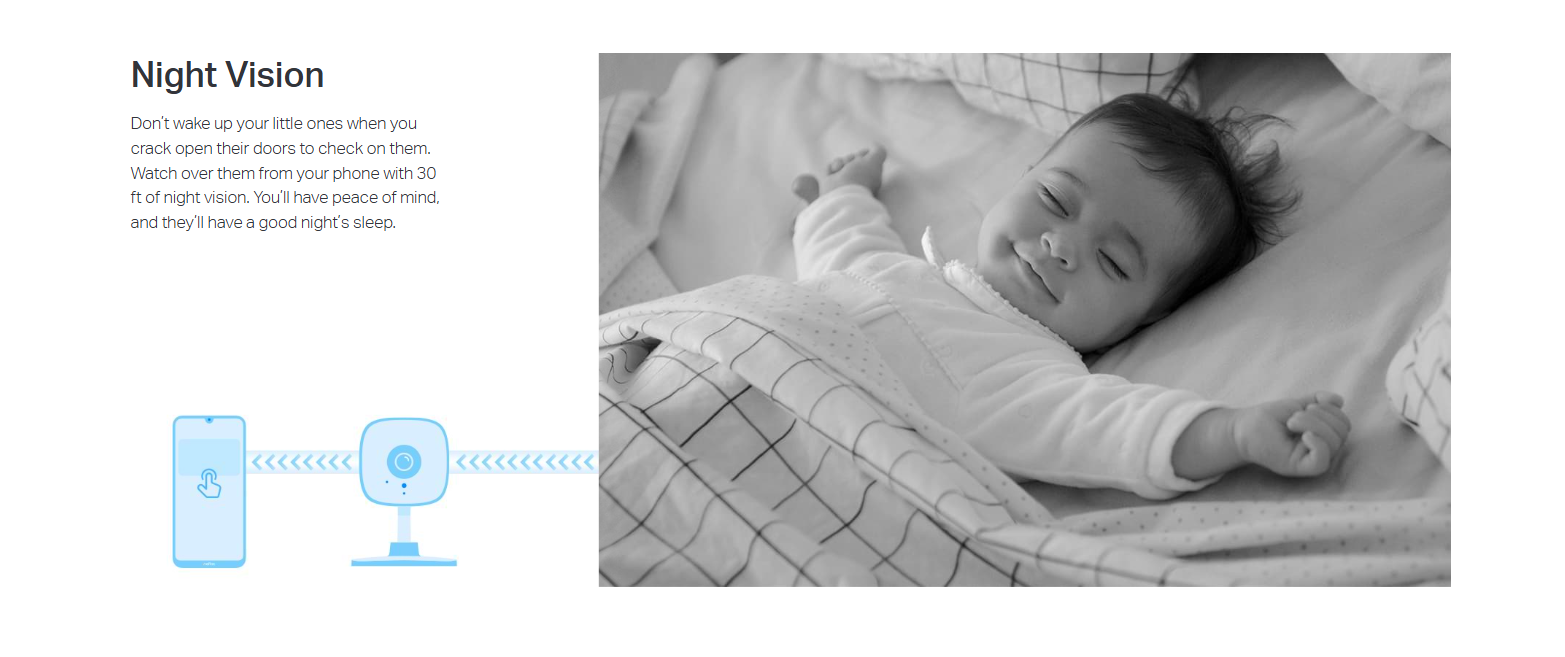
- Advanced Night Vision - Provides a visual distance of up to 30 ft
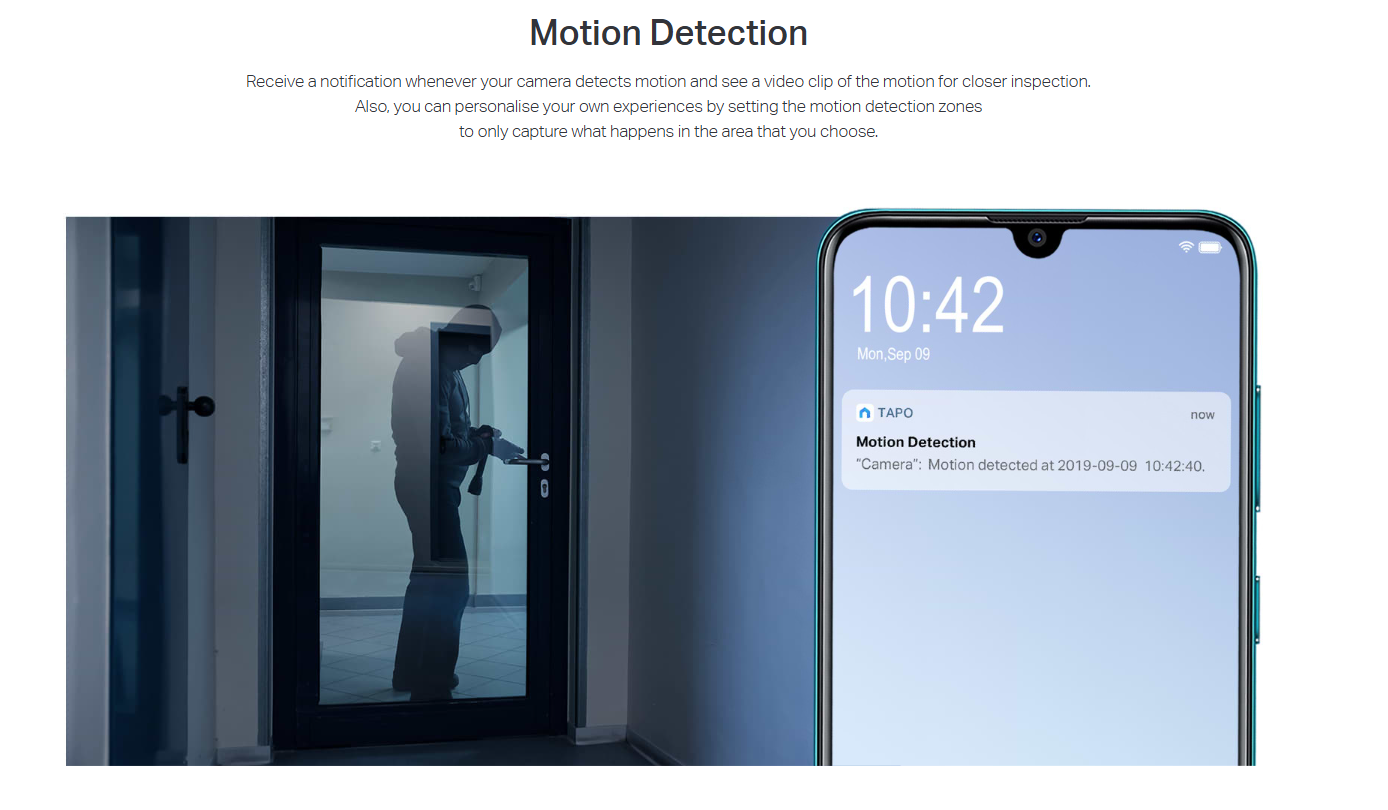
- Motion Detection and Notifications - Notifies you when the camera detects movement
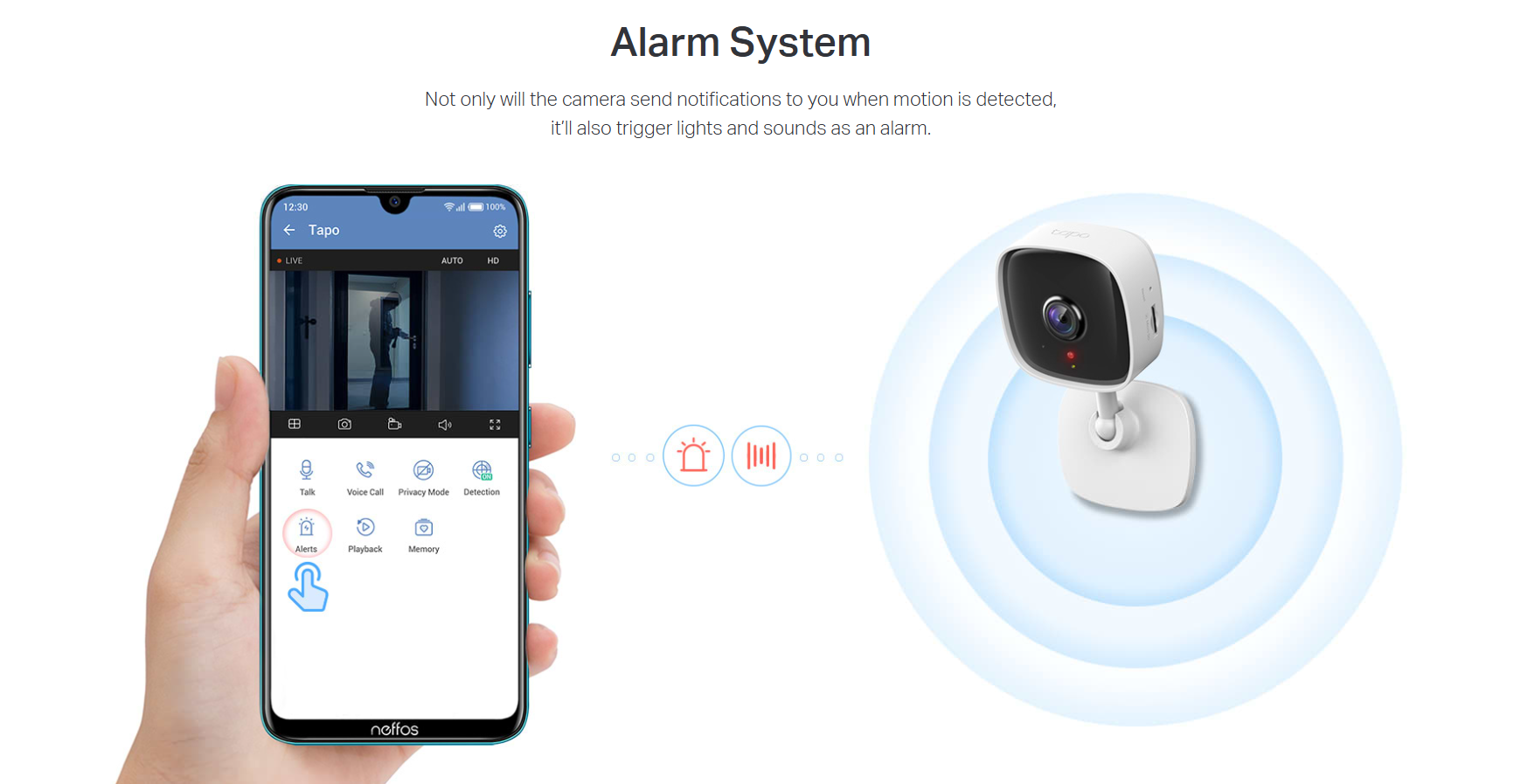
- Sound and Light Alarm - Trigger light and sound effects to frighten away unwanted visitors
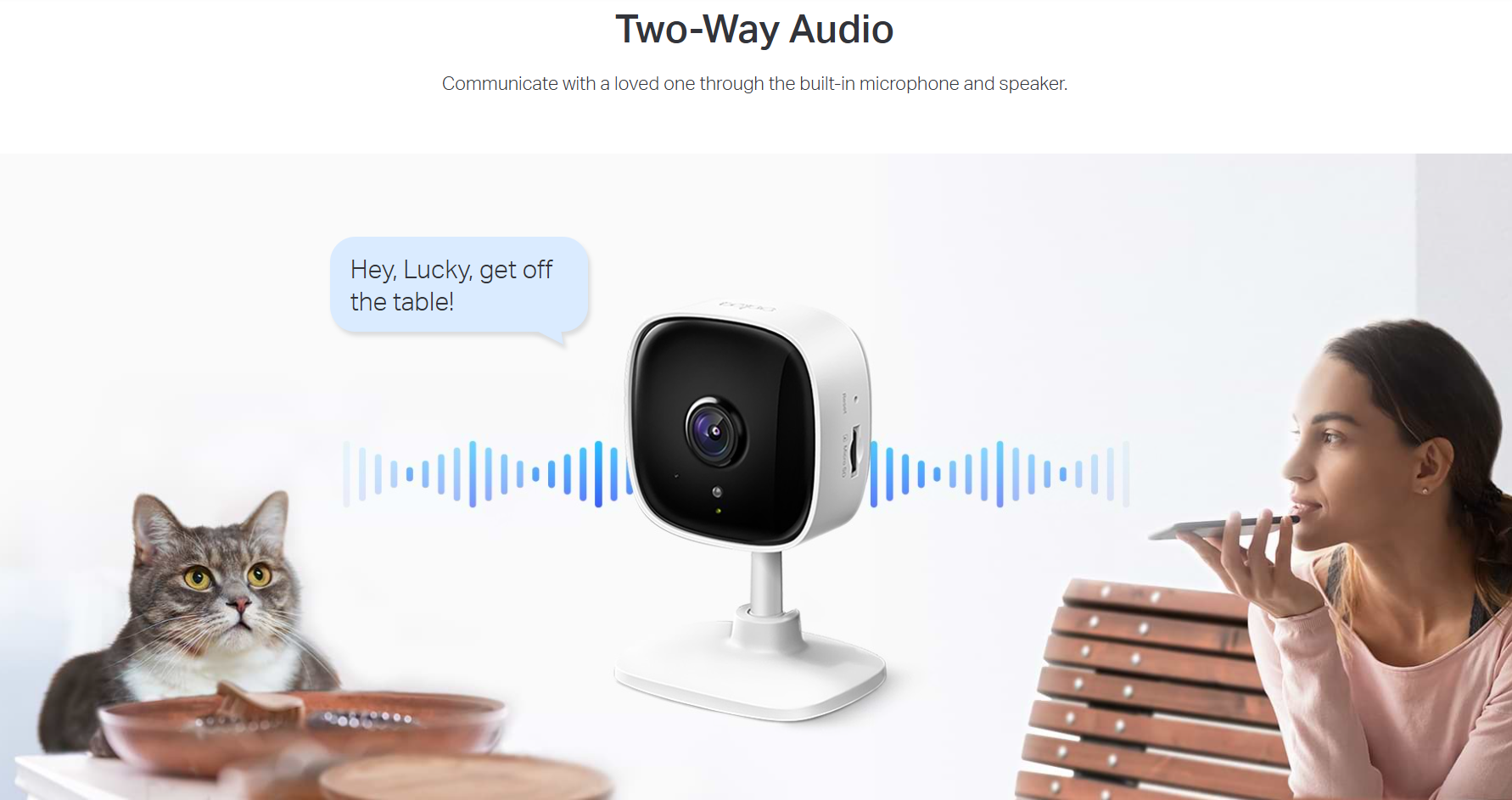
- Two-Way Audio - Enables communication through a built-in microphone and speaker
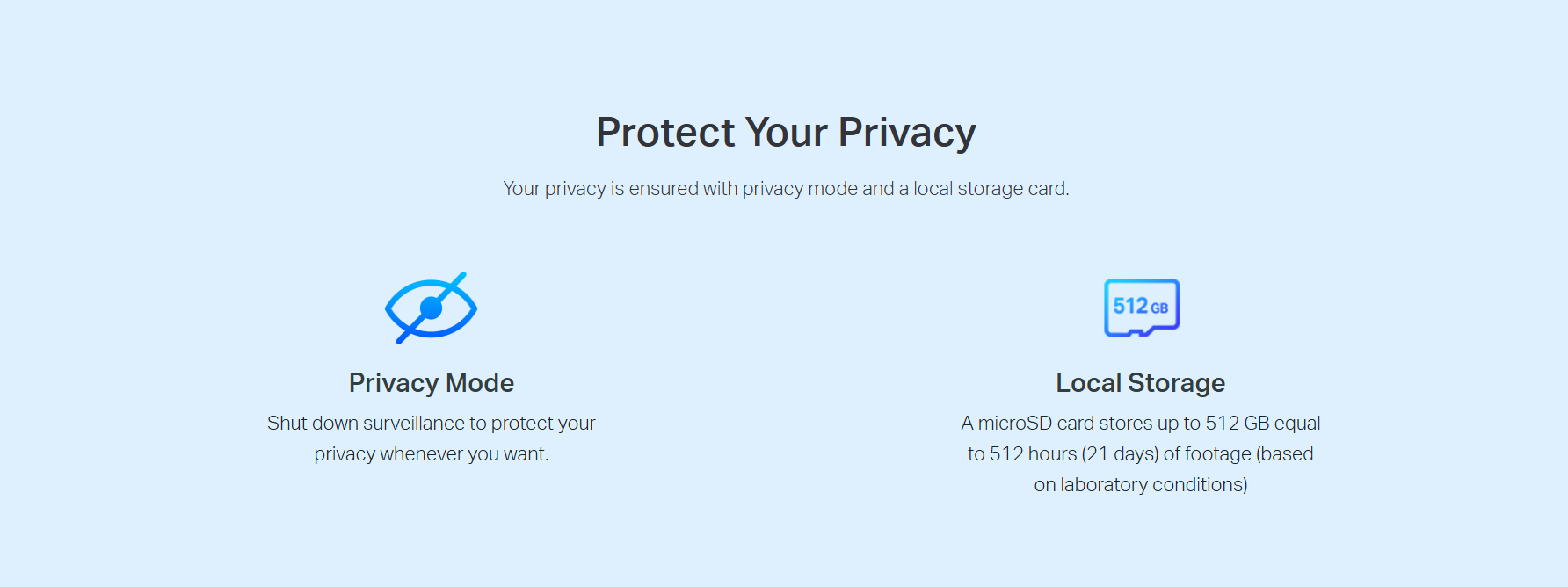
- Safe Storage - Locally stores up to 512 GB on a microSD card.
- Easy Setup and Management - Manage everything with Tapo app


FAQ
Use this text to share information about your product or shipping policies.
How can I view Tapo camera recordings from the SD card on a computer?
You can view recordings by removing the microSD card from your camera (or hub) and inserting it into your computer using a card reader.
Once connected, open the SD card folder to access and play the recorded video files.
Note: Video files may require a compatible media player for playback.
How do I download videos from my Tapo Camera?
There are three ways to download footage from your Tapo Camera, all accessible through the Tapo app.
1. Manual Recording: During live view or playback, tap the record button to capture footage. Clips are automatically saved to Playback & Download in the Tapo app and your phone's gallery. From there, you can share or export them anytime.
2. Cloud Video (Tapo Care): Go to Tapo app > Playback & Download > Cloud Video, select the clip you want, and tap the Download icon. Note that cloud videos expire based on your Tapo Care plan — download important clips before they expire.
3. SD Card Recordings: In the Tapo app, go to Playback & Download > Playback > SD Card Videos. You can either download individual detection events, or use the Clip & Download feature to trim and save a specific segment (1–10 minutes) from continuous or motion-detection footage.
Downloaded videos are saved within the Tapo app for offline viewing. To export to your phone's gallery, go to Playback & Download > Download, select the clip, and save it to your phone's album.
What should I do if I can’t find my Tapo camera in the Tapo app?
If your camera doesn’t appear in the app, try the following:
1. Check connection: Make sure the camera is properly connected to Wi-Fi (check the LED status)
2. Reset and reconnect: If needed, reset the camera and set it up again
Verify app settings: Ensure you’re viewing the correct Home or Room in the app
3. Check network settings: Confirm your phone and camera are on the same Wi-Fi and that no firewall or security settings are blocking the connection
4. Test with hotspot: Try setting up the camera using a mobile hotspot to rule out router issues
If the issue persists, please contact TP-Link support for further assistance.